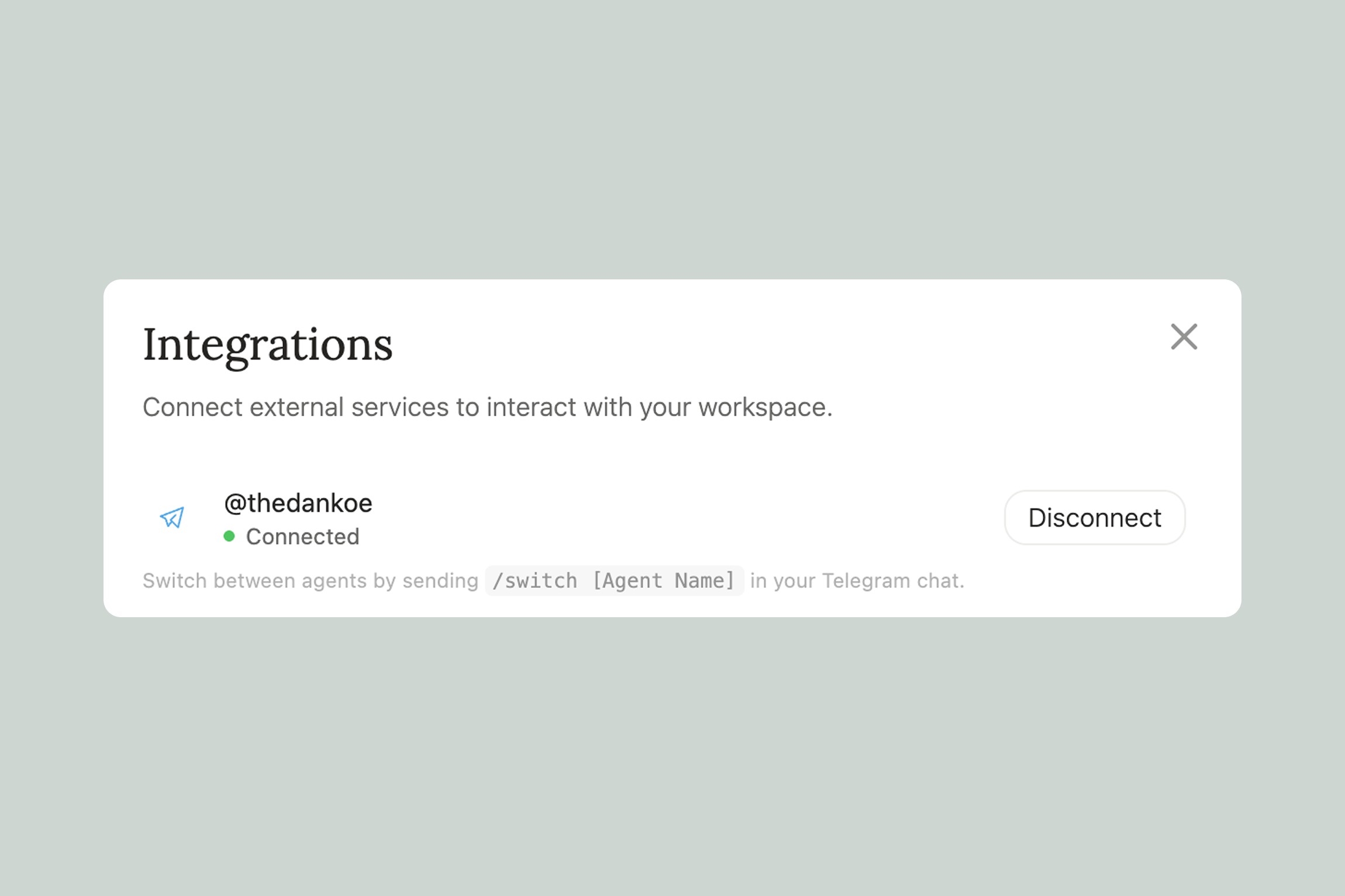
Connecting an agent to Telegram means you can interact with it outside of Eden, straight from your phone. No need to open the app or sit at your computer. Just message your agent like you'd message a friend.
This is especially powerful for agents that check in with you on a schedule. Your Strategic Advisor sends you a morning focus prompt while you're having coffee. Your Personal Brand Coach sends a content idea to riff on during your commute. Your Reading List Concierge drops your daily picks before you've even opened your laptop. You respond right in Telegram, and the agent keeps the conversation going.
Before You Start
You'll need the Telegram app installed on your phone (or desktop). If you don't have it yet, download it from the App Store or Google Play. It's free.
Eden connects to Telegram through a bot — this is how Telegram lets external apps send and receive messages. You don't need to set up the bot yourself. Eden handles all of that. You just need to click "Start" when Telegram asks you to.
Setting Up Telegram
There are two ways to connect:
From the agent view:
Open the agent you want to connect
In the top right, you'll see either "Setup" or "Connect"
Setup appears if you haven't connected Telegram to Eden yet
Connect appears if Telegram is already linked to Eden but not yet connected to this specific agent
You'll be taken to a Telegram page where you'll see Eden's bot. Tap the "Start" button to activate the connection — this is how Telegram confirms you want the bot to message you
Once you tap Start, you'll see a confirmation message in Telegram:
That's it — you're connected.
From Settings:
Go to Settings > Integrations
Find Telegram and connect it
You'll be taken to the same Telegram page — tap "Start" to activate
Once connected, you can link individual agents to Telegram from their settings
You only need to go through the Telegram setup once. After that, connecting additional agents is just a click — no need to tap Start again.
Commands and Switching Between Agents
Once you're connected, you have a few commands available:
/switch [Agent Name]— Switch to a different agent/status— Check your connection status/disconnect— Remove the Telegram connection
Switching is the one you'll use most. Once you have multiple agents connected to Telegram, just type:
For example:
/switch Marketing Director— switch to your Marketing Director agent/switch Brand Coach— switch to your Personal Brand Coach/switch Reading List— switch to your Reading List Concierge
You're always talking to one agent at a time. Switching is instant — just type the command and your next message goes to the new agent.
A typical day might look like this: you wake up and your Reading List Concierge has sent you today's picks. You choose one to save for later. Then you type /switch Strategic Advisor and ask what you should focus on today. After lunch you /switch Brand Coach to brainstorm content ideas for the week. Each agent picks up right where you left off.
What Works in Telegram
Everything you can do with an agent in Eden works in Telegram. You can:
Have full conversations — ask questions, give feedback, request changes
Receive scheduled deliverables — morning briefings, daily check-ins, weekly reviews
Send content for your agent to process — links, ideas, quick notes
Trigger tasks — "run my competitor analysis" or "prep a research brief on this topic"
Give feedback on what the agent delivers — "skip articles like that" or "this is exactly what I needed, more like this"
Your Swipe File Manager is a great example. You see a great tweet while scrolling on your phone — copy the link, send it to your agent in Telegram. It saves it, breaks down why it works, and files it in your swipe library. All without leaving your phone.
Or your Idea Manager & Expander — you have a half-formed thought while you're out walking. Send it as a quick message. The agent captures it, asks one sharpening question, and links it to your active projects. When you sit down to work later, the idea is already in your workspace, refined and connected.
Tips
Forward messages from anyone to your agents. You can forward messages from friends, coworkers, other bots, or group chats directly to your Eden agent in Telegram. See an interesting article a friend shared? Forward it to your Swipe File Manager. A coworker sent a brief you need to research? Forward it and type /switch Deep Researcher to route it to the right agent. It's a fast way to pipe things from the rest of your Telegram into Eden without copy-pasting.
Connect your most conversational agents first. Agents that check in daily or that you interact with on the go get the most value from Telegram. Your Strategic Advisor, Personal Brand Coach, and Reading List Concierge are natural fits. Your Deep Researcher — which you might only use when starting a project — might not need Telegram.
Use Telegram for quick interactions, Eden for deep work. Telegram is great for check-ins, quick captures, and responding to scheduled deliverables. When you need to do something more involved — like reviewing a full research brief or editing a document alongside your agent — that's better in Eden where you have your full workspace.
Your agents remember everything across both. A conversation you start in Telegram continues seamlessly in Eden, and vice versa. There's no separate context — it's the same agent, same memory, same knowledge base.
Thank you.