Triggers let you run tasks automatically when something happens in Eden — no schedule needed. Instead of telling a task to run every day at 9am, you tell it to run when a specific event occurs. A file gets uploaded, a tag gets added, a video finishes processing — and the task fires.
You can use triggers in standalone tasks or in agent-created automations. They're what make your workspace reactive instead of just organized.
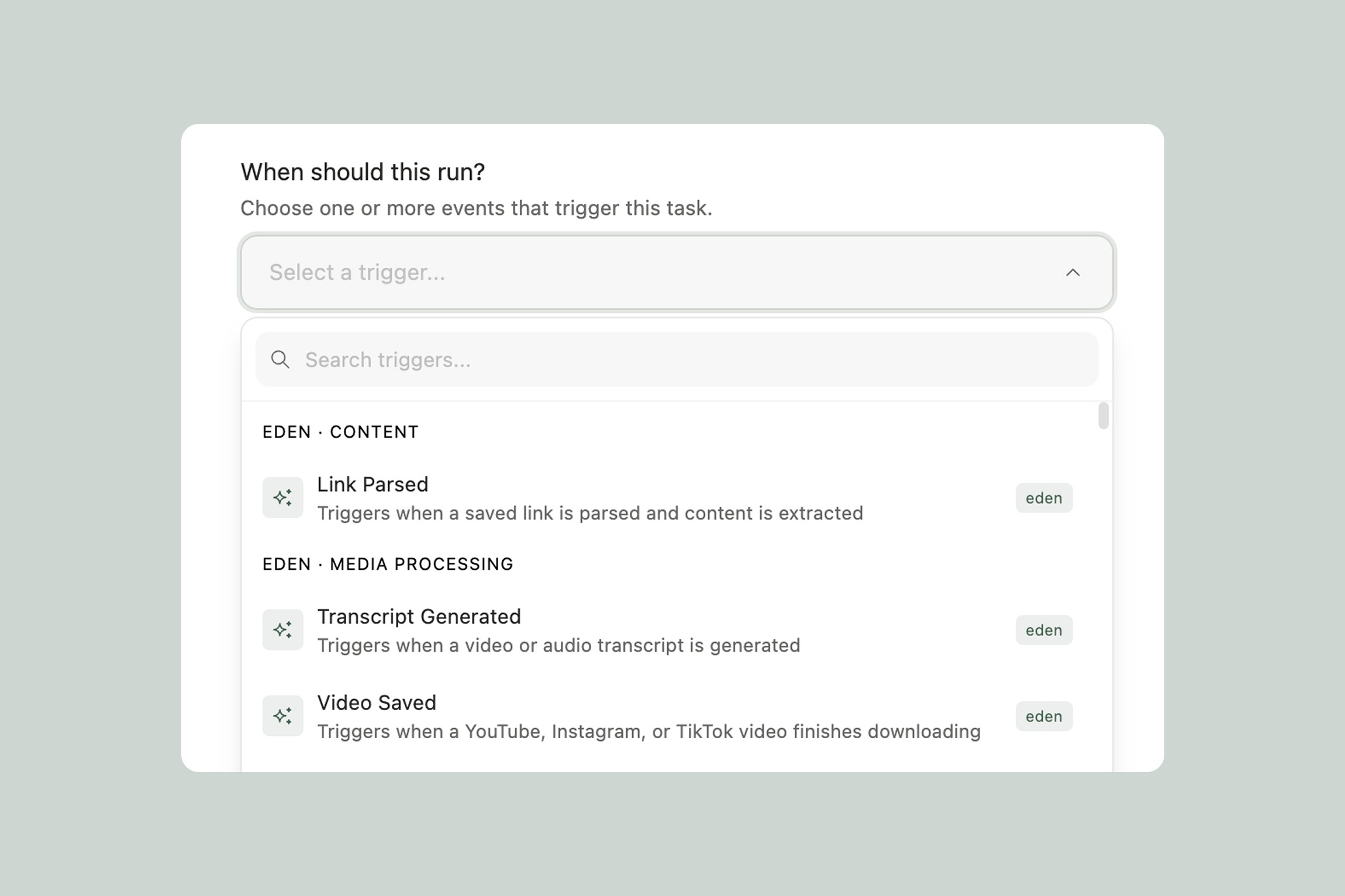
Here are the triggers available in Eden.
Link Parsed
Fires when: A saved link is parsed and its content is extracted.
When you save a link to your workspace — an article, a blog post, a webpage — Eden processes it and extracts the content. This trigger fires once that extraction is complete, meaning the full content is available for your task to work with.
Use this when you want to automatically do something with articles or web content you save.
A few examples:
Auto-summarize saved articles. You're researching a topic and saving links as you go. A task triggers on every parsed link and creates a one-paragraph summary note alongside the original — so you can scan your research without re-reading everything.
Extract key quotes and data points. Building a content piece and collecting sources? A task can pull out the most quotable lines, statistics, and key arguments from every article you save.
Sort content by topic. Save a link, and a task automatically reads the content and moves it into the right project folder based on what it's about.
Transcript Generated
Fires when: A YouTube, Instagram, or TikTok video finishes downloading and its transcript is ready.
When you save a video link to Eden, it downloads the content, generates a transcript, and makes it searchable. This trigger fires once the transcript is available — so your task has the full text to work with.
Use this when you want to automatically process video content you save.
A few examples:
Create video summaries. You save a 90-minute podcast interview from YouTube. A task triggers and produces a structured summary — key topics discussed, timestamps for the most interesting moments, and the top takeaways. When you come back to it, you know exactly what's worth watching.
Extract content ideas from videos. Saving videos from creators you admire? A task can analyze the transcript and pull out the angles, hooks, and frameworks they used — feeding directly into your content strategy.
Build a quote library. A task can scan every video transcript and extract the most interesting quotes, organized by speaker and topic. Over time you build a searchable library of things people have said that you might want to reference.
Image Processed
Fires when: An uploaded image finishes processing.
When you upload an image to Eden, it's analyzed — visual content is identified, text is extracted if present, and it's made searchable. This trigger fires once processing is complete.
Use this when you want to automatically do something with images you add to your workspace.
A few examples:
Auto-tag and organize screenshots. You screenshot inspiration constantly — ads, UI designs, social posts, moodboard images. A task can analyze each screenshot and move it into the right folder based on what it contains.
Extract text from images. Saving photos of whiteboards, handwritten notes, or printed documents? A task can extract the text and create a searchable note from it.
Build a visual reference library. A task can analyze every image you upload, tag it with descriptive keywords, and maintain a running index — so when you search "minimalist landing page" or "warm color palette," you find everything relevant.
Item Saved to Folder
Fires when: An item is moved or saved into a specific folder.
This is one of the most versatile triggers. You designate a folder as the trigger point, and anything that lands in it kicks off a task. It works with any item type — files, notes, links, media.
Use this when you want a folder to act as an inbox that automatically processes whatever you put in it.
A few examples:
Client brief processing. Create a "New Briefs" folder. When you drop a client brief in, a task reads it and generates a project outline, a list of deliverables, and suggested timelines — all saved as a note in the client's project folder.
Content drafts review. Have a "Ready for Review" folder. When a draft lands in it, a task reads it against your brand guidelines (from your workspace) and flags any inconsistencies, suggests headline alternatives, and checks the structure.
Research pipeline. Save raw sources into a "To Process" folder. A task triggers on each new item, reads it, extracts the key points, and moves the processed version into your active project — so the research folder is always tidy.
Item Tagged
Fires when: A specific tag is added to an item.
Tags become buttons for automation. When you tag something, a task can respond to that specific tag. Different tags can trigger different tasks, so you can build a lightweight system where tagging is the action and the automation is the response.
Use this when you want to trigger different actions based on how you categorize things.
A few examples:
"Summarize" tag. Tag any item — a long article, a video transcript, a PDF — with "summarize" and a task generates a concise summary and saves it alongside the original. One tag, instant summary.
"Repurpose" tag. Tag a blog post or video with "repurpose" and a task generates draft tweets, a LinkedIn post, and newsletter section based on the original content. Your content repurposing starts with a single tag.
"Archive" tag. Tag items you're done with, and a task moves them to an archive folder, updates a log, and removes them from active project views — keeping your workspace clean without manual filing.
"Priority" tag. Tag something as priority and a task adds it to a pinned "Priority Queue" note in your workspace, so you always have a running list of what needs attention next.
Task Completion
Fires when: Another task finishes running.
This is the trigger that turns individual tasks into pipelines. When one task completes, it can automatically kick off the next. This lets you build multi-step automation chains where each step flows into the next — without you doing anything between them.
Use this when you want to chain tasks together into a sequence.
A few examples:
Summarize → Notify. A first task summarizes a client brief when it's uploaded to a folder. When that summary is done, a second task posts it to your team's Slack channel. One upload triggers two actions in sequence.
Research → Compile → Deliver. Individual link summaries get created throughout the week. A scheduled task compiles them into a weekly brief. When the brief is done, a Task Completion trigger sends it to your inbox.
Draft → Review → Alert. A task runs your draft against your style guide. When the review finishes, a second task notifies your editor that it's ready for their eyes.
Task chaining is what takes Eden from "simple automations" to "full workflow automation." For more examples, check out Automation Ideas & Use Cases.
Combining Triggers with Integrations
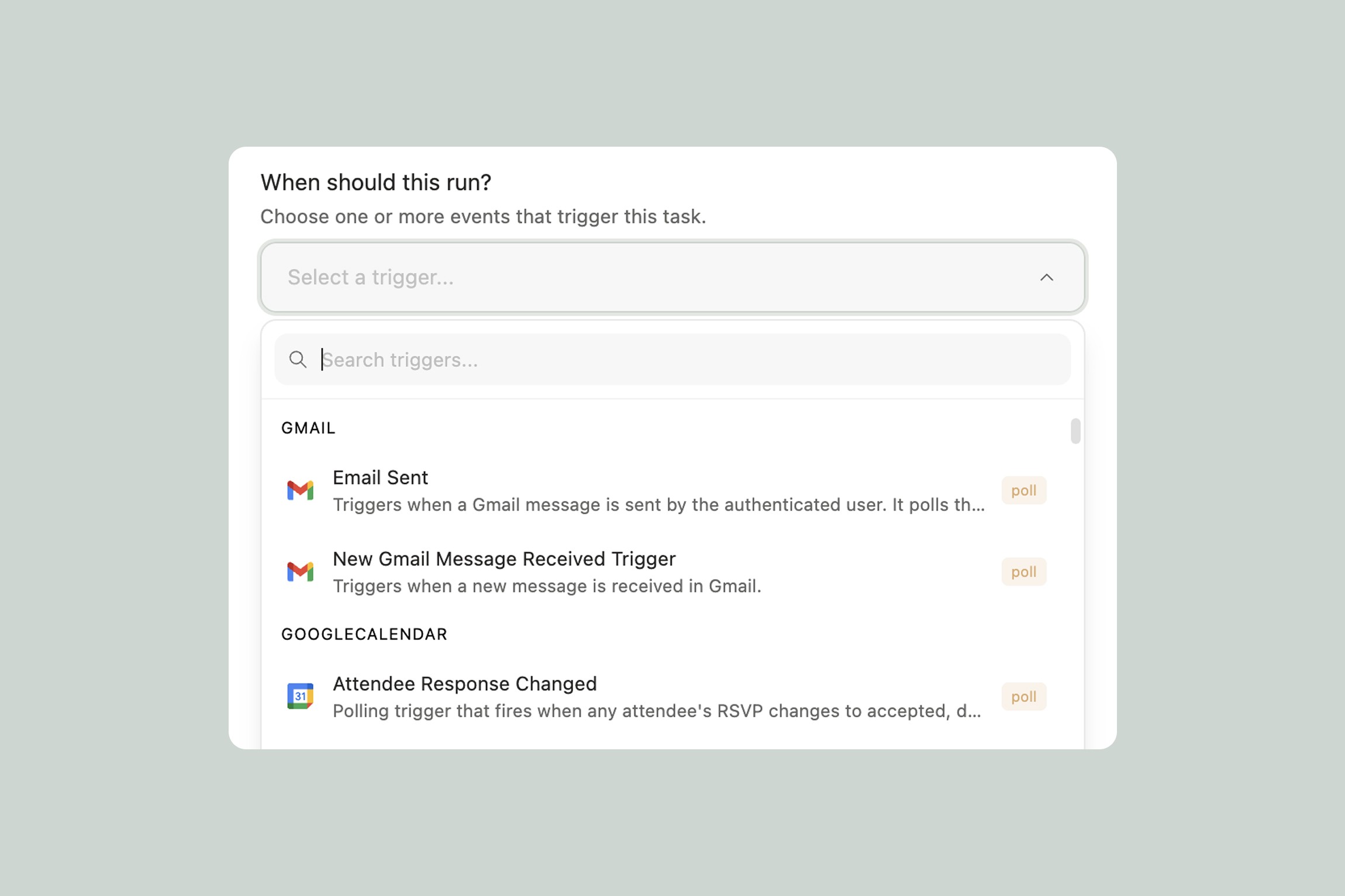
Triggers aren't limited to Eden-native events. Your connected integrations have their own triggers too — like a new email in Gmail, a new item in a YouTube playlist, or a new ticket in Zendesk. You can use these alongside Eden triggers to build workflows that span your entire tool stack.
For example, a YouTube playlist trigger fires when a new video is added to a playlist you follow. Eden downloads the video, generates a transcript — and then the Transcript Generated trigger fires a second task that summarizes it and saves the summary to your Research folder. Two triggers, chained together, fully automatic.
Check our integrations page to see what triggers are available for each connected app.
Setting Up a Trigger
You can add triggers when creating a task from the tasks view in the Eden sidebar. Choose which trigger you want, configure the details (which folder, which tag, which event), write the prompt for what the task should do, and activate it.
If you're working with an agent, you can also ask it to set up triggered tasks for you. Just describe what you want: "When I save a YouTube video, extract the key takeaways and save them as a note." The agent creates the task and configures the trigger.
Thank you.