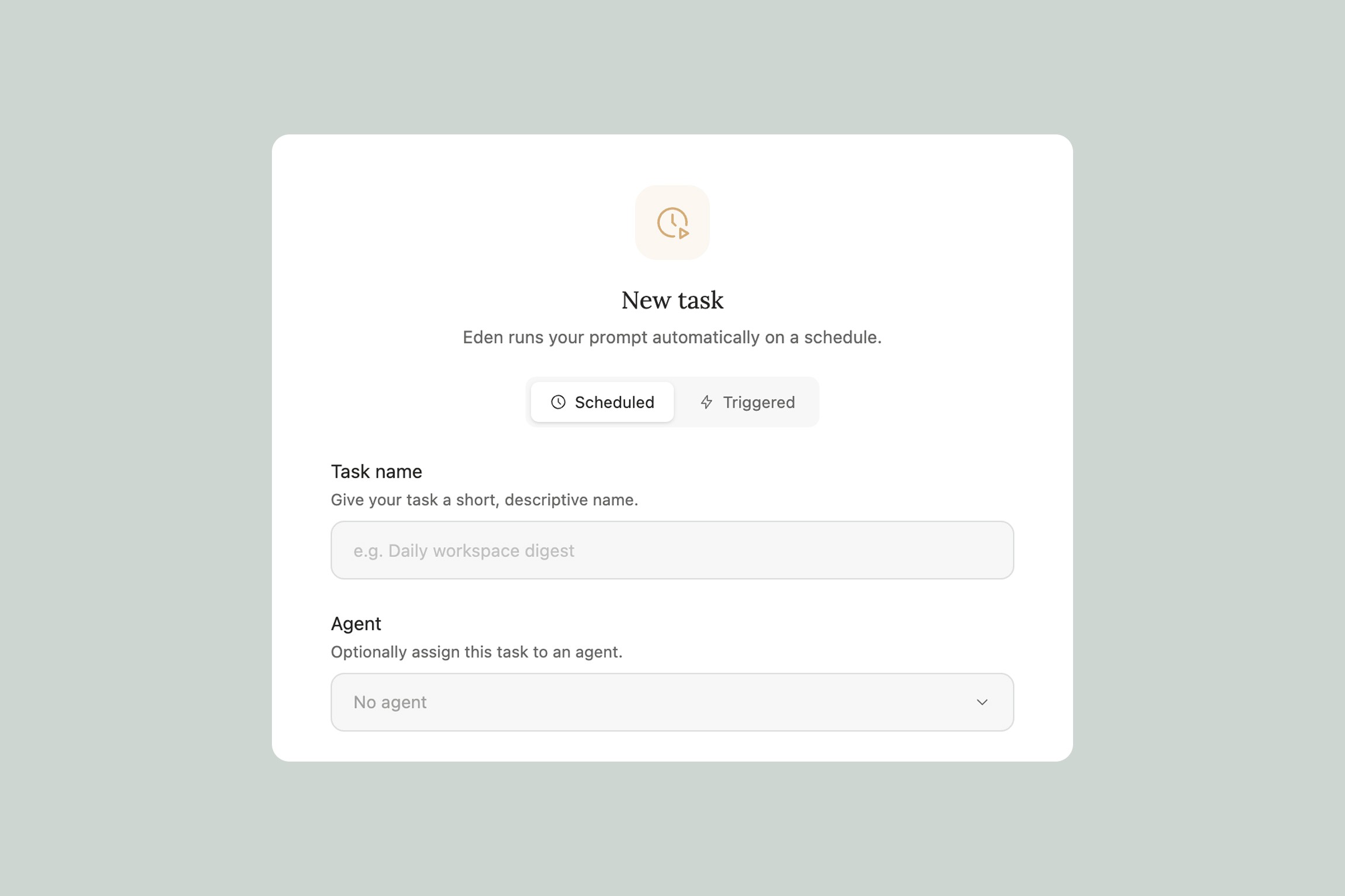
If you've read about tasks and triggers, you know the building blocks. This article is the inspiration — concrete automations that creators, marketers, and teams are using to save hours every week.
Each one includes what triggers it, what it does, and how to set it up.
For Content Creators
Auto-summarize your research as you collect it. Trigger: Link Parsed You're researching a video topic and saving articles as you go. Every time a link is parsed, a task generates a 3-sentence summary and adds it to a running "Research Notes" doc in your project folder. By the time you sit down to outline, you have a condensed version of everything you've read — without going back through 20 tabs.
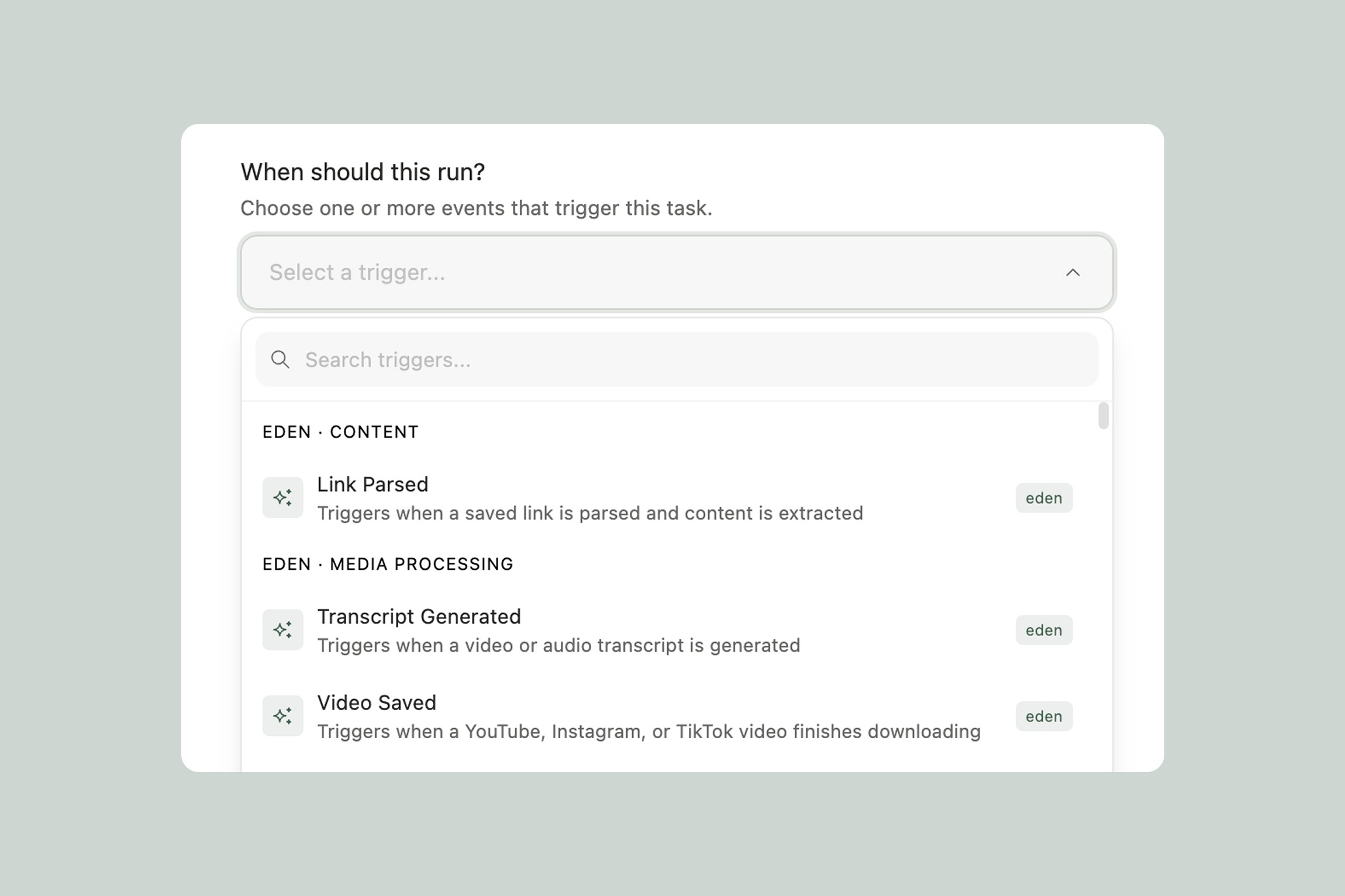
Turn saved videos into content briefs. Trigger: Transcript Generated You save YouTube videos from creators in your space — interviews, essays, tutorials. When the transcript is ready, a task extracts the main argument, the structure they used, the hooks that worked, and any data points mentioned. It saves this as a structured brief. Over time, you build a library of analyzed content you can reference when creating your own.
One-tag content repurposing. Trigger: Item Tagged ("repurpose") You finish a blog post or newsletter. Tag it with "repurpose" and a task generates a Twitter thread draft, 3 standalone tweet options, a LinkedIn post, and a short-form video script outline — all based on the original piece. You review and edit instead of starting from scratch.
Automatic idea capture from saved content. Trigger: Link Parsed Every article you save gets scanned for potential content ideas — angles you could take, questions it raises, counterarguments worth exploring. These get added to a running "Content Ideas" note in your workspace. You never save an article and forget why it was interesting.
For Marketers
Competitor content monitoring. Schedule: Weekly A scheduled task searches the web for your top 3-5 competitors' latest content — blog posts, social media, YouTube — and compiles a weekly briefing. What they published, what angles they took, and where there might be gaps you could fill. Drops the report in your Marketing folder every Monday morning.
Launch countdown checklist. Schedule: Daily (during launch period) Set up a daily task that checks your launch prep doc and tells you what's left to do today, what's overdue, and what's coming up tomorrow. It adapts as you check things off. Simple, but it keeps a launch from slipping through the cracks.
Email performance digest. Schedule: Weekly If you have your email platform connected, a task pulls your open rates, click rates, and unsubscribe numbers from the past week. It compares them to the previous week and highlights what's trending up or down. No logging into dashboards — the insight comes to you.
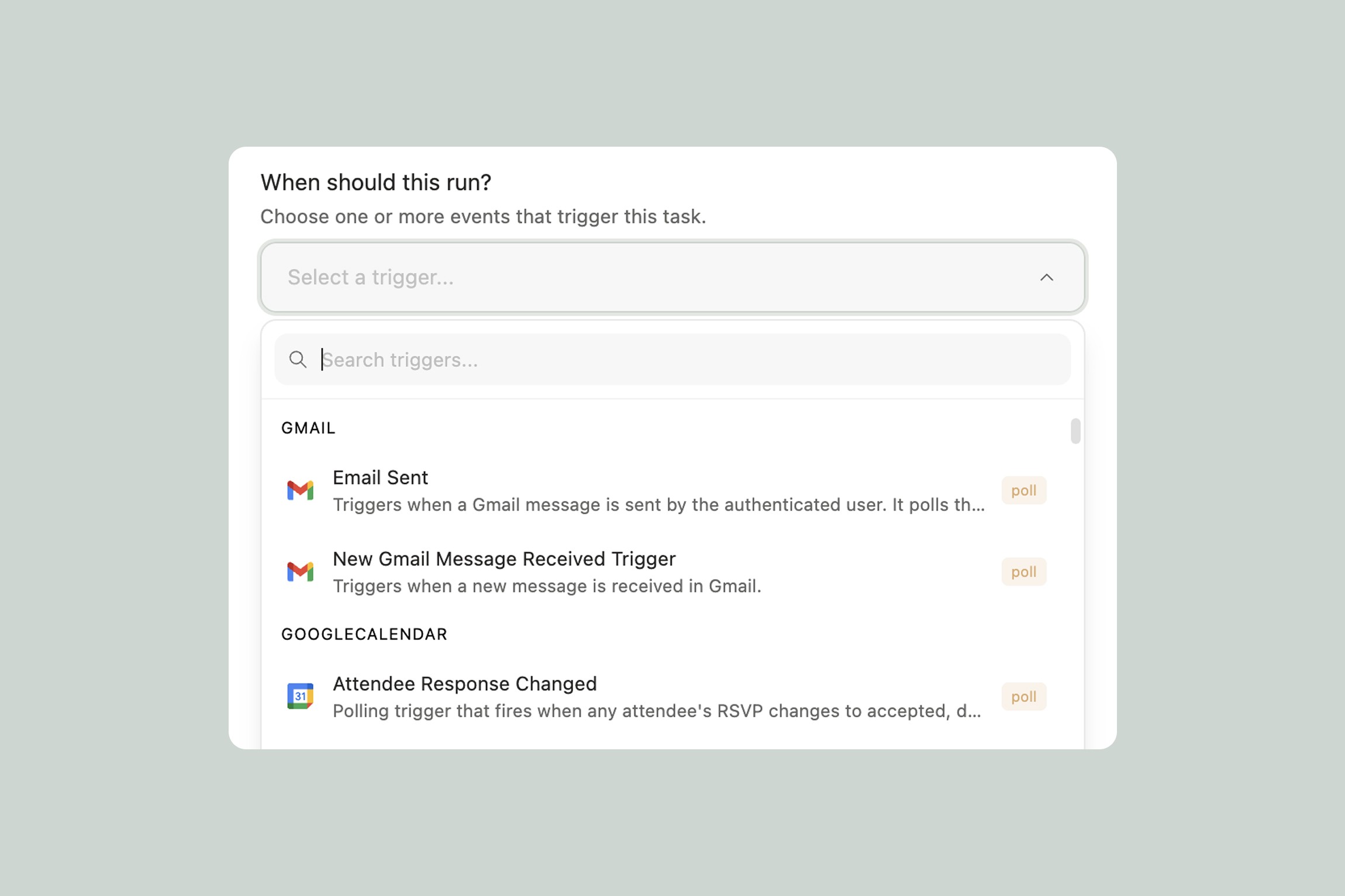
Lead magnet auto-delivery. Trigger: Item Saved to Folder ("New Leads") When you save a new lead's info to a specific folder, a task drafts a personalized follow-up email based on the lead source, the content they engaged with, and your standard intro sequence. You review it and send — or connect it to Gmail to send automatically.
For Research & Learning
Build a searchable knowledge base from everything you save. Trigger: Link Parsed + Transcript Generated Every article and video you save gets automatically processed into a structured note: key points, notable quotes, source info, and related topics. These notes accumulate in a Knowledge Base folder — fully searchable, fully organized, without you doing anything beyond saving the original link.
Podcast guest prep on autopilot. Trigger: Item Saved to Folder ("Guest Prep") Drop a link to your guest's website, their latest interview, and their social profiles into a "Guest Prep" folder. Each item triggers a task that extracts relevant info. Once everything is processed, you have a comprehensive prep doc — their background, recent talking points, potential questions, and areas of overlap with your show.
Weekly reading review. Schedule: Weekly (Sunday evening) A task looks at everything you saved and consumed during the week — articles, videos, podcasts — and generates a personal weekly review. What themes keep coming up? What challenged your thinking? What's worth revisiting? It's a reflection habit that runs itself.
For Teams & Workflows
Auto-process client uploads → notify the team. Trigger: Item Saved to Folder ("Client Uploads") → Task Completion → Slack notification Clients send you files — briefs, assets, feedback docs. When anything lands in the client uploads folder, a first task reads it, categorizes it by project, and creates a summary note. When that task completes, it triggers a second task that posts the summary to your team's Slack channel. Your team gets a clean briefing without anyone opening a file or sending a message.
Meeting notes → action items → follow-ups. Trigger: Transcript Generated → Task Completion → Email Upload or record a meeting. When the transcript is ready, a task extracts every action item, assigns them based on who was mentioned, and creates a structured follow-up note. When that's done, a second task emails each person their specific action items. No more "wait, what did we decide?" — and no one can claim they didn't know.
Content approval pipeline. Trigger: Item Tagged ("ready-for-review") → Task Completion → Notification A writer tags a draft as ready for review. A task reads it against your style guide and brand voice doc, flags potential issues, suggests improvements, and creates a review summary. When the review is generated, a second task notifies the editor that something's ready for their eyes.
Chained Pipelines
The examples above hint at this, but it's worth calling out: task completions are triggers too. That means you can chain tasks into full pipelines where each step automatically kicks off the next.
Here are a few multi-step pipelines to think about:
The content engine. Save a YouTube video → Transcript Generated triggers a takeaways task → Task completion triggers a social media drafts task → Task completion triggers a newsletter section task. You save one video link and get a full content package: takeaways, tweet drafts, LinkedIn post, and a newsletter blurb.
The research pipeline. Save links to a Research folder → Each Link Parsed triggers a summary task → A scheduled weekly task compiles all summaries into a research brief → Task completion triggers delivery to your inbox or Slack. Your research organizes itself all week, and you get a clean brief every Monday.
The client onboarding flow. Client brief saved to folder → Task creates a project outline and timeline → Task completion triggers a welcome email draft via Gmail → Task completion triggers a Slack notification to your team with the project overview. One file upload sets the entire onboarding in motion.
Start with a single task. Once it's running, ask yourself: "What do I always do after this step?" That's your next link in the chain.
Building Your Own
These are starting points — the real power is building automations that match your specific workflow. Here's how to think about it:
Notice your repetitive actions. What do you do every time you save an article? Every time you finish a draft? Every time a video is uploaded? That repetition is where a task saves you time.
Pick the right trigger. Match the automation to the event. If it's about content you save, use Link Parsed or Transcript Generated. If it's about organization, use Item Saved to Folder or Item Tagged. If it's time-based, use a schedule. If it should happen after another task finishes, use Task Completion.
Start simple, then chain. Your first automation should be one trigger, one action. "When a link is parsed, summarize it." Get that working. Then ask: "What do I usually do next?" Add a second task triggered by the first one's completion. Build your pipeline one link at a time.
Combine with agents for complex workflows. If an automation needs judgment, context, or conversation, pair it with an agent. Your agent can create and manage triggered tasks as part of a larger system — and because agents have memory and knowledge bases, they bring context that standalone tasks can't.
For help setting up any of these, just describe what you want to your agent or in an Eden AI chat — and it'll build the task for you.
Thank you.