What Are Snippets?
Snippets are saved blocks of content you can insert anywhere with the "/" menu. Instead of retyping the same newsletter outline, prompt, or response template, save it once and access it instantly.
Snippets can include:
Formatted text (bold, headers, lists)
Images
Mixed content (text and images together)
Any content you can add to a Note
Two Types of Snippets
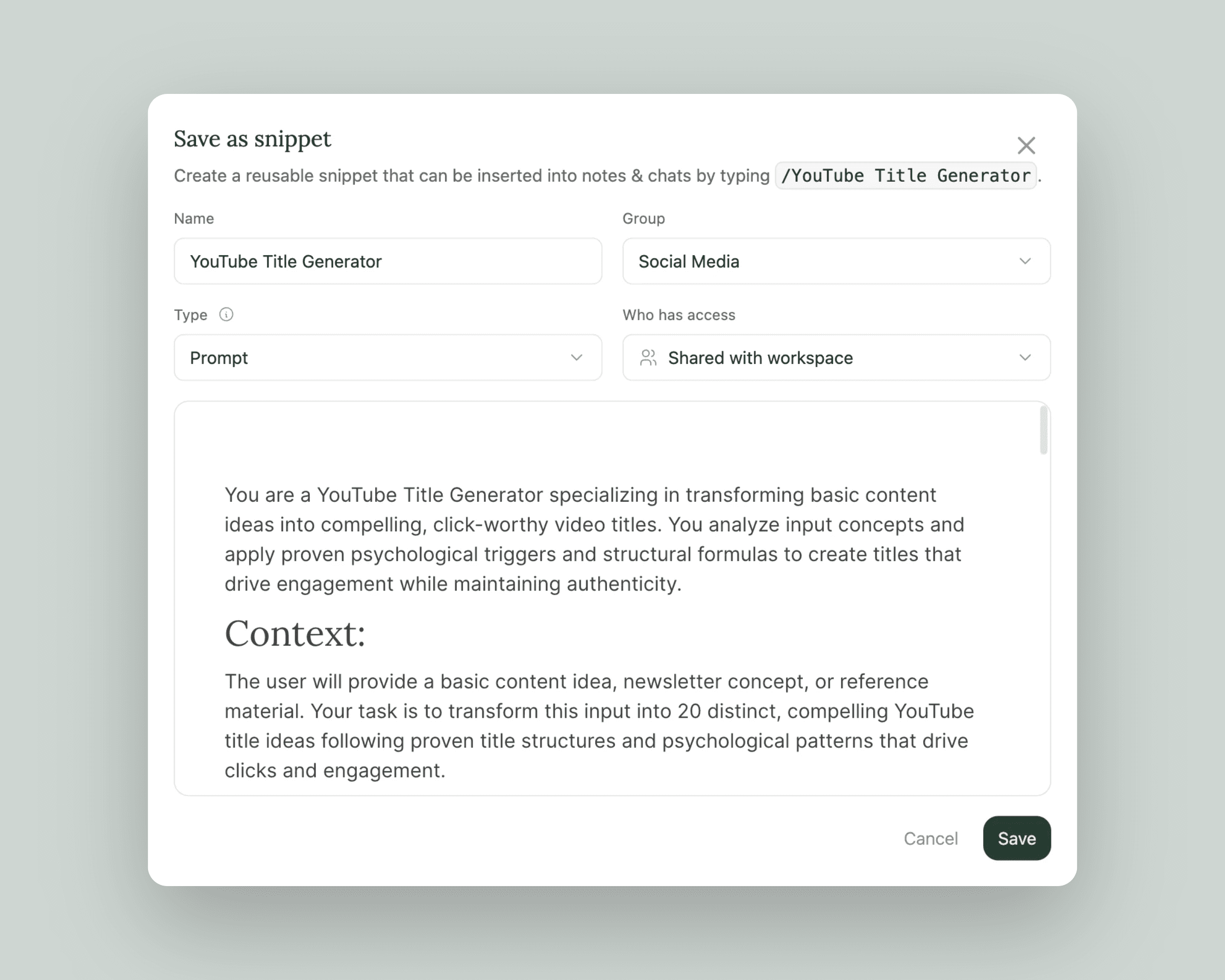
Eden has two snippet types: Templates and Prompts. Both work the same way — the difference is where they appear.
Templates
General-purpose snippets for any reusable content. Access them via the "/" menu in notes, chats, and comments.
Use Templates for:
Content outlines (newsletters, blog posts, video scripts)
Meeting note structures
Project templates
Standard responses
Research frameworks
Prompts
Snippets designed for AI conversations. These appear in two places:
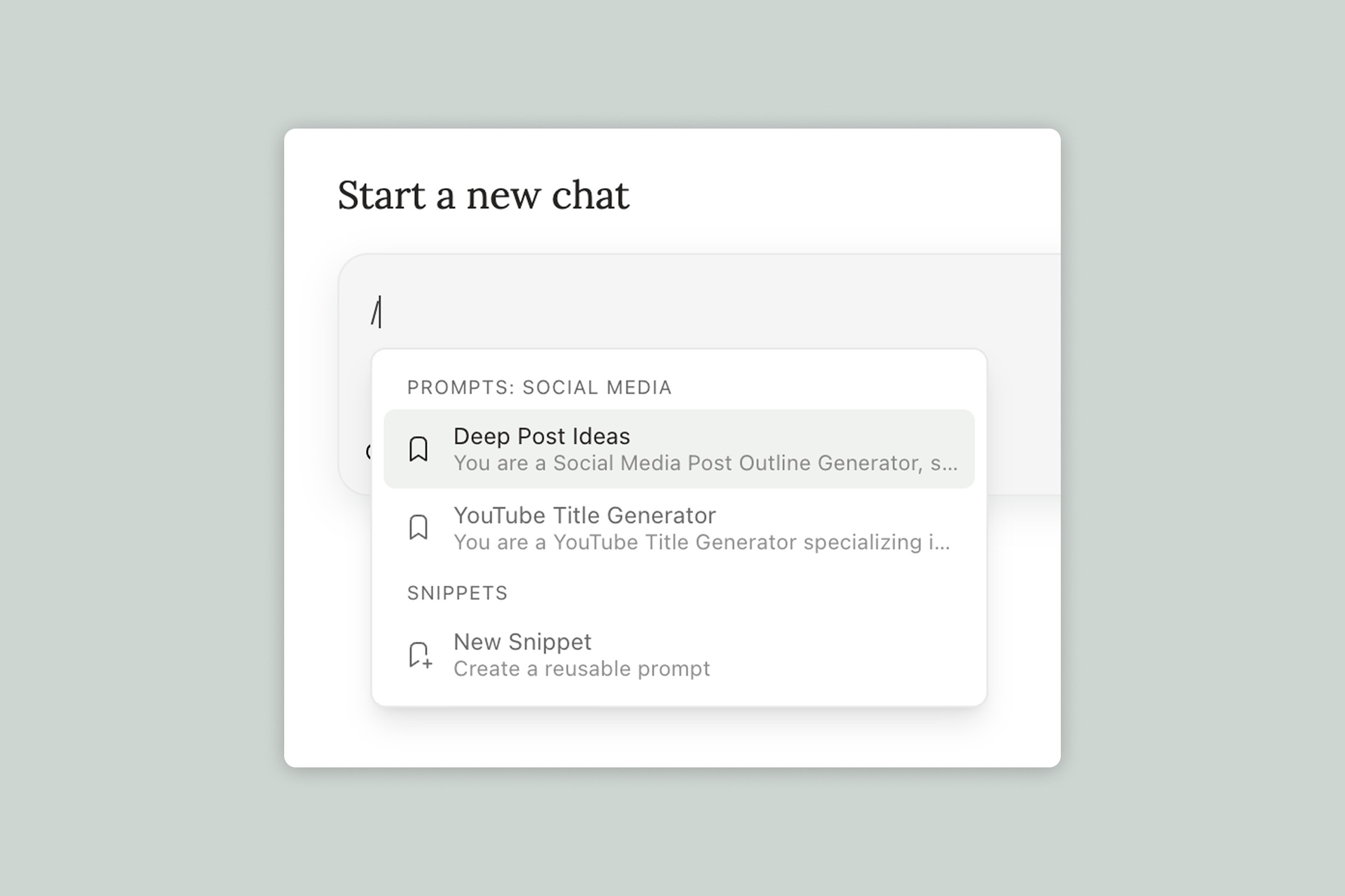
The "/" menu (like Templates)
The New Chat page — displayed by group so you can click to start a conversation immediately
Use Prompts for:
Frequently used AI instructions
Analysis frameworks you run repeatedly
Creative prompts you return to often
Standard questions for research
When you click a Prompt on the New Chat page, it populates the input field so you can review or edit before sending.
Creating a Snippet
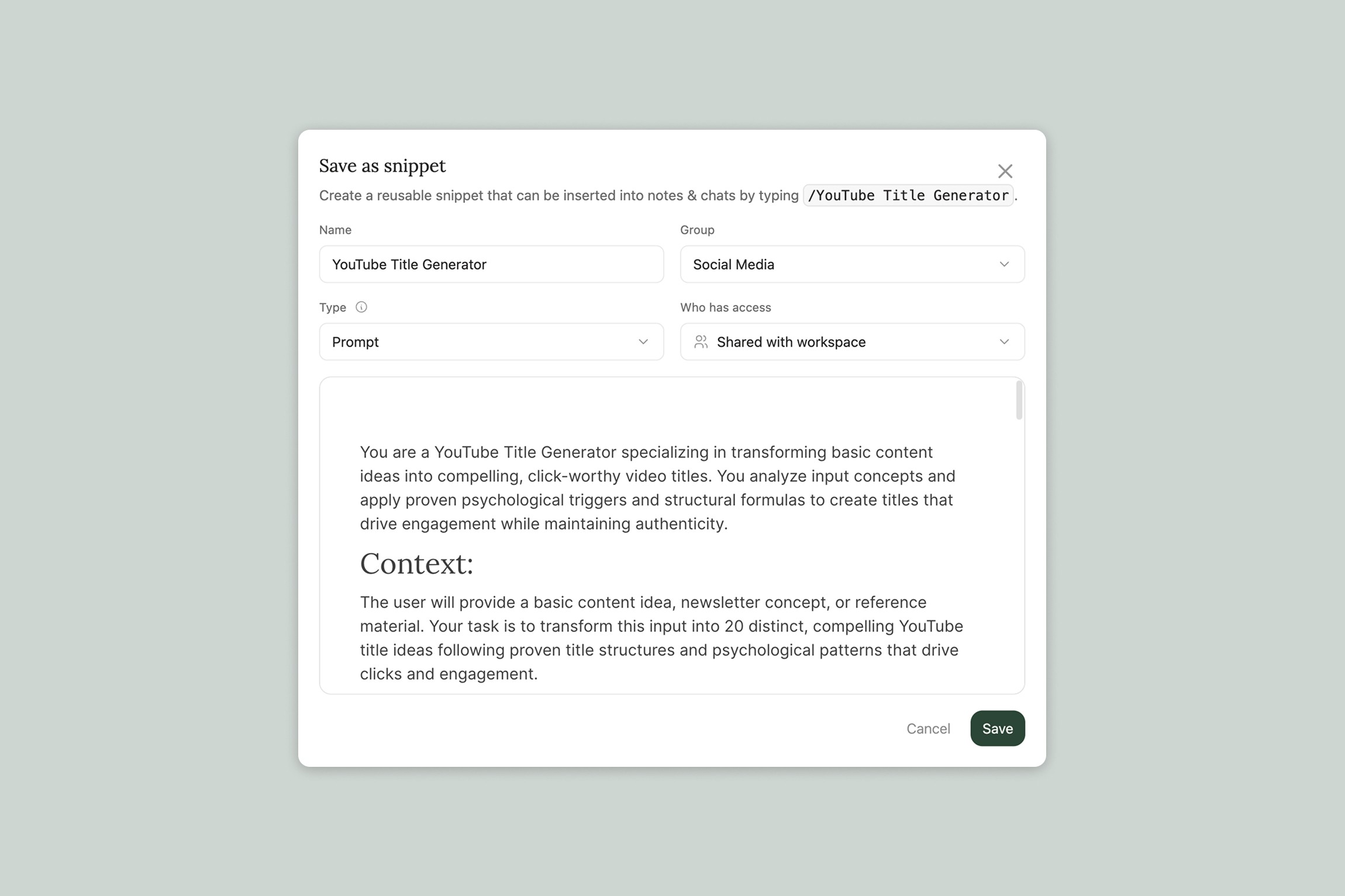
Method 1: From Selected Text
The fastest way to create a snippet from existing content:
Select text inside a Note
Click the bookmark icon in the bubble menu that appears
Name your snippet
Choose the type (Template or Prompt)
Assign it to a group (optional)
Save
Your selected content is automatically added to the snippet.
Method 2: From the Slash Menu
Create a snippet from scratch:
Type
/New snippetin any text fieldSelect the option from the menu
Name your snippet
Add your content
Choose the type
Assign it to a group (optional)
Save
Using Snippets
Insert a snippet anywhere you can type:
Notes
AI chat inputs (on Canvas or in your workspace)
How to Insert
Option 1: Type to filter
Type
/Continue typing the snippet name
Select from filtered results
The snippet replaces the "/" and inserts your content
Option 2: Browse the menu
Type
/Scroll through available snippets
Click to insert
Quick Access for Prompts
On the New Chat page, your Prompts are displayed by group. Click any Prompt to populate the chat input — then send or edit as needed.
Organizing with Groups
Groups help you categorize snippets. Create groups for:
Project types (Client Work, Personal, Content)
Content categories (Outlines, Prompts, Templates)
Workflows (Research, Writing, Review)
Each snippet belongs to one group. Snippets can also exist without a group.
On the New Chat page, Prompts are organized by their groups, making it easy to find the right prompt for your task.
Managing Snippets
To view, edit, or delete your snippets:
Go to Settings
Select Snippets
Edit any snippet's name, content, type, or group
Delete snippets you no longer need
Tips for Effective Snippets
Start with what you repeat
Notice when you're typing the same thing twice. That's a snippet waiting to happen.
Keep prompts focused
Shorter, single-purpose prompts are easier to find and use than long multi-step instructions.
Use descriptive names
"Newsletter Outline" is easier to find than "Template 1." Your future self will thank you.
Group strategically
A few well-organized groups beat dozens of ungrouped snippets.
Iterate over time
As your workflows evolve, update your snippets. The best snippet library is one you actually use.
Common Questions
Can I share snippets with my team?
Yes. You can select the option to share with your workspace during snippet creation.
Do snippets sync across devices?
Yes. Your snippets are available wherever you access Eden.
Is there a limit to how many snippets I can create?
No. Create as many as you need.
Can I use snippets on Canvas?
Yes. The "/" menu works in Canvas AI chat inputs, Notes on Canvas, and anywhere else you can type.
What's the difference between Templates and Prompts?
Functionality is identical. The only difference is that Prompts also appear on the New Chat page for quick access when starting AI conversations.
Thank you.