Connecting an integration is step one. Knowing what to do with it is where it gets fun. This article walks through real workflows for the integrations creators and marketers use most — and shows you how to get value from them immediately.
In Chats
The simplest way to use integrations is just to ask. In any Eden AI chat, you can reference your connected tools naturally:
Gmail
"Do I have any unread emails from [client name]?"
"Draft a reply to that email from Sarah — thank her for the feedback and tell her I'll have revisions by Friday"
"Show me all emails from this week with 'invoice' in the subject line"
Google Calendar
"What's on my schedule today?"
"Block off 2-4pm tomorrow for deep work"
"When's my next meeting with the marketing team?"
YouTube
"How did my last video perform compared to the one before it?"
"What are the most recent videos on [competitor's channel]?"
"Search YouTube for 'content repurposing strategies' and show me the top results"
Twitter/X
"Show me my recent tweets and how they performed"
"What's [competitor handle] been posting this week?"
"Draft a tweet about [topic] in my usual style"
Slack
"Post in #content-team: 'New blog draft is ready for review in the shared folder'"
"What's been discussed in #marketing today?"
Google Sheets
"Add a new row to my content tracker spreadsheet with today's date and the topic 'automation workflows'"
"What's the total in the revenue column of my Q1 sheet?"
Notion
"Create a new page in my Content Ideas database with the title 'Why automation beats discipline'"
"What's in my 'In Progress' column right now?"
You don't need to remember exact commands. Just describe what you want and mention the tool — Eden figures out the rest.
In Agents
Agents use integrations as part of their ongoing workflow. This is where integrations go from convenient to powerful — because agents combine them with their knowledge base, memory, and scheduled tasks.
Marketing Director + Google Analytics + Social integrations Your Marketing Director agent runs a weekly strategy check-in. It pulls your website traffic from Google Analytics, checks your social media performance across Twitter/X and LinkedIn, compares engagement against the previous week, and gives you a strategic assessment. Not raw data — an actual opinion on what's working and what to change. All grounded in your brand guidelines and goals from its knowledge base.
Executive Assistant + Google Calendar + Gmail + Slack Your daily morning briefing pulls today's calendar from Google Calendar, flags any scheduling conflicts, surfaces urgent emails from Gmail, and checks Slack for anything your team needs from you. One message, every morning, with everything you need to start your day — delivered to Telegram while you're still having coffee.
Personal Brand Coach + Twitter/X + YouTube Your coach reviews your recent posts, checks how they performed, and gives you specific feedback. "Your thread on pricing strategy got 3x the engagement of your solo tweets this week — let's do more threads. Here's an idea for one based on that YouTube video you posted Tuesday." It connects the dots across platforms because it has access to both.
Email & Funnel Architect + Mailchimp/Kit + Google Sheets You're prepping a launch. Your agent pulls your email list stats from Mailchimp or Kit, checks your conversion data in Google Sheets, and recommends adjustments to your email sequence timing. "Your welcome sequence has a 45% open rate on email 1 but drops to 18% by email 3. Let's rewrite that subject line and test a curiosity-based hook."
In Tasks
Tasks use integrations in two ways: as actions (do something in another app) and as triggers (respond when something happens in another app).
Integration Actions in Tasks
Any task can use your connected tools as part of what it does:
Summarize → Post to Slack. A task summarizes a new client brief, then posts the summary to your team's Slack channel. Your team stays informed without checking Eden.
Generate report → Save to Google Drive. A weekly analytics task compiles your content performance numbers and saves the report as a doc in Google Drive, organized by month. Your reports folder stays current without you touching it.
Draft content → Create in Notion. A task generates blog post outlines based on your content calendar, then creates draft pages in your Notion content database — ready for you to flesh out.
Review inbox → Flag and organize. A morning task scans your Gmail for emails matching certain criteria (from clients, containing keywords like "urgent" or "deadline"), summarizes them, and saves the summary to a note in your workspace.
Integration Triggers for Tasks
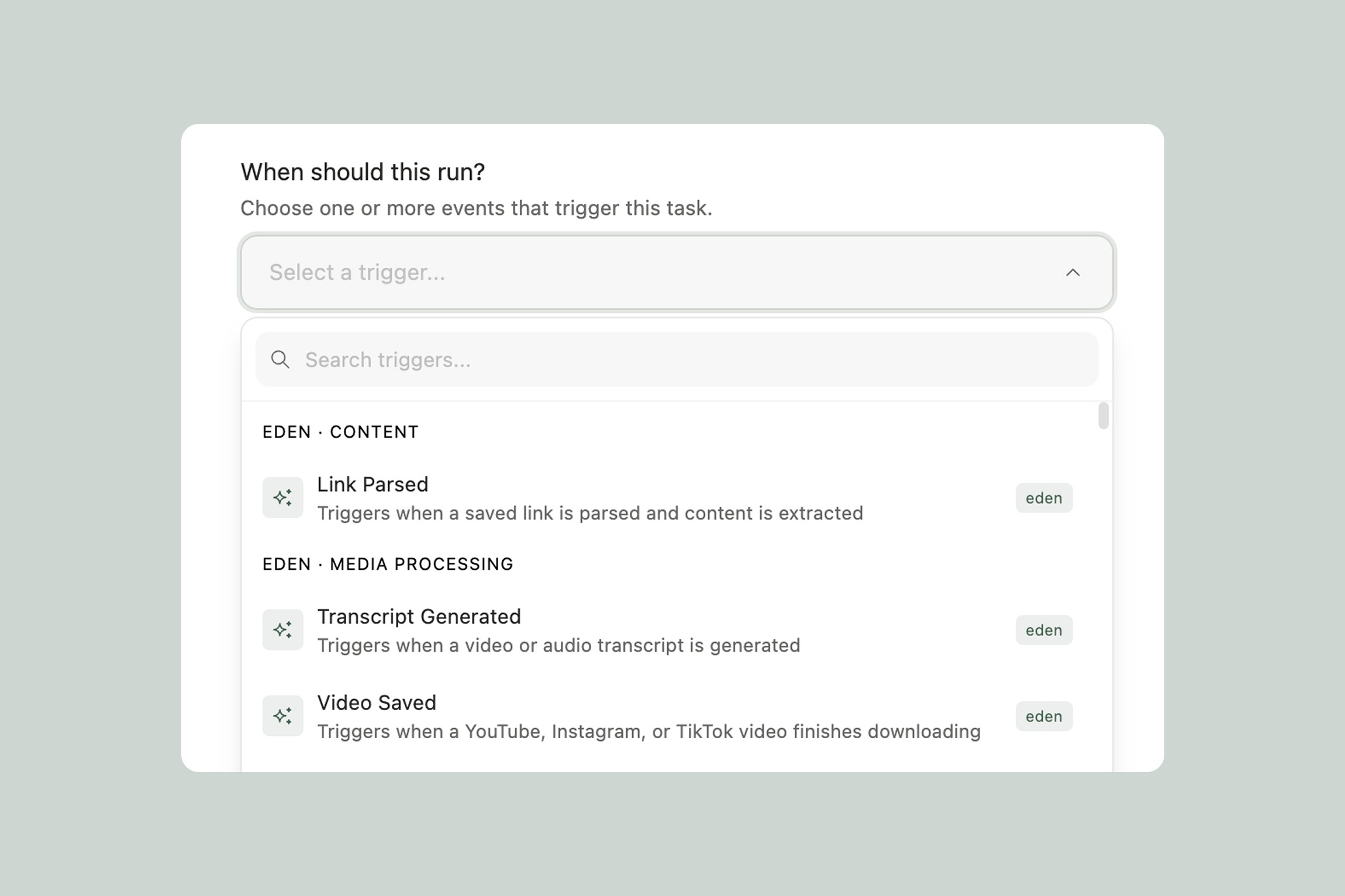
Some integrations have their own triggers — events in external apps that can kick off Eden tasks:
YouTube: New item in playlist. You follow a competitor's playlist. When they add a new video, a task fires — downloads the video, generates a transcript, and extracts the key points. You're analyzing their content before most people even see the notification.
YouTube: New channel activity. Your own channel posts a video. A task triggers and drafts social posts to promote it across Twitter/X and LinkedIn, plus a newsletter blurb — all waiting for your review.
Gmail: New email matching criteria. An email arrives from a VIP client. A task saves it to the relevant project folder in your workspace and creates a follow-up reminder.
Zendesk: New ticket created. A support ticket comes in. A task reads it, checks your help documentation, and drafts a response for your team to review.
These work even better when chained with Eden triggers. A YouTube playlist trigger downloads a video → the Transcript Generated Eden trigger fires a summary task → the Task Completion trigger posts the summary to Slack. Three steps, fully automatic, spanning YouTube, Eden, and Slack.
Getting the Most Out of Integrations
Connect your daily drivers first. Start with the tools you check every day — email, calendar, and whatever platform you post on. These give you the most immediate value because they eliminate the tab-switching that eats your morning.
Let your agents discover integrations. When setting up an agent, your connected integrations are automatically available. Your Marketing Director doesn't need special configuration to use Google Analytics — it just needs to be connected in Settings. The agent discovers what's available and uses it when relevant.
Combine integrations for cross-platform workflows. The real power isn't any single integration — it's connecting them. Gmail + Slack + Google Calendar in a morning briefing. YouTube + Twitter/X + Notion in a content pipeline. Shopify + Slack + Google Sheets in a sales reporting workflow. Think in terms of workflows, not individual tools.
Check our integrations page for what's available. Each integration lists its specific tools (actions Eden can take) and triggers (events that can start tasks). If you're wondering "can Eden do X with Y tool?" — that's where to look.
Thank you.