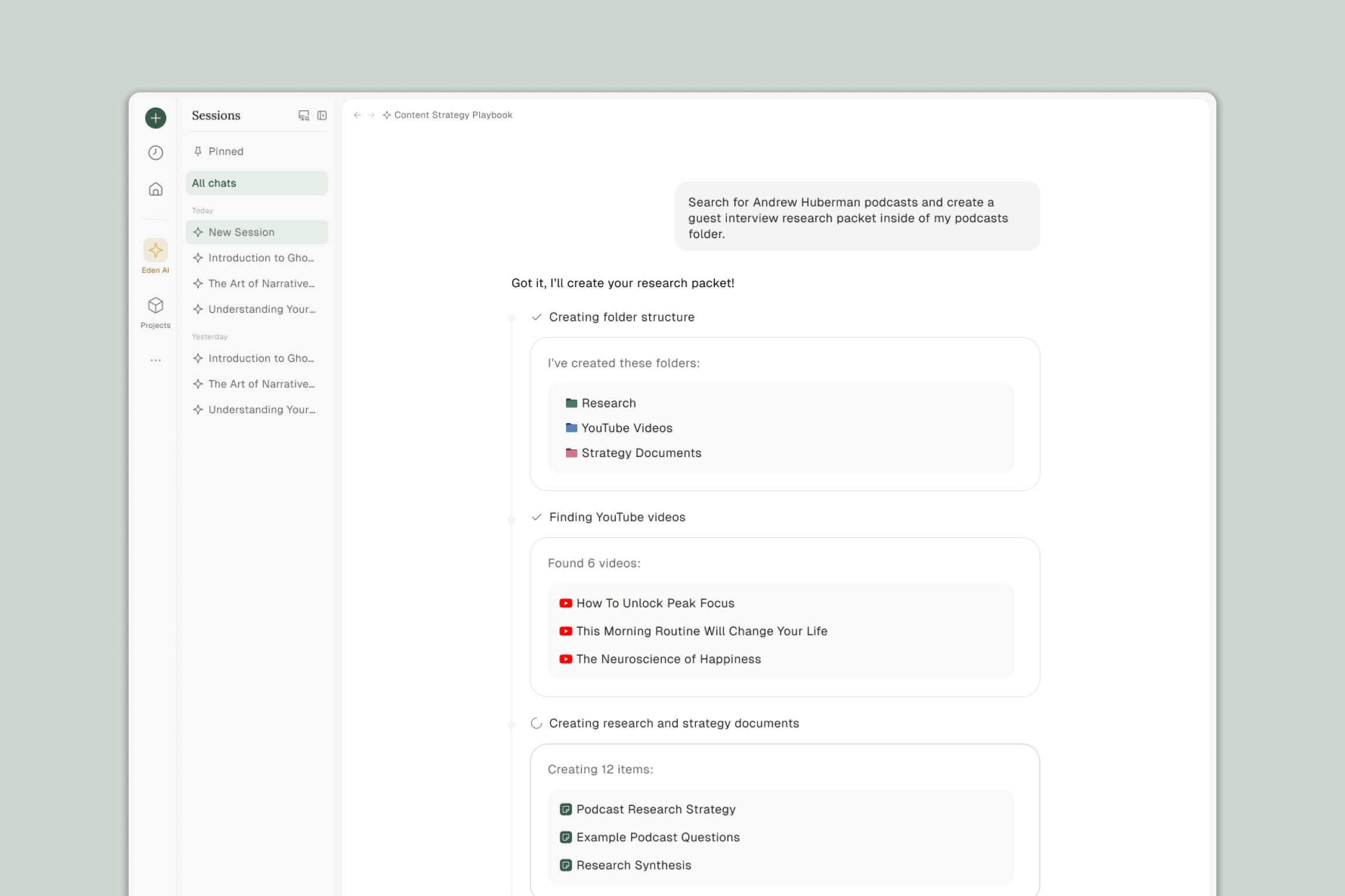
Have Eden Agent build a personalized workspace structure in minutes. Share what you do, how you work, and let Agent create the folders, templates, and documents to match.
Get started with Eden Agent by having it create a personalized workspace structure. In a few minutes, you'll go from an empty workspace to an organized system of folders, templates, and documents tailored to how you work.
What You'll Create
In this guide, Agent will build a complete workspace structure based on information you provide about yourself and your work. This can include:
A folder system organized around your projects, clients, or workflows
Strategy documents and templates you can use immediately
A structure that matches how you actually think and work
Step 1: Open Chat
Find "Eden AI" in your sidebar. This is where you'll talk to Agent.
If you're new to Eden, you may see onboarding prompts — you can follow those or skip ahead to try Agent directly.
Step 2: Tell Agent About Yourself
Agent creates better workspace structures when it understands your context. Before asking it to build anything, share relevant information about:
What you do. Your role, profession, or the type of work you focus on.
How you work. Solo or with a team? Multiple clients or one main focus?
What you create. Videos, articles, research, client deliverables, etc.
How you like to organize. By project? By client? By content type?
You can share this information conversationally. Agent will use it to customize the workspace structure.
Step 3: Ask Agent to Create Your Workspace
Once Agent has context about your work, ask it to build your workspace. Here's a sample prompt you can customize:
Sample Prompt:
Based on what I've shared, create a workspace structure for me. Include:
A folder system that matches how I work
A "Getting Started" document explaining the structure you created
Template documents I'll use regularly
A "Quick Capture" folder for ideas I want to save fast
Organize everything so I can find what I need without thinking about it.
You can also request specific organizational systems:
"Set up my workspace using the PARA method" — Projects, Areas, Resources, Archive
"Create a client-based folder structure" — One folder per client with consistent subfolders
"Build a content production system" — Research, Drafts, Published, Assets
Step 4: Review What Agent Created
After you send your prompt, Agent gets to work. You'll see:
New folders appearing in your workspace
Documents and templates being created
A description in the chat explaining what Agent built and why
Take a few minutes to explore the structure. Open the folders, read through any documents Agent created, and see how everything is organized.
Step 5: Make Adjustments
Your workspace structure doesn't need to be perfect on the first try. Ask Agent to make changes:
"Add a folder for [something you forgot]"
"Rename the Projects folder to Active Work"
"Create a template for [specific document type]"
"Move the Resources folder inside the Projects folder"
You can also make changes manually — drag folders, rename files, delete what you don't need.
Tips for Better Results
Share more context upfront. The more Agent understands about your work, the better it can customize the structure. Don't just say "I'm a creator" — say "I'm a YouTuber who posts weekly videos and also writes a newsletter."
Be specific about what you want. "Create a workspace" is okay. "Create a workspace with separate folders for each client, a swipe file for inspiration, and templates for proposals and invoices" is better.
Start simple, then expand. You don't need to build everything at once. Start with a basic structure and ask Agent to add more as you figure out what you need.
What to Try Next
Now that you have a workspace structure, try these Agent tasks:
Add research to your workspace. Tell Agent to find YouTube videos or articles on a topic and add them to a specific folder.
Create your first draft. Upload some research, then ask Agent to draft an outline or document based on what you've gathered.
Build a template. Ask Agent to create a reusable template for something you make regularly — meeting notes, project briefs, content outlines.
Common Questions
What if I already have files in my workspace?
Agent can work around existing content. It will create new folders and documents without affecting what you've already added. You can also ask Agent to organize your existing files into the new structure.
Can I start over if I don't like the structure?
Yes. You can delete folders and files manually, or ask Agent to remove what it created and try a different approach.
Does this use a lot of credits?
Creating a workspace structure is a moderate use of credits — comparable to a longer chat conversation. The exact usage depends on how much Agent creates.
Can Agent create the same structure for my team?
If you're on a team plan, Agent can create structures in shared workspaces. Each team member can also ask Agent to set up their personal organization within the shared space.
Thank you.