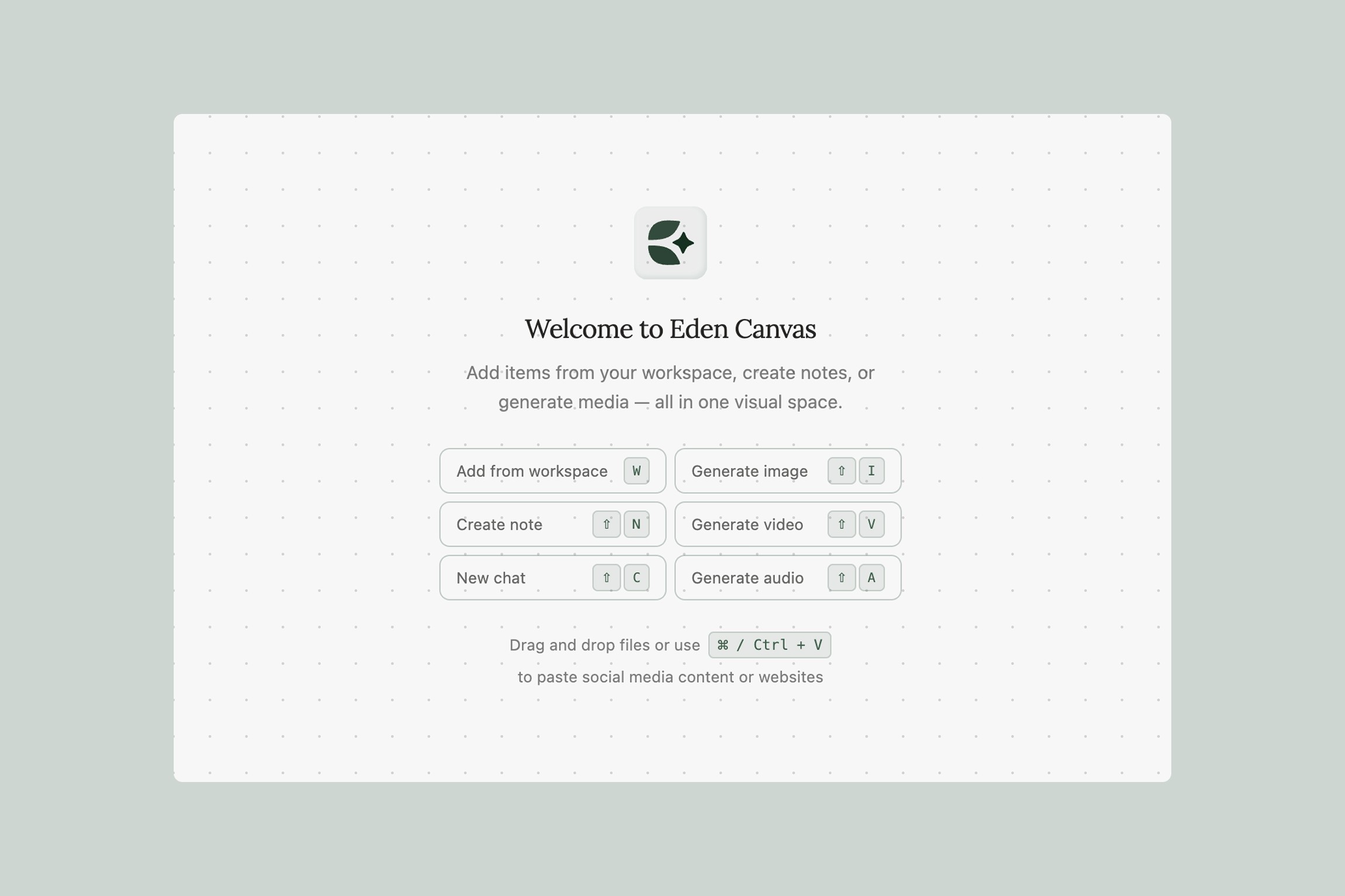
Concrete workflows and inspiration for using Canvas to produce real work — from research to finished assets, all in one place.
Canvas combines two capabilities that usually live in separate tools: you can connect workspace items to AI chat nodes for research, analysis, and writing — and you can generate images, video, and audio directly on the same surface. This means your research feeds your production, and everything stays connected.
This guide provides specific, repeatable workflows for three audiences. Each one includes exact steps you can follow today.
For Content Creators
YouTube Research-to-Production Pipeline
The problem: You spend hours watching competitor videos, taking notes in a doc, then switching to ChatGPT for scripting, then switching to another tool for thumbnails. By the time you're generating assets, you've lost the thread of your research.
The workflow:
Paste 8–12 YouTube video URLs from your niche directly onto the canvas (Cmd/Ctrl+V). Eden processes and transcribes them automatically
Arrange the videos in a section and label it "Competitor Research"
Add a Chat node (sparkle icon → New Chat). Connect the section — the AI automatically gets context from every video inside, including frame-by-frame visual data and full transcripts
Ask targeted questions:
"What title structures are these creators using? Give me the patterns"
"What hooks do they open with in the first 15 seconds? Rank them by how attention-grabbing they are"
"What topics are covered across multiple videos that I haven't made a video about yet?"
"Based on these videos, write me 10 title options for a video about [your topic] using the patterns that work"
For more complex prompts, write them as a note on the canvas and connect the note to the chat — this keeps detailed instructions editable and reusable
Add a sticky note with the winning title and script outline the AI generates
Switch to AI image generation (sparkle icon). Generate thumbnail concepts: "Close-up portrait with dramatic side lighting, surprised expression, bold yellow background, YouTube thumbnail style, 16:9"
Generate 4–5 variations at 16:9 — YouTube's exact thumbnail ratio. Click "Place on Canvas" for each
Place all thumbnail options near your research. You can see which thumbnails match the tone of your script at a glance
Set the Destination Folder (via the ... menu) to your video's project folder
What you end up with: A single canvas where your competitor research, AI-generated script structure, and thumbnail options all live together. When you sit down to film, everything you need is in one view.
B-Roll and Visual Asset Generation
The problem: Your talking-head videos need b-roll to keep viewers engaged, but stock footage is generic and shooting custom b-roll for every video is impractical. You also need featured images for blog posts, social cards, and newsletter headers.
The workflow:
On your video's canvas, add a sticky note with your script's key visual moments — the points where you'd cut to b-roll. For example: "transition shot when discussing AI tools," "abstract visualization of data flow," "product showcase angle"
For each b-roll need, create an Image Generation block. Be specific: "Cinematic close-up of hands typing on a mechanical keyboard with soft bokeh lights in the background, shallow depth of field, warm color grade, 16:9"
Connect your channel's existing thumbnails or style reference images to the generation block so the output matches your visual brand
For animated b-roll, switch to Video Generation. Use a provider like Kling (up to 15s) or Veo: "Slow dolly shot across a modern desk setup with ambient lighting, smooth camera movement, 5 seconds, 16:9"
Generate supporting assets from the same canvas by duplicating blocks and changing the aspect ratio:
Blog featured image: 3:2 or 2:1
Instagram feed: 3:4
Instagram Stories / TikTok: 9:16
Newsletter header: 21:9
Podcast cover art: 1:1
Click "Place on Canvas" for each output. Arrange by asset type and group related items into labeled sections
Why this beats stock footage: Every visual is generated from your specific topic with your style references connected. The b-roll matches the color grade and mood of your channel — not a random clip from a stock library.
Podcast and Long-Form Content Repurposing
The problem: You record a 60-minute podcast and need to turn it into YouTube clips, blog posts, social quotes, and newsletter content. Manually reviewing the episode takes almost as long as recording it.
The workflow:
Save your podcast episode (or YouTube video of the recording) to Eden. It's automatically transcribed
Create a canvas. Drag the episode onto it from your workspace
Add a Chat node and connect the episode to it. The AI has the full transcript and frame data. Ask:
"Identify the 5 most quotable or controversial moments with timestamps"
"Write 3 social media posts based on the most interesting insights — one for X, one for LinkedIn, one for Instagram"
"Outline a blog post that expands on the main thesis"
"Suggest 5 YouTube Shorts concepts with hook lines"
Place the AI's outputs as sticky notes, organized by platform in labeled sections
For each clip concept, generate a thumbnail using AI image generation. Connect your guest's photo as a reference input
For social posts that need visuals, generate quote cards with the exact quote text and your brand colors
Use Audio Generation (Suno) to create a short intro jingle or ambient bed music for your clips
The result: One recording session turns into 10–15 pieces of content, all planned and partially produced on a single canvas.
Building a Niche Knowledge Base for Content Ideas
The problem: You watch dozens of videos, read articles, and save links — but that research never connects. You can't ask your browser bookmarks what patterns they've noticed.
The workflow:
Over time, save relevant content to Eden as you come across it: paste YouTube video URLs, article links, X threads, Instagram posts. Save PDFs, competitor newsletters, and your own notes
When it's time to plan content, create a canvas. Drag in the 15–20 most relevant items from your workspace and organize them in a section
Add a Chat node and connect the section. Now you have an AI that's analyzed all of it — every frame, transcript, and document. Ask:
"What are the recurring themes across all of this content?"
"What topics are oversaturated vs. underserved?"
"Based on this research, what are 10 video ideas that would fill a gap in the conversation?"
"What formats are performing best — listicles, deep dives, reaction-style, tutorials?"
Write your most promising ideas as notes on the canvas and connect them back to the chat for further refinement
For your top 3 ideas, generate thumbnail concepts right on the canvas to see which ones have the strongest visual hook before you commit to filming
Why this works: Your content decisions are grounded in actual research, not gut feeling. And because the research and ideation happen on the same canvas, you never lose the thread between "what I learned" and "what I'm making."
For Marketers
Campaign Asset Factory
The problem: You need a batch of on-brand visuals for a product launch across Instagram, TikTok, email, and paid ads — each with different aspect ratios — and you don't have a designer available this week.
The workflow:
Create a canvas and name it after your campaign
Drop your brand assets onto the canvas: logo files, product photos, brand guidelines PDF, mood board images
Add a Chat node. Place your brand guidelines, past campaign assets, and market research in a section and connect the section. Ask: "Based on our brand guidelines and these past campaigns, suggest 5 creative directions for a summer product launch. Include visual descriptions I can use as prompts for image generation."
For complex creative briefs, write them as a note on the canvas and connect the note to the chat alongside the section
Take the AI's best creative direction and use it as prompts for Image Generation
Connect your product photos to the generation block as visual references
Generate in multiple aspect ratios:
1:1 for email thumbnails and general social
9:16 for Instagram Stories and TikTok
16:9 for YouTube thumbnails and blog headers
3:4 for Instagram feed
4:5 for Facebook portrait ads
Click "Place on Canvas" and organize outputs into labeled sections by channel
What you end up with: A campaign war room — brief, research, AI-informed creative direction, and every asset variant in one view. Share the canvas link with stakeholders for async feedback using sticky notes.
Competitive Landscape Map
The problem: You need to brief leadership on how your brand compares to 4–5 competitors, and a slide deck doesn't capture the nuance.
The workflow:
Save competitor content to Eden over time: paste their YouTube ad URLs, save landing page screenshots, social posts, articles
Create a canvas. Use labeled sections for each competitor — rename the section label to the competitor's name
Drag competitor content into each section from your workspace
Add a Chat node and connect all the competitor sections to it. Ask: "Analyze the messaging, visual style, and positioning across these competitors. What patterns emerge? Where are the gaps we could exploit?"
Add sticky notes with the AI's insights and your own observations
Use Arrows (L) to draw connections between competitors that share similar approaches
Use AI image generation to mockup alternative visual directions for your brand, referencing competitor styles that resonate
Ad Creative Testing Board
The problem: You're testing multiple creative variations for paid social and need to organize, compare, and annotate results.
The workflow:
Set up a canvas with labeled sections for each phase: "Concepts," "In Testing," "Winners," "Retired"
For each ad concept, generate 3–4 image variations using different providers and styles — try photorealistic product shots and stylized or illustrated looks
Add a Chat node and connect your past winning ads and performance data (save a CSV or note with your results). Ask: "Based on these past winners, what visual patterns correlate with high CTR? What should I test next?"
Use the AI's suggestions to inform your next round of generations
As results come in, move items between sections and annotate with performance metrics on sticky notes
Draw arrows from winners to new concepts that iterate on what worked
Social Content Planning Board
The problem: You plan content in spreadsheets but can't see how a week of posts will look together.
The workflow:
Create a canvas. Use labeled sections for each day: Monday through Friday
Within each section, add sticky notes for planned posts — concept, caption angle, hashtags
Color-code by content type: yellow for educational, pink for promotional, green for UGC, orange for behind-the-scenes
Add a Chat node and connect your past top-performing posts (paste the links directly onto the canvas). Ask: "Based on these top performers, suggest the best content mix for a 5-day publishing schedule targeting [audience]"
Generate preview visuals for each post using AI image generation
Place generated images next to their corresponding sticky notes
Zoom out to see the full week — spot imbalances immediately
For Teams
Sprint Planning and Project Mapping
The problem: Sprint planning tools are functional but flat. They don't show relationships, blockers, or the big picture.
The workflow:
Create a sprint canvas. Use labeled sections for each initiative — rename them to match your epics
Within each section, add sticky notes for tasks — one per note
Color-code by workstream: yellow for frontend, pink for backend, green for design, blue for data
Draw Arrows between tasks with dependencies — blockers become immediately visible
Drop relevant docs from your workspace: PRDs, specs, designs, API docs
Add a Chat node and connect the PRD and tech specs. Ask: "Based on this PRD, what are the likely technical dependencies between these features? What should we build first?"
Use the AI's analysis to validate your sprint ordering
Why this beats a flat list: On the canvas, you can see that Task A blocks Task B because the arrow is there. You can see that Initiative X has twelve tasks and Initiative Y has one.
Design Review Board
The problem: Async design feedback gets scattered across Slack, Figma comments, and email.
The workflow:
Create a review canvas. The designer drops in mockups, screens, references
Label each variant with Text headings
Reviewers add color-coded sticky notes: yellow = question, pink = concern, green = approval, blue = suggestion
Draw arrows from feedback notes to the specific element being referenced
The designer sees all feedback spatially — clustered notes on one area means it needs attention
Add a Chat node connected to the designs and the brand guidelines. Ask: "Does this design align with our brand guidelines? Flag any inconsistencies"
Brainstorming and Ideation Sessions
The problem: Brainstorming in a shared doc turns into chaos. Ideas get lost in a wall of text.
The workflow:
Set up the canvas with a central text heading: the brainstorm question
Everyone adds sticky notes simultaneously (real-time collaboration). One idea per note
After the initial dump (5-minute timer), the facilitator drags related notes into labeled sections by theme
Second round: different-color sticky notes for voting or commentary
Draw arrows between sections that have dependencies
Create final sections: "Worth Exploring," "Committed," "Parked" — move the best ideas
Add a Chat node and connect the winning sections. Ask: "Turn these brainstorm ideas into a prioritized action plan with owners and rough timelines"
Cross-Functional Project Hub
The problem: Your project has marketing, engineering, and design tracks, and nobody has a single view of the whole picture.
The workflow:
Create a project canvas with labeled sections for each team: Marketing, Engineering, Design
Each team drops their docs from Eden into their section
Draw arrows between teams to show dependencies
Add a Chat node and connect all sections. Ask: "Based on these documents, summarize the current project status and flag any misalignments between teams"
Pin the canvas link in Slack. Anyone can open it for the full picture at any time
Why Canvas Brings It All Together
Most AI creative tools make you choose: you can either research and analyze content (chat with your files, summarize YouTube videos, build a knowledge base) or you can generate visual assets (images, video, audio). Canvas does both on the same surface.
Your research feeds your generation. Your generation lives alongside your research. When a collaborator opens the canvas, they don't just see the output — they see the thinking that led to it. That context is what makes the difference between a tool you use once and a workspace you build your entire process around.
Thank you.