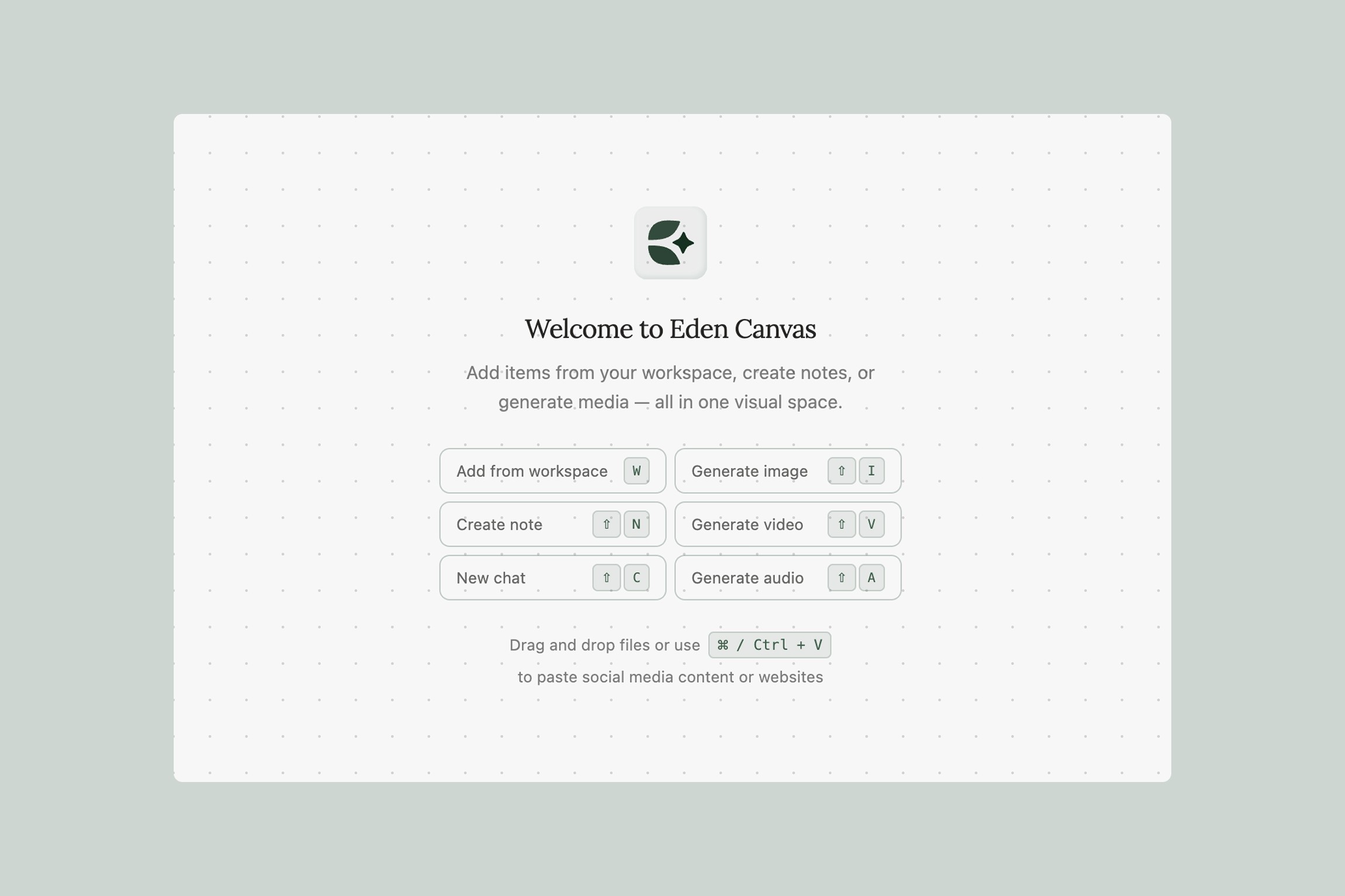
How real-time collaboration works — live cursors, presence, shared chat nodes, and workflows for async and synchronous teamwork.
How Collaboration Works
Canvas collaboration is automatic. When multiple people open the same canvas:
Live cursors show where each collaborator is working
Presence avatars indicate who's currently on the canvas
Real-time sync — new elements, moves, edits, deletions, and AI generation results appear instantly for everyone
A connection status indicator confirms you're synced
No setup required. Open the same canvas and you're collaborating.
What Syncs in Real Time
Everything:
Adding, moving, resizing, or deleting any element
Drawing, text edits, sticky note content
Arrow connections between elements
Chat node conversations and their connected items
AI generation blocks, progress, and outputs
Section contents and labels
Grouping, ungrouping, and canvas settings
If one person generates an AI image or asks a question in a Chat node, everyone on the canvas sees the progress and results as they appear.
Synchronous Collaboration
When you're working at the same time — during a meeting, brainstorm, or review:
Follow the cursors. Live cursor positions let you see what everyone is focused on. In a brainstorm, this creates a natural sense of co-presence even in remote settings.
Work in parallel zones. One person can research in a Chat node on the left while another generates visuals on the right. Concurrent edits don't conflict — the sync engine handles them automatically.
Use sticky note colors as a protocol. Agree on meanings before a session:
Yellow = idea or observation
Green = approved / agreement
Pink = concern or pushback
Blue = question
This turns unstructured clusters into scannable, actionable feedback.
Share a Chat node for live ideation. A Chat node connected to shared research becomes a live brainstorming partner that the whole team can interact with — everyone sees the responses, and anyone can ask follow-up questions.
Asynchronous Collaboration
When your team works across time zones or different schedules:
Annotate with context. Add enough detail in sticky notes that they make sense without a conversation. "This feels off" is less useful than "The warm tones clash with the brand's cool palette — try desaturating 20%."
Use sections as status containers. Create sections labeled "In Progress," "Needs Review," and "Approved." Collaborators can see what needs attention at a glance by how items are organized across sections.
Draw arrows to be specific. Instead of writing "the third image from the top," draw an arrow from your feedback note directly to the element in question.
Leave Chat node context for others. If you used a Chat node to develop a creative direction or analyze research, leave it on the canvas. The next person who opens the canvas can read the conversation and understand the thinking behind the work — not just the output.
Conflict-Free Editing
Canvas uses CRDT (Conflict-free Replicated Data Type) technology for sync:
Two people can edit different elements simultaneously without conflicts
If someone goes offline and makes changes, those merge cleanly when they reconnect
No "locked by another user" — everyone can edit everything at all times
Stale connections are cleaned up automatically after 30 seconds
Thank you.