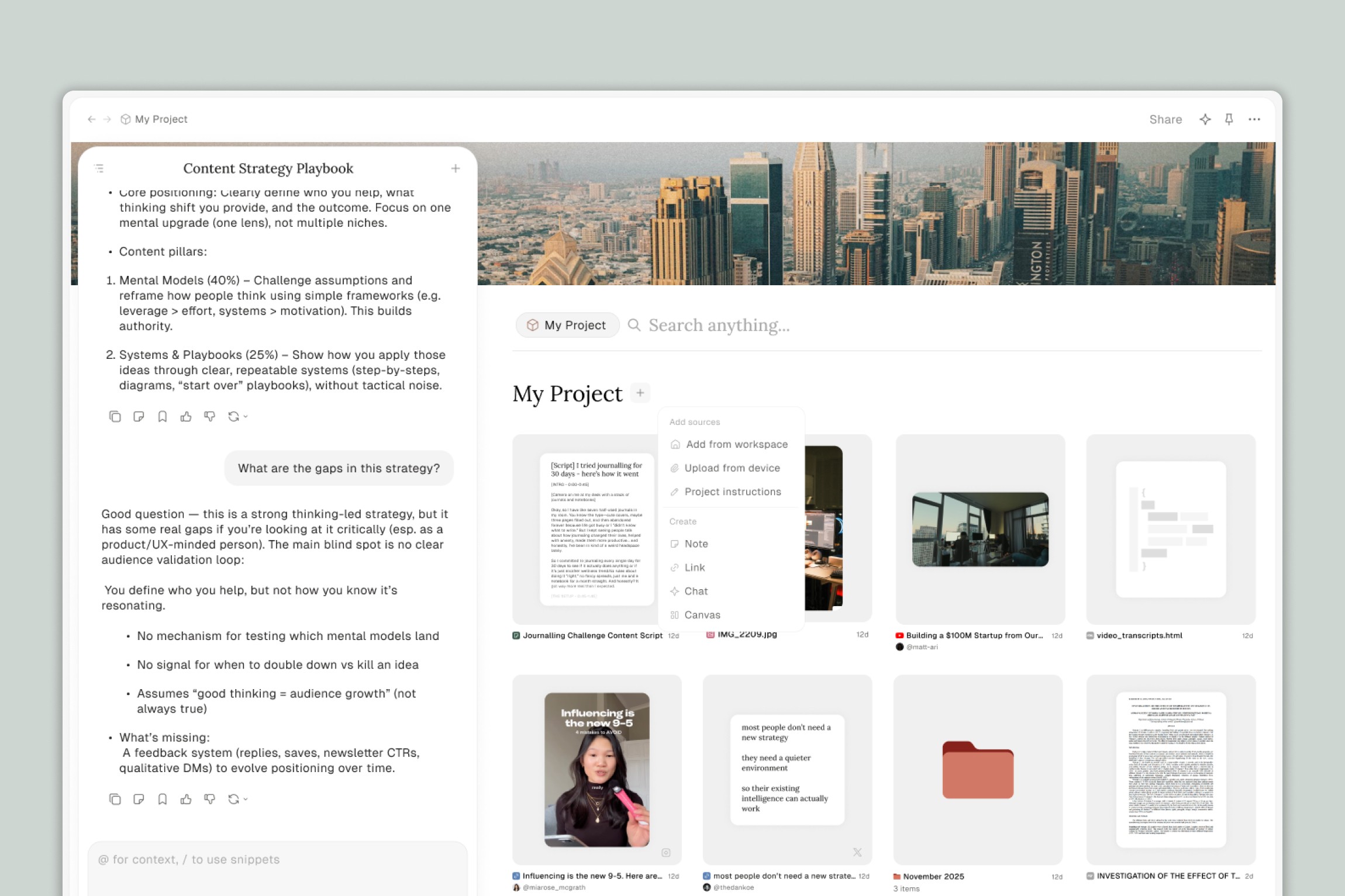
This guide walks you through setting up your first Project in Eden, adding files, and having your first productive conversation. By the end, you'll have a working project and a clear sense of how to use it.
Step 1: Create a New Project
Start by creating a project and giving it a clear, descriptive name. A good project name tells you exactly what it's for at a glance.
Examples of good project names:
"Q1 Newsletter Drafts"
"YouTube Channel — Script Writing"
"Client Onboarding SOPs"
"Product Launch — Email Sequences"
Avoid vague names like "Stuff" or "AI Project" — you'll thank yourself later when you have multiple projects going.
Step 2: Add Your Files
This is where Projects start to shine. Add any files that are relevant to what you're working on. The AI will use all of these as context when you chat, so you don't need to reference each one individually.
Types of files you can add:
Documents (PDFs, text files, notes)
Links and saved web pages
YouTube videos (which Eden downloads and transcribes)
Past content you've created (blog posts, scripts, emails)
Templates, guidelines, or style docs
Research materials, summaries, or outlines
Tips for adding files:
Quality over quantity. Add the files that are most relevant to the project. If you're drafting a blog post, that might be 3 past articles, a brand guide, and your rough outline. You don't need to upload your entire workspace.
Clean up if needed. If a file has a lot of irrelevant content, consider trimming it before adding. The AI works best when the context is focused.
Use your workspace. Remember, you can pull files from your existing Eden workspace. If you've already saved YouTube videos, documents, or links, they're ready to go.
You can also ask Eden AI to pull files in for you. For example: "Find the brand guidelines document in my workspace and add it to this project."
Step 3: Start a Chat
Once your files are added, open a new chat within the project. This chat will automatically have access to everything in the project — all your files, all your context.
Your first message sets the tone. A good opening prompt gives the AI a clear sense of what you want. Here are a few approaches:
If you want to explore your materials:
"Review everything in this project and give me a summary of the key themes and ideas across all the files."
If you want to start creating:
"Based on the research and notes in this project, create an outline for a blog post about [topic]. Use a conversational tone similar to my past articles."
If you want the AI to take action:
"Search my workspace for any files related to [topic] and add them to this project." Or: "Create a new document called 'Draft 1' and start writing the introduction based on my outline."
Step 4: Use Multiple Chats
One of the most useful features of Projects is the ability to have multiple conversations within the same project. Each chat has access to all your project files, but stays focused on its own topic.
A practical setup might look like:
Chat 1: Research — Ask questions about your source materials, find connections, identify gaps
Chat 2: Outline — Work through the structure of what you're creating
Chat 3: Draft — Write the actual content, section by section
Chat 4: Edit — Review and refine the draft, check for consistency with your guidelines
This keeps your conversations clean and easy to revisit. If you need to rethink your outline, you go back to Chat 2 — you don't have to scroll through pages of drafting conversation to find it.
Step 5: Edit Files Directly
Unlike most AI tools, Eden lets you open and edit files right inside the project. This means you can:
Review a draft the AI created and make your own edits
Write alongside the AI — you handle some sections, the AI handles others
Keep the final version in your control, even if the AI did the first pass
This is especially useful for long-form content like articles, scripts, or documentation where you want the AI's help but need to maintain your own voice and judgment.
Step 6: Use Eden AI as Your Agent
Remember, the chat in your project isn't just a chatbot — it's an agent that can take action in your workspace. Here are some things to try:
"Create a folder called 'Research' and move all the PDF files in this project into it."
"Search the web for recent articles about [topic] and save the 5 most relevant ones to this project."
"Create a new document with a first draft of [section] based on the outline."
"Find any files in my workspace related to [topic] and pull them into this project."
The more specific your instructions, the better. Instead of "organize my files," try "create folders called 'Research,' 'Drafts,' and 'Final,' then sort the files in this project into the appropriate folders based on their content."
Example: Setting Up a Newsletter Project
Here's a concrete walkthrough to make it real.
Goal: You want to write your weekly newsletter. You have past issues, some articles you've been reading, and a rough topic idea.
Create the project: Name it "Weekly Newsletter — [Date or Topic]"
Add files:
3 past newsletter issues that represent your best work
2 articles you want to reference or respond to
Your newsletter style guide (or a quick note about your tone and audience)
Start Chat 1 — Brainstorm:
"Based on the articles I've added and the themes from my past newsletters, suggest 5 potential angles for this week's issue."
Start Chat 2 — Outline:
"I want to go with angle #3. Create a detailed outline for a 500-word newsletter with an intro hook, 2 main points, and a call to action."
Start Chat 3 — Draft:
"Write the first draft based on the outline. Match the tone of my past newsletters — conversational, direct, and a little opinionated."
Open the draft directly in the project, make your own edits, and finalize.
Total time: significantly less than starting from a blank page.
What to Do Next
Explore use cases: Check out the Projects Use Cases & Ideas article for more inspiration across writing, video creation, business operations, and more.
Experiment: The best way to learn Projects is to use them. Pick something you're working on this week and set it up as a Project.
Give feedback: Projects and Eden AI are actively improving. If something doesn't work the way you expected, let us know — it helps us make the feature better for everyone.
Thank you.
