Tasks are how things get done in the background. Instead of doing everything through conversation, you can set up a task to run a prompt, perform an action, or kick off a workflow — either on a schedule, in response to a trigger, or as a one-off.
You've probably already used tasks without thinking about it. When your agent says "I'll set up a daily briefing for you at 8am," it's creating a task. When it says "I'll monitor that folder for new uploads," that's a task with a trigger. Tasks are the engine behind your agents' recurring work.
But tasks aren't just for agents. You can create and run them on your own.
Tasks Inside Agents vs. Standalone Tasks
Tasks inside agents are created by your agent as part of its workflow. Your Reading List Concierge creates a scheduled task to deliver your morning picks. Your Marketing Director creates a task to run a weekly competitor scan. You don't set these up manually — the agent handles it during setup.
Standalone tasks are ones you create yourself, outside of any agent. You'll find the tasks icon in the footer of the Eden sidebar. These run in your workspace independently — no agent needed.
Why would you create a standalone task? When you want something to happen automatically in your workspace without building a full agent around it. A few examples:
You upload client briefs to a specific folder. A task triggers on every new upload and generates a summary note in that folder.
You tag items with "review" when you want to come back to them. A task triggers on that tag and compiles a weekly review digest.
You save YouTube videos to your workspace. A task triggers when the transcript is ready and extracts the key takeaways into a note.
These are things that don't need an agent's personality, memory, or knowledge base. They're just automated workflows that make your workspace smarter.
How to Create a Task
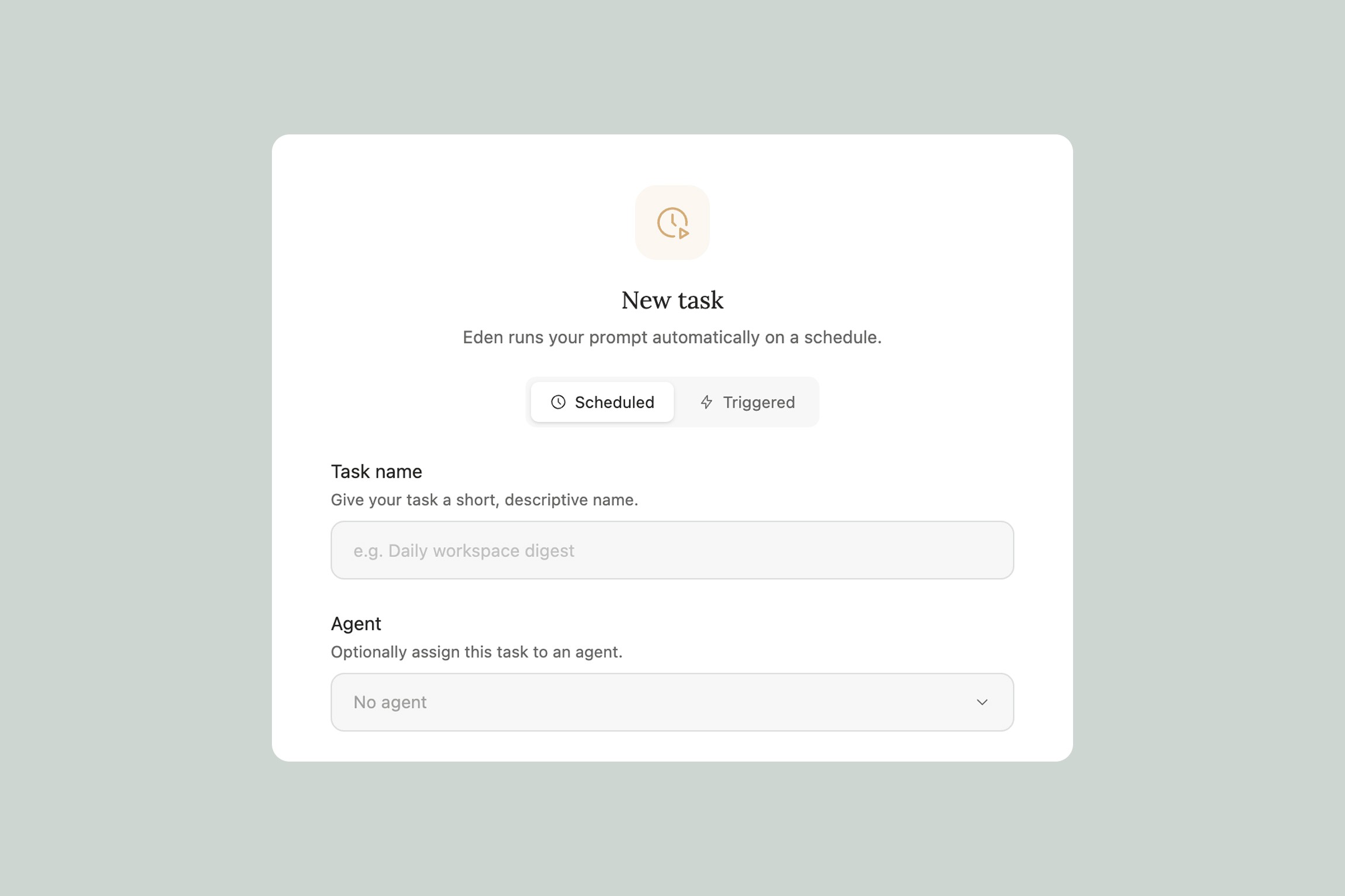
Click the tasks icon in the footer of the Eden sidebar. From there you can:
Create a one-off task — Run a prompt or action once. Useful for things like "process everything in this folder" or "generate summaries for all my unsummarized items." You set it up, it runs, and it's done.
Create a scheduled task — Run something on a recurring cadence. Daily, weekly, or whatever interval you need. Your morning briefing, your weekly review, your monthly content audit — anything that should happen on a regular basis.
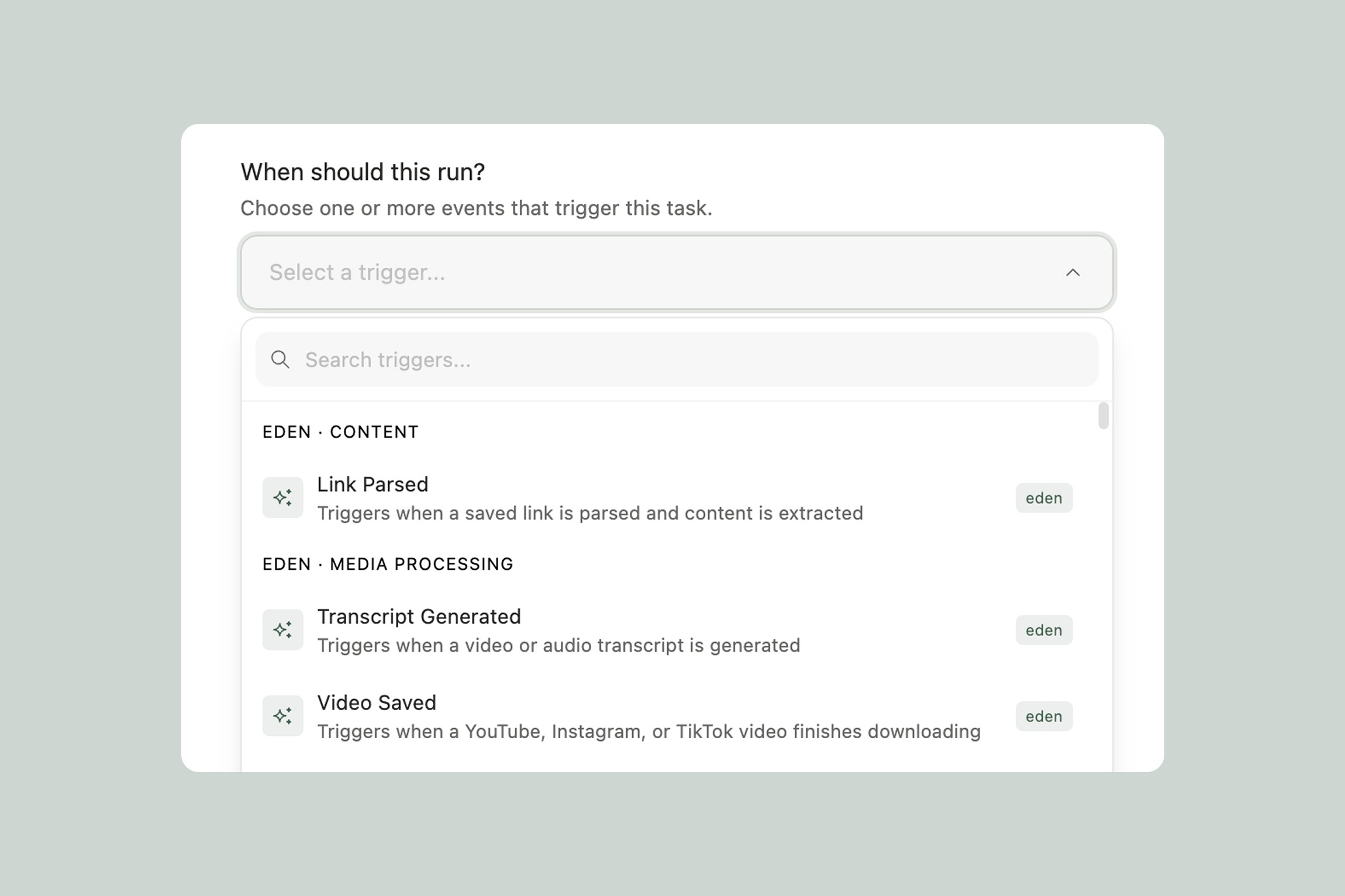
Create a triggered task — Run something in response to an event. This is where automations come in. Instead of running on a clock, the task waits for something specific to happen — a file gets uploaded, a tag gets added, a link gets parsed — and then executes. We cover all available triggers in Eden Triggers.
Tasks + Integrations
Tasks can use your connected integrations. This means a task can do things like:
Check your Gmail for emails from a specific sender and save them to a workspace folder
Post a summary to Slack when a new research brief is generated
Create a Notion page whenever you finish a content draft in Eden
Pull your latest YouTube analytics and compile a performance report
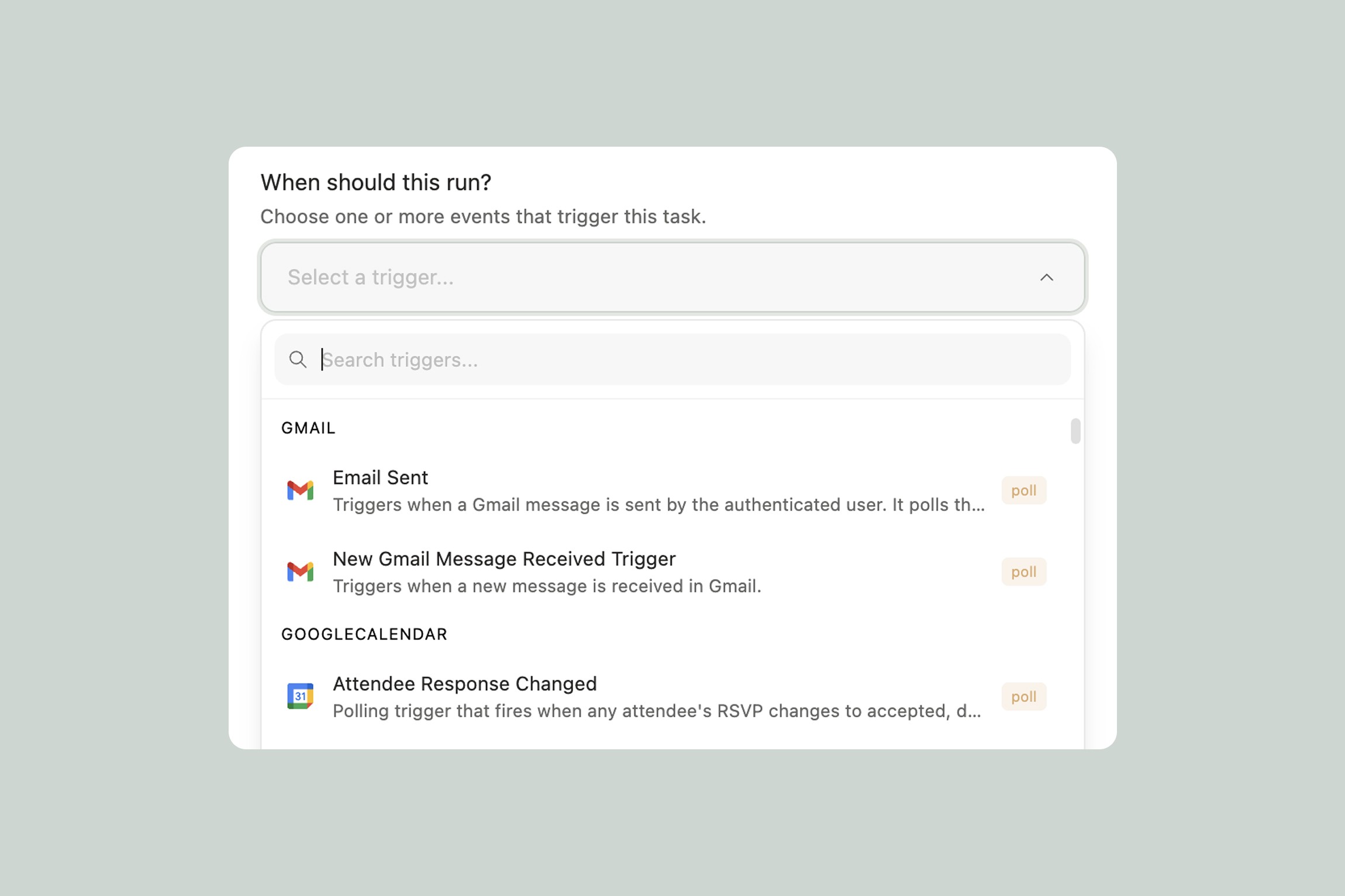
If an integration is connected in Settings > Integrations, your tasks can use it. You can mention integrations directly in your task prompt, or use integration-specific triggers to kick off a task. For more on what integrations are available, check our integrations page.
Tasks + Agents: How They Work Together
Agents create and manage tasks as part of their workflow — but it's worth understanding how this works under the hood.
When your Personal Brand Coach says "I'll check in with you every morning at 9am," it's creating a scheduled task. When your Swipe File Manager says "I'll break down anything you save to your Swipe folder," it's creating a triggered task. The agent is the brain — the task is the muscle.
You can see all active tasks (from agents and standalone) in the tasks view. This gives you a single place to check what's running, pause things, or adjust schedules.
One important detail: agents schedule tasks directly. A task cannot schedule another task, and a task cannot create new tasks. If you need a chain of actions, set up the individual tasks separately — or use an agent, which can coordinate multiple tasks as part of its workflow.
Chaining Tasks Together
Tasks don't have to be isolated. A task's completion can be a trigger for the next task — which means you can build entire automation pipelines where one step flows into the next.
Take the client brief example from earlier. You upload a brief to a folder. That triggers a task that generates a summary. The completion of that summary task triggers a second task that posts it to a Slack channel so your team sees it instantly. Two tasks, chained together — upload a file, and your team gets a summary in Slack without you doing anything in between.
A few more examples of chained pipelines:
Research → Brief → Outline. Save a bunch of links to a project folder. Each parsed link triggers a summary task. When all summaries are complete, a second task compiles them into a research brief. A third task takes the brief and generates a content outline. You go from raw links to a working outline without touching anything.
Video saved → Transcript → Key takeaways → Social posts. Save a YouTube video. The transcript triggers a takeaways extraction task. That task's completion triggers another that drafts social media posts based on the takeaways. You save one link and get a draft content package.
Draft tagged → Review → Notification. Tag a draft as "ready." A task runs it against your style guide and generates a review note. When the review is done, a second task sends the highlights to your editor via Slack or email.
This is where standalone tasks start to feel like a full automation system. Each individual task is simple — but chained together, they handle complex multi-step workflows.
When to Use a Task vs. an Agent
Use a standalone task when you want a simple automation that doesn't need conversation, memory, or evolving context. "When X happens, do Y" — that's a task.
Use an agent when the work benefits from personality, accumulated knowledge, ongoing conversation, or judgment calls. Your Strategic Advisor doesn't just run a prompt on a schedule — it considers your goals, your recent progress, and what you've been avoiding. That's agent territory.
A good rule of thumb: if you can describe the automation in one sentence ("summarize new uploads in this folder"), it's a task. If describing it takes a paragraph, it's probably an agent.
Thank you.