Creating your first board
Make a board, add your first items, and pick Grid, List, or Freeform view.
In the sidebar, hover Boards, click +, and pick New board. Type a name and click Create. Then use the + at the bottom of the board to add things.
Make a board
- 01
Open the create menu
Hover the Boards heading in the sidebar and click +. Or right-click an empty spot in the sidebar.
- 02
Pick New board
Choose New board. Want a head start? Right-click an empty spot in the sidebar and pick Board from template.
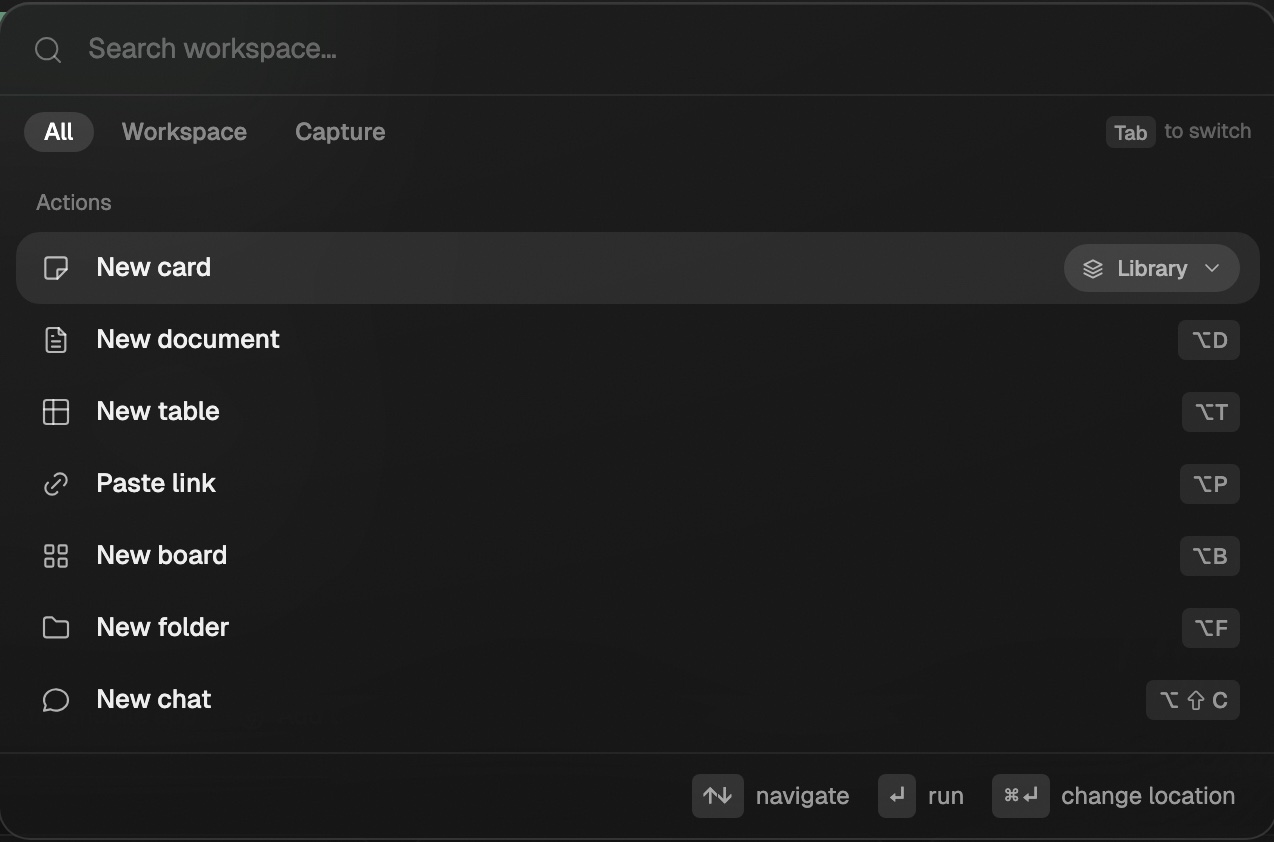
The + next to Boards opens this menu. - 03
Name it
Type a name and click Create. To rename it later, double-click the board title.
Pick a name that tells you what's on the board. "YouTube titles to study" works. "Misc" doesn't.
Add items
| Way to add | How |
|---|---|
| Add to board (+) | Click + at the bottom of the board. Pick a document, card, table, link, upload, or Add from library. |
| Paste a link | Copy any URL and press ⌘ V (Ctrl V on Windows) on the board. Eden turns it into a link card. |
| Drop files | Drag images, PDFs, or other files onto the board. |
| From Discover | Click the bookmark on a post and pick Save post to board. Or right-click it and pick Add to board. |
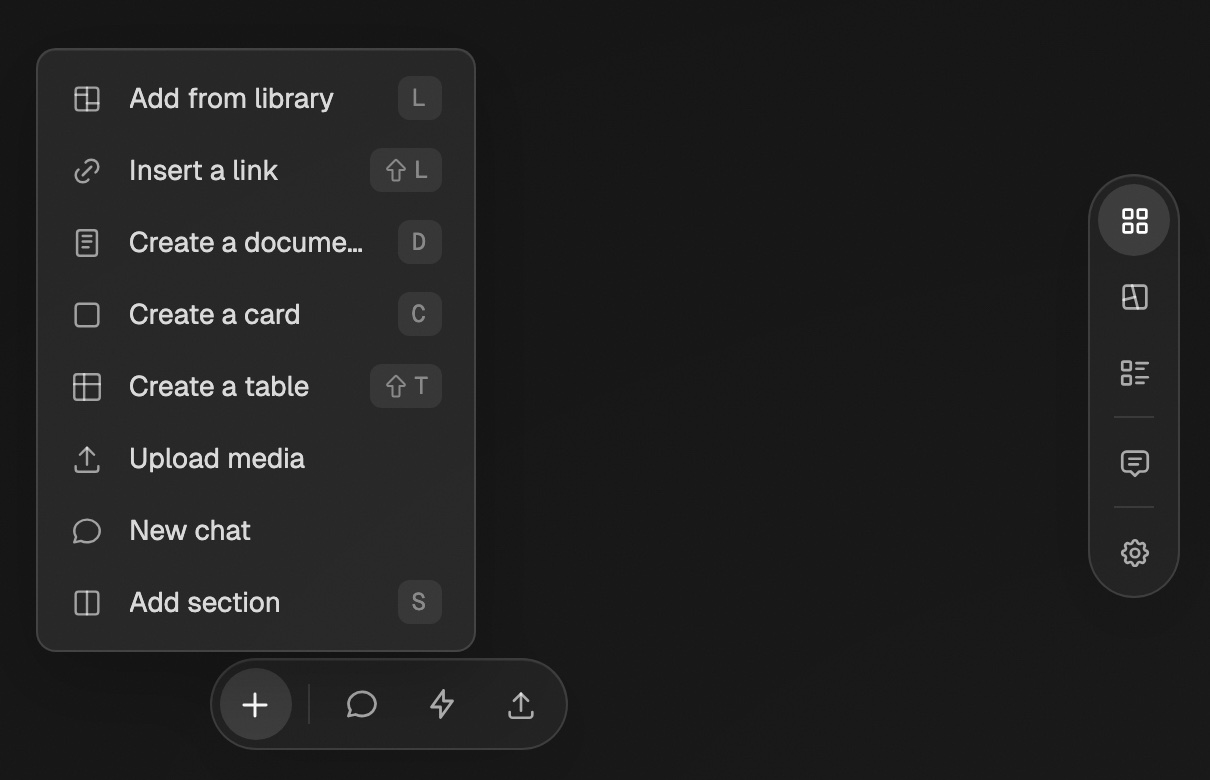
Board shortcuts: D for a document, C for a card, S for a section, Shift L for a link. Click the
board background first.
The Free plan holds up to 100 saved items on boards, and the Discover plan holds 350. Personal and above have no limit.
Pick a view
Switch views with the buttons at the bottom right of the board. Your choice only changes the view for you.
| View | Best for |
|---|---|
| Grid | Swipe files and reference boards. Items line up in a sorted grid. |
| List | Scanning lots of items as rows. |
| Freeform | Active projects. Place items, chats, and drafts anywhere. |
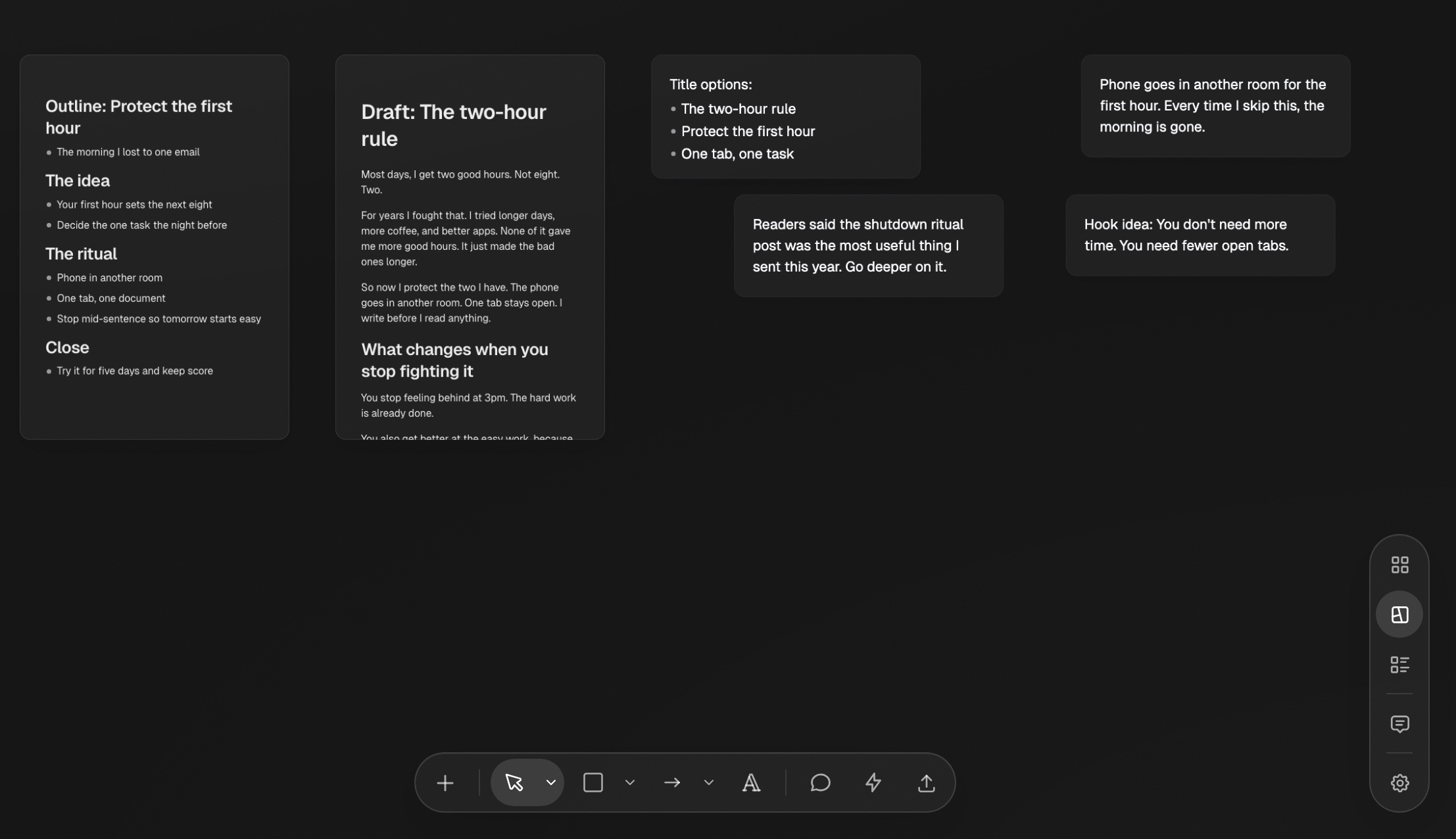
To set the view new boards open in, go to Settings → Preferences → Default view for new boards.
When a board gets long, add sections or split it into two boards.
Folders, boards, and sections
Group boards into folders in the sidebar, and group items inside one board with sections.
Using sections to organize a board
Split one board into sections, then click a section chip to see just those items.
Quick capture
Save a thought, link, or file in a few keystrokes from anywhere in Eden.
Get answers from the team and other creators.
Ask in the Eden help channel, see how others use the app, and come to the live workshops. Free with any Eden account.
Join the Eden CommunityEmail us. A real person reads every message.
Tell us what you tried and where you got stuck. We answer within one business day.
[email protected]