Boards, spaces, and sections
Three layers of organization in Eden. Boards hold your work. Spaces group boards in the sidebar. Sections group items inside one board.
Eden has three organizational layers. A board holds the work. A space groups related boards in the sidebar. A section groups items inside one board. Most users only need boards for a long time. The other two earn their keep once a board gets long or the sidebar gets crowded.
This article covers what each layer does, what it does not do, and which one to reach for when your work starts to feel busy.
Why only three layers
Most note-taking apps end up as nested folder trees, tag clouds, and filing systems that take more time to maintain than to use. Eden has only three layers on purpose. Spaces do not nest inside spaces. Boards do not nest inside boards. Sections live in one place and stay there. The constraint forces you to be strategic about what you save and where it lives. Less time managing your library, more time doing the work.
Boards
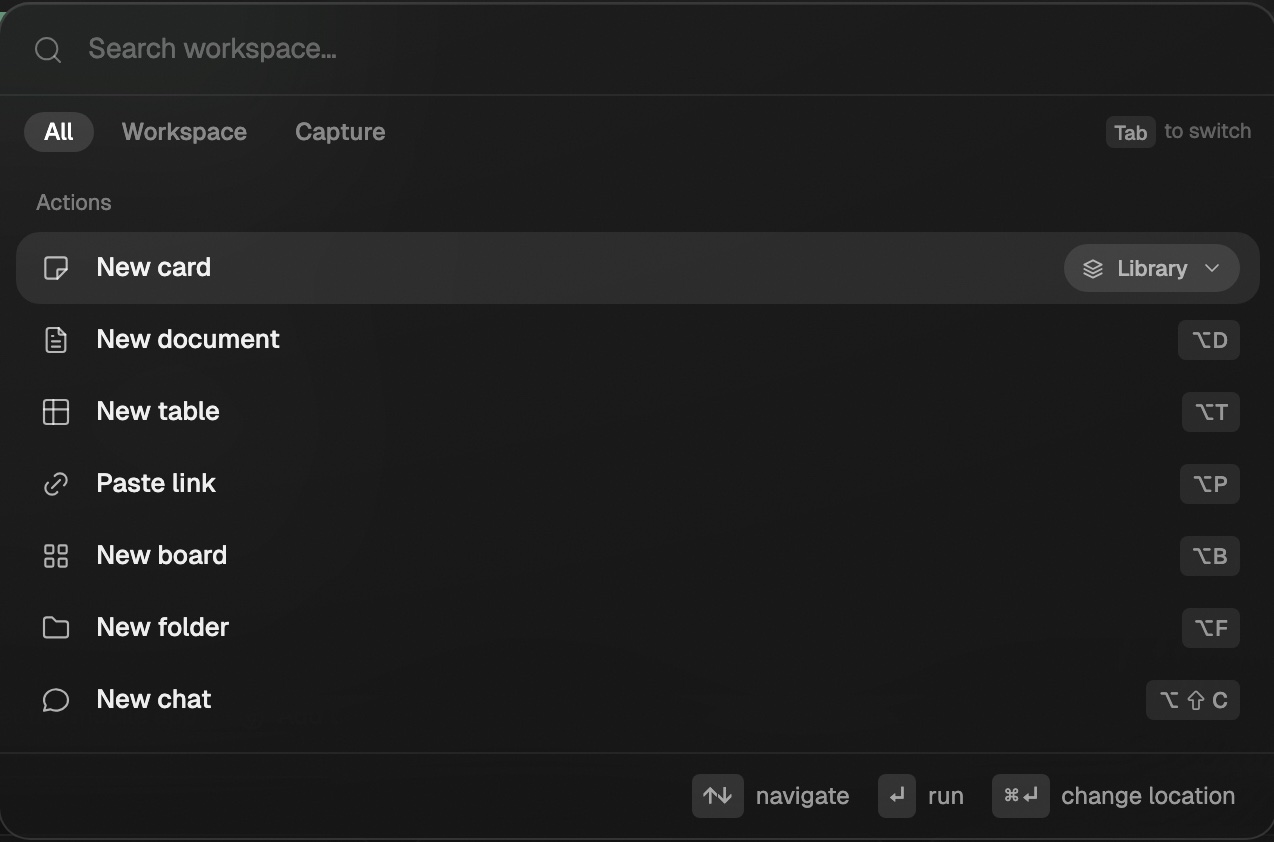
The unit you spend the most time inside. A board is a flat surface that holds items: social posts, pasted links, images, PDFs, your own documents and cards. Read creating your first board for the basics.
Two things to know:
- A board is shareable. Sharing happens at the board level.
- A board has its own sort order. Custom drag-to-order is the default. Other options are described in sorting a board.
Spaces
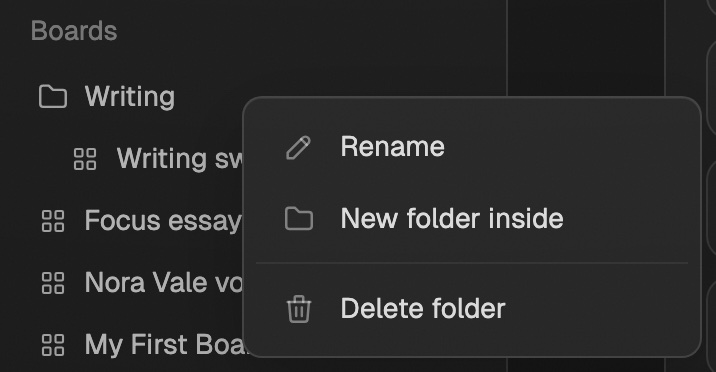
A space is a one-layer folder in the sidebar. You group boards into a space when the sidebar has too many boards for the eye to scan.
Three rules to remember:
- Spaces hold boards only. They do not hold items, and they do not hold other spaces. They never nest.
- Spaces are personal to your sidebar. A collaborator looking at the same boards sees their own arrangement.
- Spaces are not navigable as a page. There is no "Open this space" view. The space is a sidebar grouping, nothing more.
The right time for a space is when you find yourself hunting for a board you know exists. A clear name helps. "Newsletter projects", "YouTube research", "Personal" all work better than "2025" or "Old stuff".
Sections
Sections are filters inside one board. They give you a focused view of one slice of the board so you are not scrolling through hundreds of items to find what you need.
A few shapes that work well:
- Weekly content board: Ideas, Research, Drafts, Tweets, Reels. The whole week's plan on one surface, filtered to whichever piece you are working on.
- YouTube channel board: Title ideas, Hooks, Scripts, Thumbnails, B-roll references.
- Newsletter board: Story bank, Outlines, Drafts, Past issues.
- Course launch board: Modules, Lessons, Promo posts, Sales emails.
- Client board: Brand assets, Approved posts, Drafts, Sent invoices.
Sections are covered in detail in using sections to organize a board. The short version: reach for sections when items belong together on one board but you do not want to scroll the whole stack at once.
When to use which
A short decision tree:
- 01
Have you outgrown a flat sidebar?
If you have under ten boards, leave them flat. The sidebar handles ten cleanly. Adding spaces too early adds friction without saving time.
- 02
Are different projects mixed on one board?
Split into separate boards. A "Newsletter" board and a "YouTube" board are simpler to scan than one giant board with both projects on it.
- 03
Are the items on a board different stages of one project?
Add sections. Ideas, Research, Drafts, and so on. The whole project stays on one board, which means chat can read all of it at once.
Pinning
Independent of all three layers: any board can be pinned to the top of the sidebar. Right-click the board and pick "Pin". Pinned boards stay above the rest of the sidebar regardless of which space they belong to.
Use pinning for the two or three boards you open daily. The active newsletter, your main swipe file, the project you are mid-launch on. Pinning more than five things defeats the purpose.
Where to go next
- For organizing items inside one board, read using sections to organize a board.
- For sort options on a board with a lot of items, read sorting a board.
Creating your first board
Create a board, add your first sources, then choose grid view for a swipe file or freeform canvas for a spatial creative project.
Using sections to organize a board
Sections are filters inside one board that show you one slice at a time. Here is how to use them, and when they beat splitting into separate boards.
Email us. A real person reads every message.
Tell us what you tried and where you got stuck. We answer within one business day.
[email protected]