A 5-minute tour of Eden
What Eden is for, what each part of the sidebar does, and the simple loop that ties it together. Read this first.
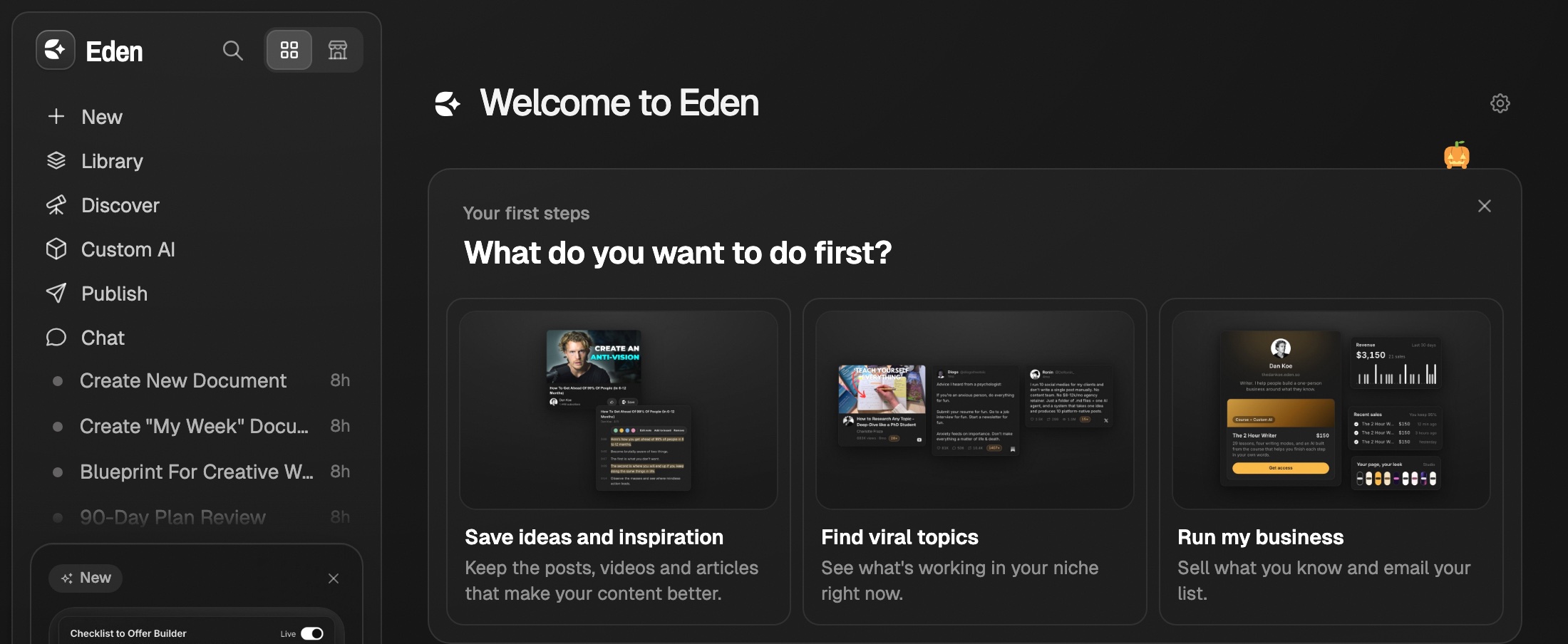
Eden is where creators save ideas, study what already works, write, and then publish or sell the result. Everything you save lands in your Library, and the rest of the sidebar helps you turn it into posts and products.
What each part of the sidebar does
| Surface | What it's for | Learn more |
|---|---|---|
| Home | Your starting point: your first steps, recent work, and chats. On the web, click the Eden logo at the top of the sidebar. | This article |
| Library | Everything you save, in one place. Links, notes, PDFs, images, and saved posts. Eden tags them for you. | The Library |
| Discover | 3M+ top posts from X, Threads, YouTube, Substack, Instagram, TikTok, and LinkedIn. Tabs for Discover, Creators, Brands, and Lists, plus a Posts / Ads switch. | Filtering Discover |
| Custom AI | Focused AIs built on your own knowledge, creators you trust, or ready-made ones from Eden. | What is a Custom AI? |
| Publish | Write once and schedule to X, Threads, LinkedIn, Instagram, TikTok, Facebook, YouTube, and Substack. | Schedule and publish posts |
| Boards | Listed under the pages. A board is a swipe file or a writing desk. View it as Grid, List, or Freeform. Group boards with New folder. | Your first board |
| Store | The Store icon at the top of the sidebar. Sell Custom AIs, courses, downloads, and memberships, and run your creator page. | Sell your Custom AI |
Searching Discover by keyword works on the $5 Discover plan and on Starter or above. On Personal and Personal Plus you can browse and filter. Free shows the first 8 posts.
Want a Capture row too? Turn it on in Settings → Preferences. Or press ⌘ K anywhere. See Quick capture.
Bring in what you already saved
Connect your other apps in Settings → Integrations. Your saves come into your Library.
| Source | Learn more |
|---|---|
| X Bookmarks | Sync your X bookmarks |
| Instagram Saves | Connect Instagram saves |
| Substack Bookmarks | The Substack Bookmarks card in Integrations |
| Kindle highlights | Connect Kindle |
| Readwise | Connecting Readwise |
On Free you import by hand, up to 100 items. Automatic sync, where new saves keep flowing in on their own, needs Personal or above.
Moving your notes over? Go to Settings → Import for Notion, Obsidian, Evernote, and Apple Notes. See Import your Notion workspace.
Save from anywhere
| App | What it adds | Learn more |
|---|---|---|
| Chrome extension | Save any page or post in one click. | The Chrome extension |
| iPhone app | Save from the share menu. | Save from your iPhone |
| Android app | Save from the share menu. | Get the Android app |
| Mac app | Floating docs, chats, and quick capture. | Download the Mac app |
Get them all at eden.so/downloads. The Windows app is coming soon.
The core loop
- 01
Save what catches your eye
Press
⌘ K(Ctrl Kon Windows), paste a link, or use the Chrome extension or phone app. It all lands in your Library. - 02
Find what already works
Open Discover, pick your platforms and topics, and save the standout posts to a board.
- 03
Write next to your research
Write on the same board, with your saved posts beside the draft. Ask chat or a Custom AI for hooks, outlines, or feedback.
- 04
Ship it
Schedule the post in Publish. Or turn what you know into a product in your Store.
The complete Eden walkthrough
The full video tour of Eden, plus a written version you can skim. Library, Discover, boards, Custom AI, MCP, publishing, and selling in one place.
Quick capture
Save a thought, link, or file in a few keystrokes from anywhere in Eden.
Creating your first board
Make a board, add your first items, and pick Grid, List, or Freeform view.
Get answers from the team and other creators.
Ask in the Eden help channel, see how others use the app, and come to the live workshops. Free with any Eden account.
Join the Eden CommunityEmail us. A real person reads every message.
Tell us what you tried and where you got stuck. We answer within one business day.
[email protected]