Sell a paid newsletter
Sell a newsletter people pay for. Subscribers get each issue by email and read every past issue in Eden.
A newsletter is a product people buy. Paying subscribers get new issues by email and can read every past issue in Eden. Start in Your store → Products → New product → Newsletter. It needs Email marketing turned on.
See how it looks to readers, and what it costs next to Substack and beehiiv, on the Newsletters feature page.
Set it up
- 01
Create the newsletter
Open your store, go to Products, click New product, and pick Newsletter. If Email marketing is off, Eden asks you to turn it on first. Tick the box and click Turn on. Nothing is charged until your list grows past what your plan includes.
- 02
Price it
On the Offer step, set the title and price. To charge every month or year, set How buyers pay to Membership.
- 03
Add a few issues
On the Issues step, click Add issue. Post a few older issues so buyers have something to read on day one.
- 04
Write the page and publish
Fill in the Page step, then finish the checklist on Publish.
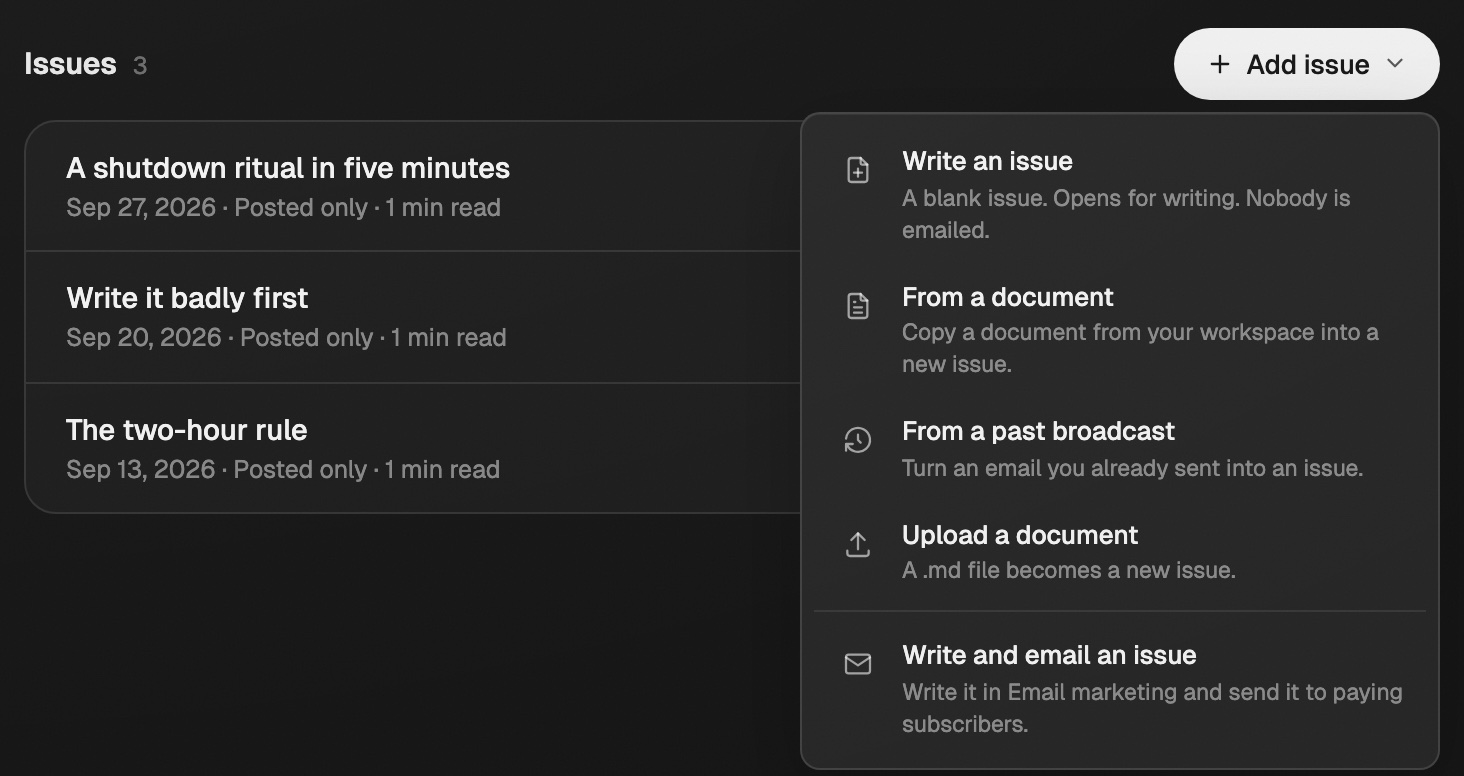
Ways to add an issue
| Choice | What it does |
|---|---|
| Write an issue | A blank issue to write here. Nobody is emailed. |
| From a document | Copies a document from your workspace into a new issue. |
| From a past broadcast | Turns an email you already sent into an issue. |
| Upload a document | A .md file becomes a new issue. |
| Write and email an issue | Opens Email marketing to write it and send it to subscribers. |
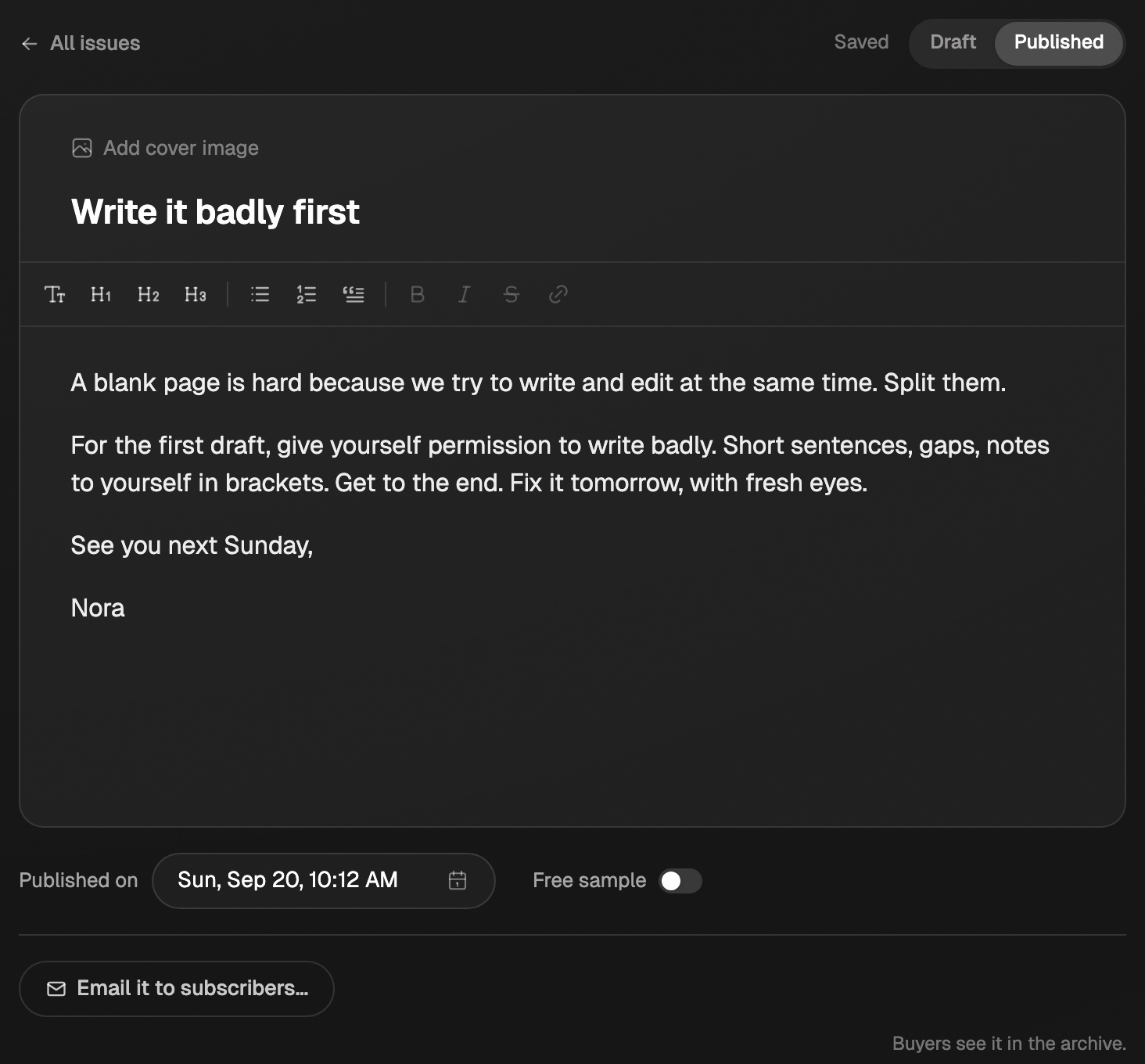
New issues start as drafts that only you see. Add a cover image and a Publish date if you like, then click Publish to archive. Buyers see it in the archive, but nobody is emailed.
Email an issue to subscribers
Open an issue and click Email it to subscribers…. Or write a broadcast in Email marketing and set This is for to Paid newsletter. It shows how many paying subscribers will get it.
On a broadcast, Only post it to the archive, don't email it adds it to the archive without sending.
- Editing an issue after it's emailed changes the archive copy only.
- Deleting an issue takes it out of the archive. Emails already sent stay in inboxes.
Give away a free sample
Turn on Free sample next to one published issue. Anyone can read it from your product page. The page also shows your recent issue titles, locked until someone buys.
What subscribers see
The newsletter opens in Eden as an archive, with new issues marked. Each subscriber can turn off Email me new issues and read only in Eden. The link at the bottom of each issue stops emails for that newsletter only.
Issues still go to subscribers who unsubscribed from your other marketing emails, because they paid for them.
Good to know
- Building is free on any plan. Publishing needs Starter, Pro, or Max.
- Paying subscribers count toward your Email marketing list size.
- A newsletter needs Eden checkout. It can't be a coaching or cohort product.
Email marketing
Send sales emails to your buyers and signups from your store. Set up sequences that go out on their own, or send a broadcast to a list you filter.
Sell a membership
Charge for any product monthly or yearly instead of once. Members keep access while they stay subscribed.
Sell a digital download
Sell a file, template, board, table, or document from your workspace, with no AI attached.
Email us. A real person reads every message.
Tell us what you tried and where you got stuck. We answer within one business day.
[email protected]