Filter Discover
Narrow the Discover feed by topic, platform, creator size, outlier score, date, and more.
Click a category chip above the feed to pick a topic. Click the filter button at the right end of the search bar to set platforms, follower size, outlier score, and date.
Narrow the feed
- 01
Pick a topic
Click a category chip. Click more than one to mix topics. All clears them.
Presets come first, then your topics. - 02
Open the filters
Click the filter button at the right end of the search bar. It shows your current filters, like 6 platforms · Last 6 months.
- 03
Change what you need
The feed updates right away. Click Reset to defaults at the bottom of the panel to start over.

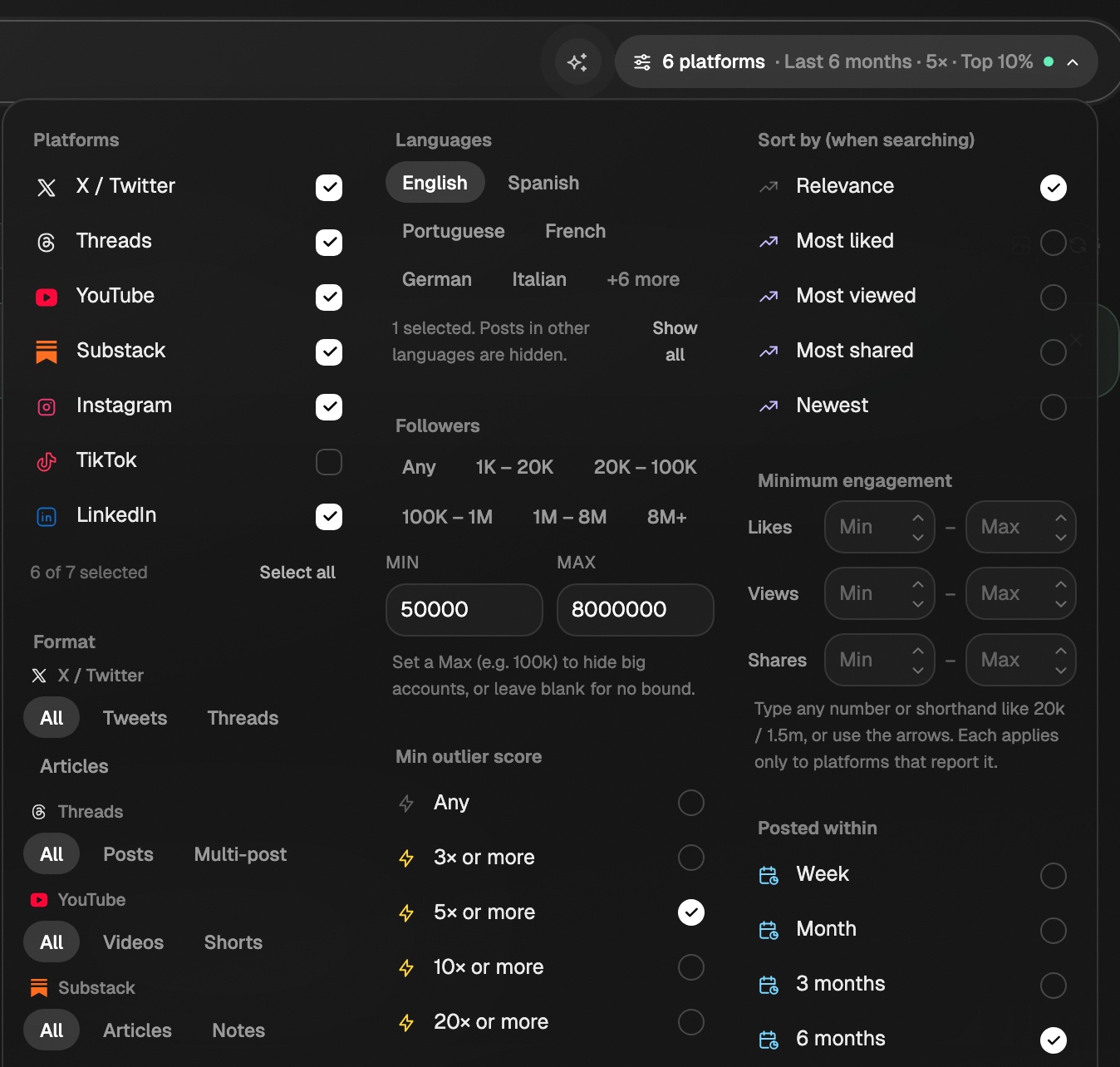
Eden remembers your filters for each workspace on this device.
What each filter does
| Filter | What it does | Default |
|---|---|---|
| Platforms | X, Threads, YouTube, Substack, Instagram, TikTok, LinkedIn | All but TikTok |
| Format | Split a platform by type, like YouTube Videos or Shorts | All |
| Languages | Only show posts in the languages you pick | English |
| Followers | Creator size. Pick a preset from 1K – 20K to 8M+, or type a Min and Max | 50K to 8M |
| Min outlier score | Only posts that beat the creator's typical post: 3×, 5×, 10×, or 20× | 5× |
| Creator percentile | Also let in a creator's best posts below the outlier bar: Top 10%, 5%, 1% | Top 10% |
| Sort by (when searching) | Order search results by Relevance, Most liked, Most viewed, and more | Relevance |
| Minimum engagement | Min and Max likes, views, and shares | None |
| Posted within | From Week to All time | 6 months |
Format only shows rows for platforms you have turned on. Creator percentile only shows while a Min outlier score is set. See reading the outlier multiplier for what the numbers mean.
Use a quick preset
The first chips in the category row set several filters at once. Click one again to go back to the defaults. Changing any filter by hand turns the preset off.
| Preset | What you get |
|---|---|
| Breakouts | Creators under 50K with 5×+ posts from the last 3 months |
| Hidden gems | Creators under 20K with 10×+ posts from the last 6 months |
| Viral now | 10×+ posts from the last 30 days with at least 500 likes |
| All-time greats | 10×+ posts from creators over 50K, any date, with very high likes or views |
Add or remove a category
- Click + Add category at the end of the row and pick a topic.
- To remove one, right-click it (long-press on mobile) and choose Remove from my categories.
Turn posts into a table
- 01
Check a post
Hover a post and click the round check in its top-left corner. A bar shows up.
- 02
Pick more
Check more posts, or use the bar. Breakouts (n) picks every post on screen that did 5× or more its creator's usual. All (n) picks every post on screen.
- 03
Make the table
Click Turn into table. It opens right away.
- A table holds up to 100 posts.
- It's named Breakout posts · date when every pick is a breakout, or Discover posts · date.
- Each row has the hook, creator, outlier score, views, likes, link, and post text.
If something's not working
- Posts below your outlier bar. When few posts match, Discover fills the end of the feed with the closest posts that miss your outlier or follower filter. Your Posted within date always holds.
- No TikToks. TikTok starts turned off. Check it under Platforms.
Get answers from the team and other creators.
Ask in the Eden help channel, see how others use the app, and come to the live workshops. Free with any Eden account.
Join the Eden CommunityEmail us. A real person reads every message.
Tell us what you tried and where you got stuck. We answer within one business day.
[email protected]