Build a funnel
Link pages so each signup, form, and checkout sends people to the next one, and take payment on the page.
A funnel is pages that lead into each other, like a signup page, then a thank-you page. On any button or signup, pick Then send them to, then a page or New page.
Add a page after this one
- 01
Pick the button or signup
Open a page in Site → Pages and click the button, signup, form, or checkout that should send people on.
- 02
Click New page
Under Then send them to, click New page and pick the kind: Opt-in page, Sales page, Checkout page, Upsell page, Thank-you page, Event sign-up, Replay page, Form page, or Blank page.
- 03
Change its words
The new page is a draft, linked right after the one you were on. Click the page's name in the bar at the top, then the new page, to edit it.
To start from a ready-made funnel instead, click New in Site → Pages and pick Free guide opt-in, Webinar, or Launch funnel. Their pages come linked.
Publish every page in the funnel. Until the next page is live, people who sign up see a short thank-you message instead. When you publish a page whose next page is still a draft, click Publish it too.
See and change linked pages
Click the page's name in the bar at the top of the editor. It shows which step you're on, like Step 1 of 3, and opens your linked pages in a row. Click one to edit it. Your edits save before it switches.
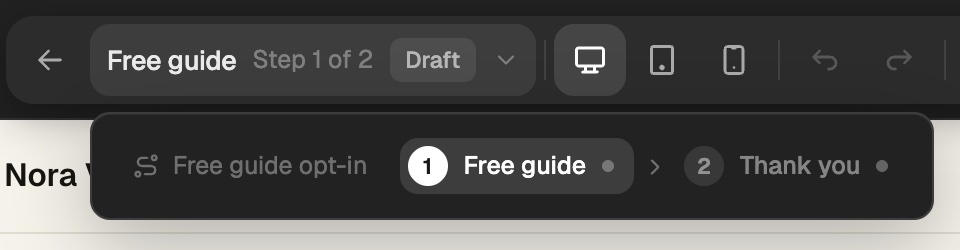
- Click the row's name to rename it.
- Drag a page left or right to move it.
- Right-click a page to open it, move it earlier or later, or take it out. The page stays.
- In Site → Pages, linked pages show as one card under Other pages. Click it to see the pages in order, or click Add a page to add one at the end.
Choose where each part goes
Every button, signup, and form picks its own place under Then send them to. So one page can send a free guide signup to a thank-you page, and a buy button to checkout.
- The next page goes to the page linked after this one.
- Another page goes to any page you pick.
When nothing on a page leads to the next page, an amber dot shows by the page's name in the bar, and a line under the row says so. Click Fix it.
See the steps Eden runs between pages
Some steps aren't your pages. Eden runs them for you, like the checkout, the product's one-click offers, its thank-you page, a call's booking screen, or a form's ending. They show lighter, with a dashed outline, between your pages in the row and in the funnel's view.
- Click one to see what each step does.
- Click Open where it's set to change it on the product, the call, or the form.
- After a checkout on the page, click Use your own page on the thank-you page or a one-click offer. Eden makes the page right after this one, and buyers go there after they pay.
Access emails and call invites always send, whatever page shows.
Put a form on the page
Click Add in the bar at the top, then Step-by-step form. People fill it out right on the page. You need a published form in Marketing → Forms & quizzes first.
- Show it picks On the page or As a button that opens the form.
- When they finish picks Show the result or Send to a page.
With Send to a page, pick it under Then send them to. Their answers save first, then they land on the page you picked. An application you review by hand still shows its thank-you screen.
Take payment on the page
Click Add in the bar at the top, then Checkout. Buyers pay right on the page with the product's own checkout. You need a published product first.
- The price, sale, discount codes, payment plans, order bump, and one-click offers all come from the product. Change them on the product.
- After they pay picks The usual (the product's own thank-you page) or Send to a page.
- With Send to a page, buyers answer any one-click offers first, then land on the page you picked.
- After they join the waitlist or apply does the same for a product in Waitlist mode or with People apply first on. It is its own setting, so buyers and people still waiting can land on different pages.
In the editor, the checkout shows as a stand-in. The real one shows on the live page.
Add your own upsell page
Click Add a page, then Upsell page, or Use your own page on a one-click offer. The page starts as a short sales letter around the offer.
- The Upsell part at the top looks like Eden's own offer screen. It shows Your order is confirmed., your headline, a picture, your pitch, What's included, the price, a Yes button, and a No link.
- With Use your own page, it starts from the words you saved for that offer on the product.
- Any field you leave empty uses the product's own pitch, picture, and list.
- Below it come why it goes with their order, everything inside, testimonials, common questions, and the ask again.
- Yes adds the offer with one click, on the card they just paid with. Nothing to type.
- It works for buyers who paid in a checkout part on your store in the last 30 minutes. Anyone else sees a normal buy button.
- While your funnel has an upsell page, your products' own one-click offers don't show for buyers who pay on your pages. You can have up to 3.
To add one to any page, click Add in the bar at the top, then Pre-built under Sections.
| Set | What's in it |
|---|---|
| Upsell offer | The full offer, the same as the top of an upsell page |
| Upsell with details | Why it goes with their order, a checklist, 2 questions, and the ask |
| Upsell from parts | The full offer as separate parts you edit one by one, then the ask |
| Downsell | A smaller offer after a no |
Turn on Only the ask on an Upsell part to show just the price, Yes, and No. It answers the same offer as the full one above it.
Turn off Show the box to drop the card behind it, so it sits right on the page. To make it wider, open its Style tab and set Width to Full.
Yes only charges in one click inside an Upsell part. A plain Button opens a normal checkout.
Build a page
Make your website, opt-ins, and sales pages in your store's look, from a template.
Build a form
Make a quiz, application, or form that asks one question at a time, then send each person to the product, call, or free download that fits them. Build it with AI or from a template.
Offer an upsell after checkout
Show up to 3 of your other products right after payment, each added with one click and no second card form.
Get answers from the team and other creators.
Ask in the Eden help channel, see how others use the app, and come to the live workshops. Free with any Eden account.
Join the Eden CommunityEmail us. A real person reads every message.
Tell us what you tried and where you got stuck. We answer within one business day.
[email protected]