Build a page
Make your website, opt-ins, and sales pages in your store's look, from a template.
Go to Site → Pages, click New, and pick a template. It opens in your site's style. Click anything on the page to change it, then click Publish.
Make a page
- 01
Pick a template
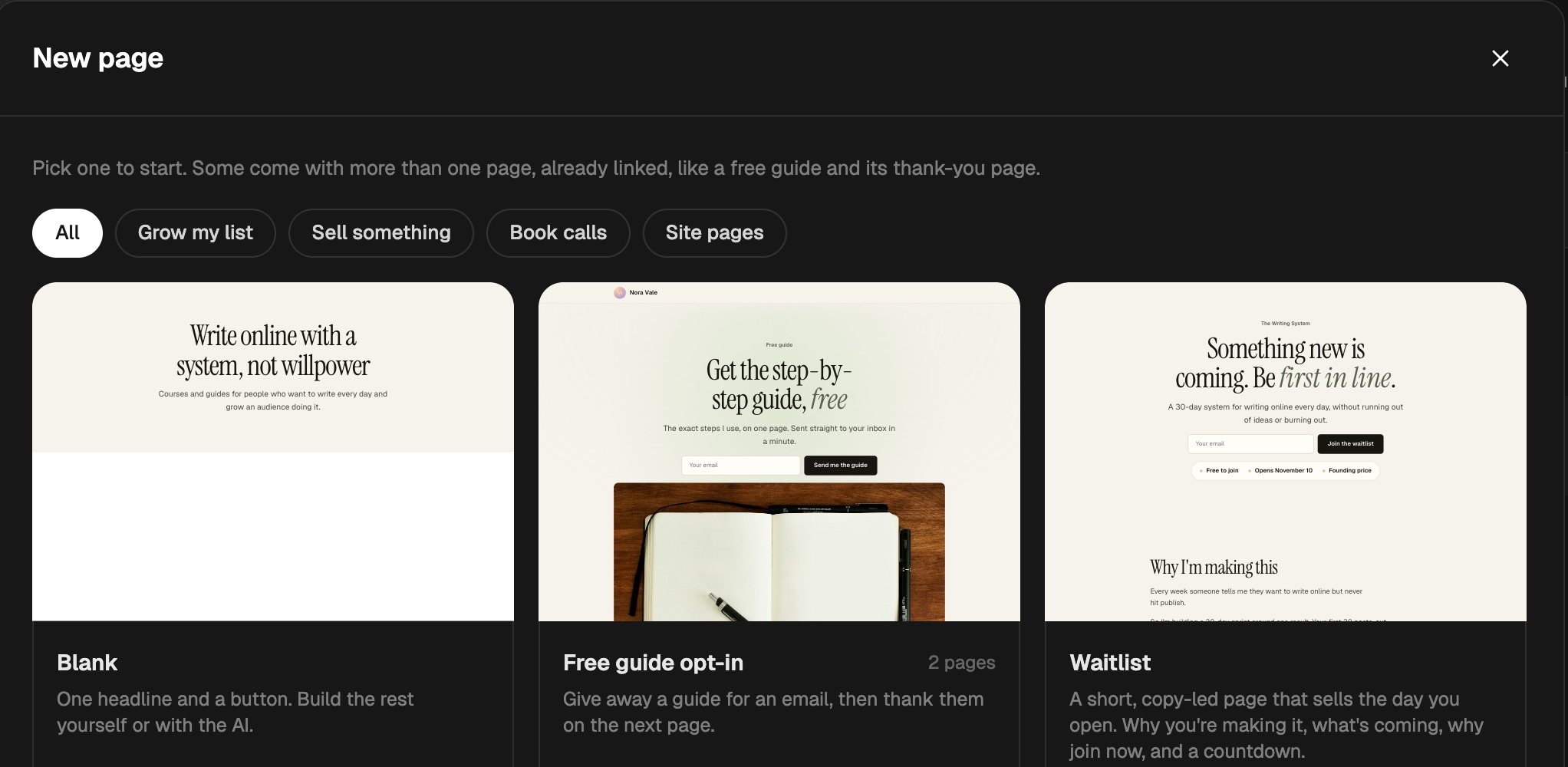
In Site → Pages, click New and pick a template, or Blank to start empty. With a website, first pick On your website (it goes in your menu) or On its own. To see a whole template first, point at it and click Preview. The preview shows sample words in your store's look. Your page starts ready for your own words.
- 02
Change what's on it
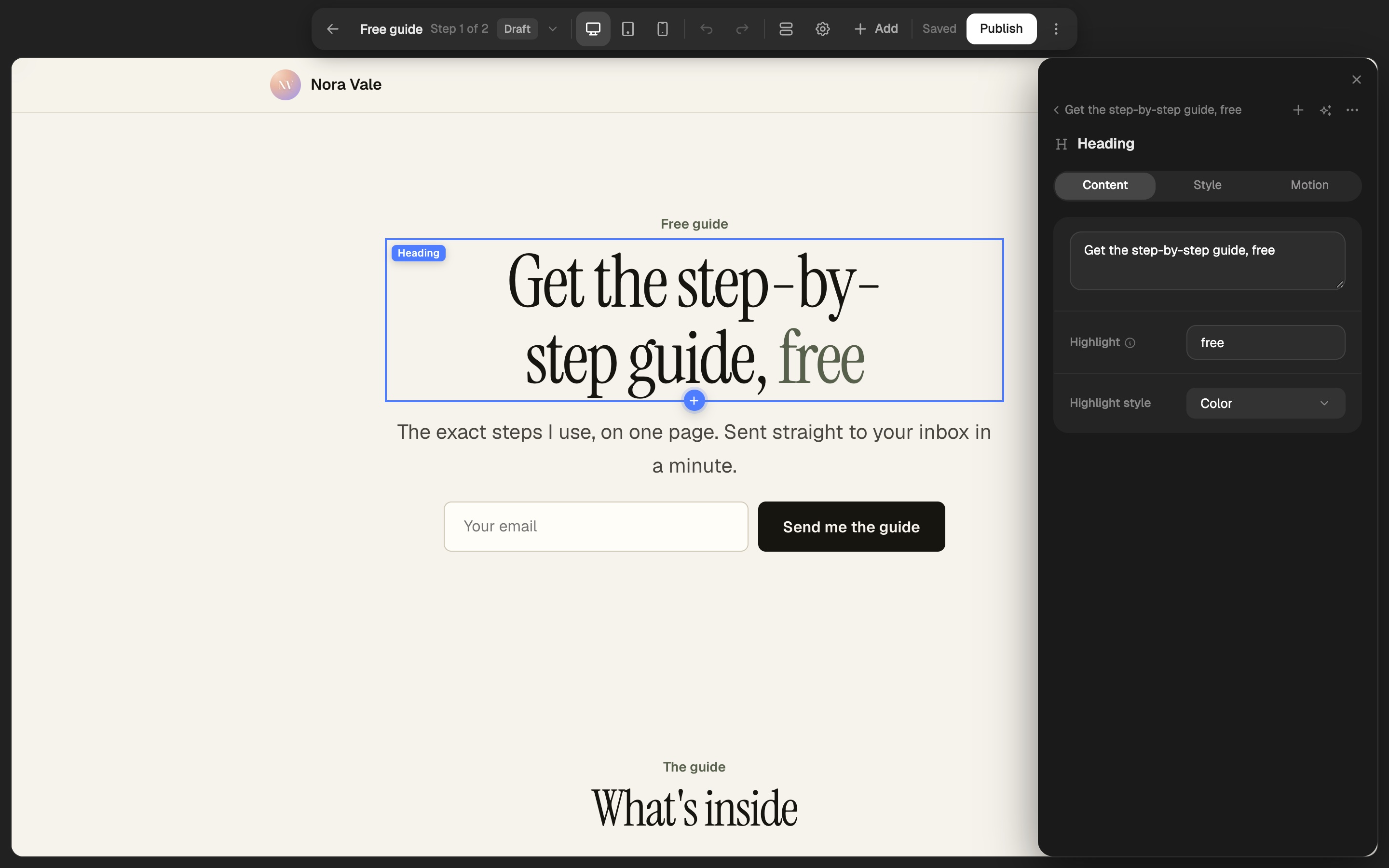
Click any heading, button, or box on the page. Its settings open in a panel on the right side of the page. If the panel would hide what you picked, it moves to the left side. Click the X or the grey space around the page to close it.
- 03
Publish
Click Publish. A panel opens on the side with the page's address, Name, Slug, Domain, and how it shows in search, so you can check them first. Click Publish at the bottom. The panel then shows the live link with Copy link and Open.
Your edits save by themselves. Nothing goes live until you click Publish changes. Click Live anytime to see the page's link again.
To have AI build it for you instead, see Build a page with AI.
Use the bar at the top
Everything for the page sits in one bar that floats over it.
| In the bar | What it does |
|---|---|
| The page's name | In a funnel, shows Step 1 of 3 and opens the other steps |
| Computer, tablet, phone | Shows the page at that size |
| Undo and redo | Takes back your last change, or puts it back |
| Sections | Lists every section on the page |
| Page settings (the gear) | The page's name, slug, look, menu, and search settings |
| Add | Blocks, pre-built sets, and sections to drag or click onto the page |
| Publish | Opens a last check, then puts the page live |
| Publish changes | Puts your newest changes live |
| ⋮ | Older versions, Take it down, and Delete page |
When you point at anything on the page, a blue outline shows with its name. The part you picked keeps a solid outline.
Pick a template
Use the chips over the templates to see only the ones for a goal: Grow my list, Sell something, Book calls, or Site pages.
| Template | Pages |
|---|---|
| Blank | One page with a headline |
| Free guide opt-in | A signup page, then a thank-you page |
| Waitlist | A short signup page with a countdown to the day you open |
| Sales page | A sales letter for your newest product, in plain strips of copy |
| Long sales page | Who it's for, proof, the problem, three ways, what's inside, a guarantee |
| Video sales letter | One big video under the headline, proof, what's inside, the price |
| Product page | Your product's page, filled in from it |
| Webinar | Sign up, you're registered, the replay |
| Launch funnel | A waitlist, free lessons, the sales page with checkout, a welcome |
| Coaching application | Who it's for, your application, then a call to book |
| Freelance service | Your packages side by side, a project brief, then what's next |
| Home page | Your newsletter up top, what readers say, and everything you make |
| Newsletter home | Signup at the top, your newest issues with their covers, who writes it |
| About me | A hello, your story, and one next step |
| Shop | Everything you sell in one grid |
- Templates fill in from your store. Your products, your call, and your application form go in by themselves when you have them.
- Words you need to change start with "Say", like "Say your turnaround."
- A soft gray box that says Add a picture is a spot for your own picture. Click it and add one. Visitors never see an empty spot, so you can leave one for later or delete it.
- Templates start on plain backgrounds. Add a color, gradient, or texture on a section's Style tab if you want one.
- Most templates end on one dark band with your last button or signup form. Change its color on that section's Style tab.
- Templates come with motion already set. Change or remove it on a part's Motion tab.
- A template with more than one page comes linked, like a signup and its thank-you page. See Build a funnel.
Find your pages
The store sidebar's Site group has seven tabs.
| Tab | What's in it |
|---|---|
| Link in bio | Your one page for your bio links, with its own design |
| Pages | Your website, your other pages, and your product pages |
| Blog | Posts on your site |
| Style | One style for your website and pages |
| Domains | Your store link and your own domains |
| Custom code | Tracking codes and scripts for your website |
| Analytics | Visits, signups, and sales for each page |
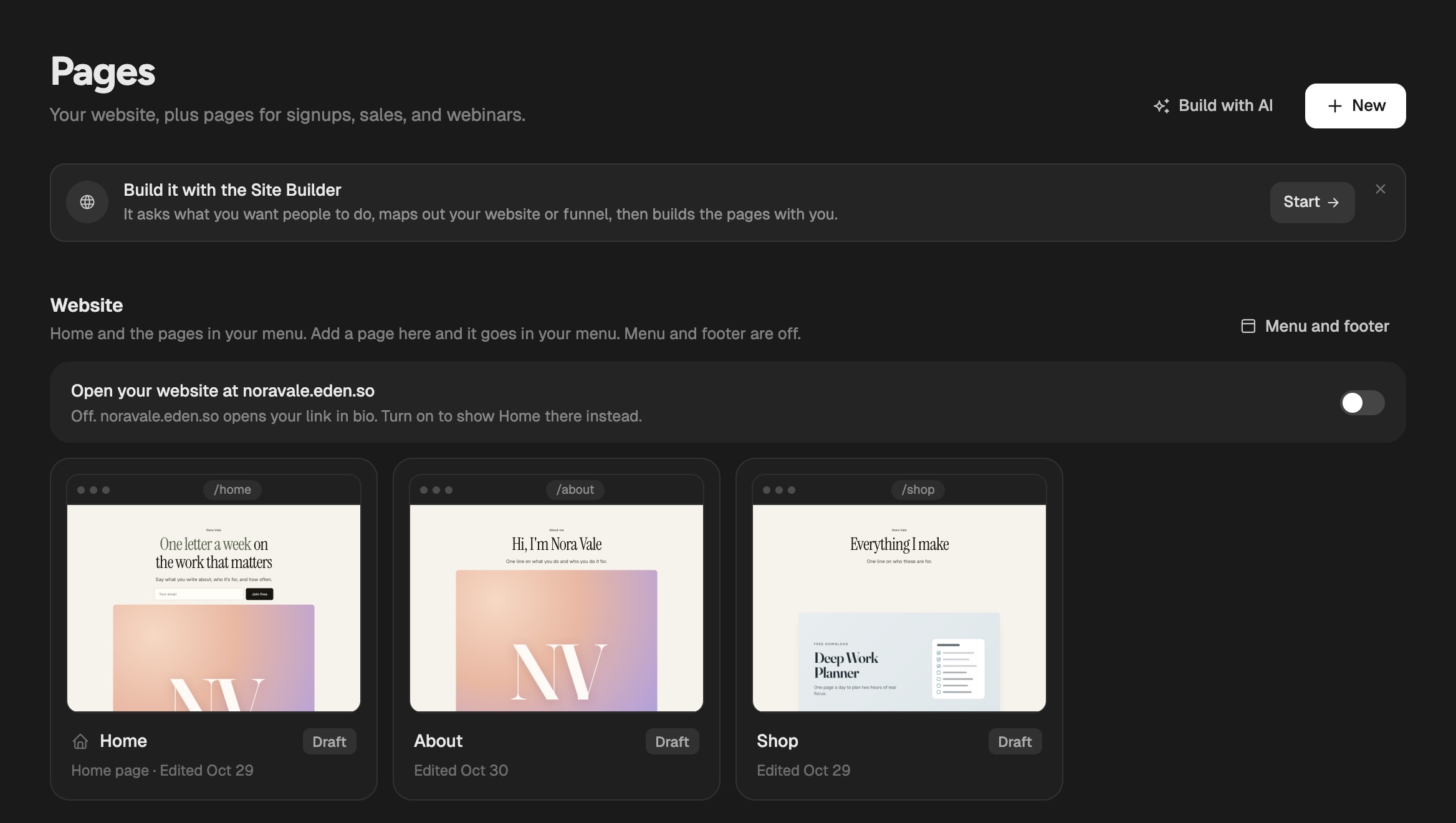
Pages has three groups:
- Website is your Home and the pages in your menu, like About and Shop.
- Other pages is everything else, like signups, sales pages, and webinars. Pages that lead into each other show as one card, like "Free guide → Thanks."
- Product pages has one card for each product. Click one to open its page.
Each product's link shows its product page. See Make a page for a product.
- A product page fills in its words from the product. A picture in the product's description shows as its own Picture part between the words.
- With no description yet, the page shows stand-in words so you can see where it goes. Your live page leaves them out until you write one.
How many pages can be live
| Plan | Live pages |
|---|---|
| Starter | 5 |
| Pro | 25 |
| Max, Team | No limit |
- Linked pages count one each. A signup page and its thank-you page use 2.
- Drafts don't count, so you can try any template.
- Product pages don't count. Products have no limit.
- At the limit, Publish asks you to move up a plan or take a page down. Your live pages stay up if you move to a smaller plan.
- If your plan ends, your live pages stay up for 14 days, then go back to drafts. Eden emails you 2 days before. Nothing is deleted, so pick a plan and click Publish to put them back.
- A paused plan keeps its pages up for the whole pause.
- The count shows at the bottom of Pages.
Send people to another page
Every button, signup, form, and checkout has Then send them to. Pick a page there, or click New page to make one. The new page comes linked after this one, and the button points to it.
Show up in search
Click Page settings (the gear), open the Settings tab, and find Search and sharing. The Publish panel has the same boxes.
- Title and Description are what search results and link previews show.
- Leave them empty and Eden writes them from the page's headline, its first lines, and your store's name.
- A product's page also tells search engines its price and its reviews. Questions and answers on a page are passed along too.
- Thank-you pages and one-click offer pages stay out of search by themselves. Turn on Hide from search engines to keep any other page out.
- Your site map is made for you at
/sitemap.xml, with every live page and product. A plain list for AI tools sits at/llms.txt.
Undo, older versions, and taking it down
- Undo with
⌘ Z(Ctrl Zon Windows). Redo with⌘ Shift Z. - The ⋮ menu at the end of the bar has Undo, Redo, Older versions, Take it down, and Delete page.
- Older versions lists past versions. Click one to put it back as your draft.
If something's not working
- The bar says "Not saved yet". A part is missing something, like a video with no link. Click Show me, fill it in, and it saves.
- Prices look wrong. Prices, sales, and checkout always come from the product. Change them there.
- Where do signups go? To your email list, with your usual welcome emails. An email box set to a newsletter in Where emails go adds people to that newsletter and sends its welcome email.
- How you get paid and your store's emails are in Settings, at the bottom of the sidebar.
Add sections to a page
Add, move, rename, and hide sections, change their layout, give them a background, and link to them.
Build a funnel
Link pages so each signup, form, and checkout sends people to the next one, and take payment on the page.
Make your website
Turn your store into a website with a Home, About, and Shop page, plus a menu, banner, and footer.
Get answers from the team and other creators.
Ask in the Eden help channel, see how others use the app, and come to the live workshops. Free with any Eden account.
Join the Eden CommunityEmail us. A real person reads every message.
Tell us what you tried and where you got stuck. We answer within one business day.
[email protected]