Eden Chrome extension quick start guide
Install the Eden Chrome extension, connect your account, choose a workspace, and save your first page or post to a board.
Use the Eden Chrome extension when you want to save something from the web without breaking your research flow. Install it once, connect your Eden account, then save pages, posts, and images to your boards or open a creator's top-performing content in the sidebar.
Install the extension
- 01
Add Eden from the Chrome Web Store
Install the extension from the Chrome Web Store. After it installs, open Chrome's puzzle-piece menu and pin Eden so the icon stays visible next to the address bar.
- 02
Connect your Eden account
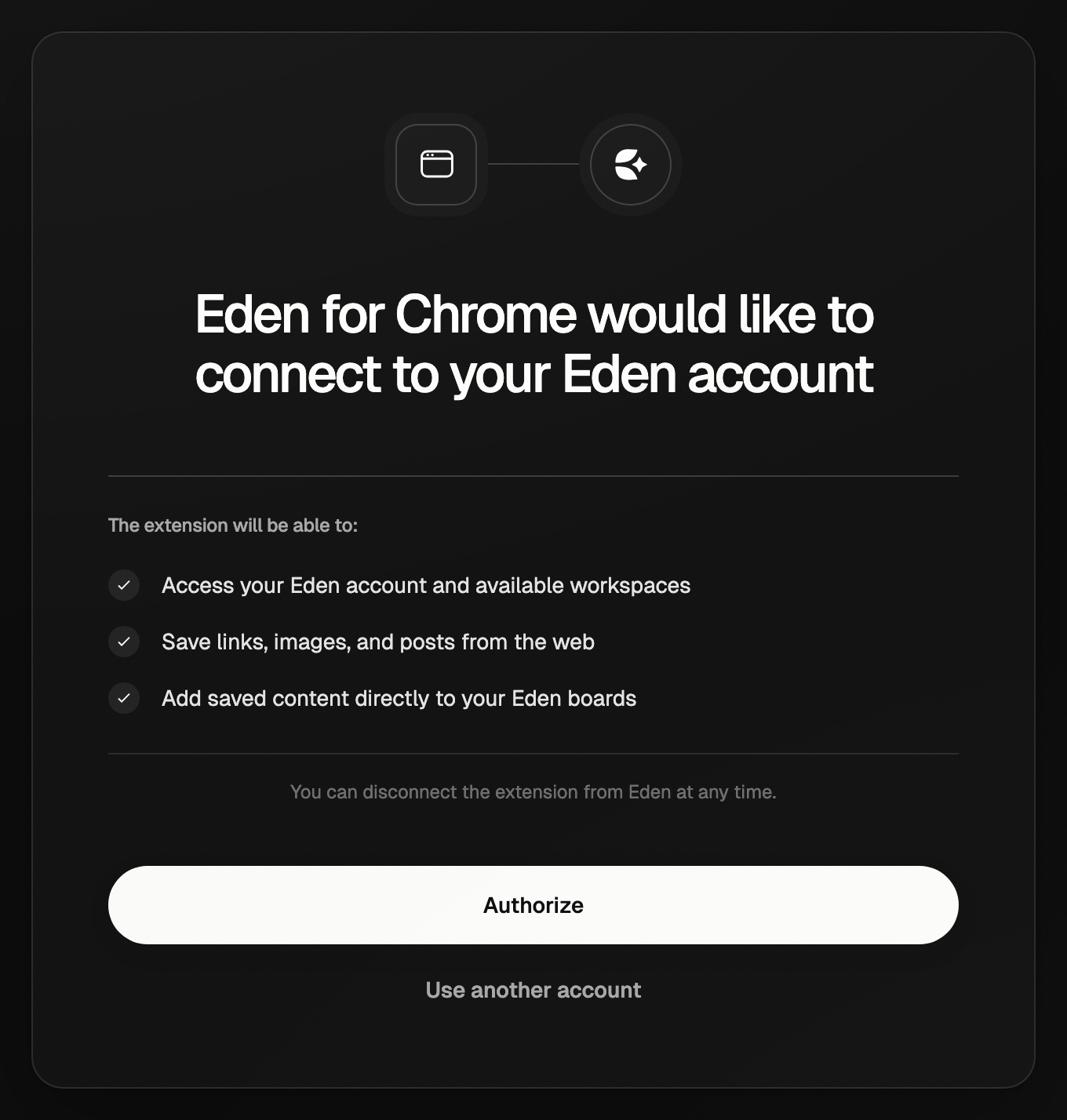
Click the Eden icon, then click "Connect Eden". A new tab opens so you can sign in. When the connection finishes, return to the page you were on and open the extension again.
- 03
Choose the right workspace
If you belong to more than one workspace, use the workspace picker in the popup before saving. The board list updates to show boards from that workspace.
- 04
Save your first page
Open any page you want to keep, click the Eden icon, choose a board in "Save to", then click Save. The item lands at the front of that board.
Save posts without copying links
On X, YouTube, Instagram, and Substack, Eden adds a small Save button to supported posts. Click that button to save the exact post you are looking at without copying the URL or opening Eden in a new tab.
If you do not see the inline Save button, use the Eden icon in the browser toolbar. The toolbar popup works on normal web pages and on supported social post pages.
Save links and images from the right-click menu
You can also right-click while browsing:
- Save link to Eden saves the link under your cursor.
- Save image to Eden saves the image under your cursor.
- Open Eden sidebar keeps recent saves visible next to your current tab.
The extension still asks you to confirm the destination board before it saves, so you do not have to fix misplaced items later.
See a creator's top-performing content
When you are on a creator profile, Eden can show a "View in Eden" pill near the creator's name. Use it to open the Eden sidebar and scan that creator's top-performing posts without leaving the page.
This is useful when you are studying a niche or deciding what to save. Open the sidebar, look for the posts that performed unusually well, then save the strongest examples to the board you are working from.
What to do next
- Need the full feature list? Read using the Eden Chrome extension.
- Need somewhere to save into? Start with creating your first board.
- Building a creator list? Read tracking a creator.
Using the Eden Chrome extension
Save any link, post, or image to a board in one click, add inline Save buttons on social platforms, and open creator research in the sidebar.
Creating your first board
Create a board, add your first sources, then choose grid view for a swipe file or freeform canvas for a spatial creative project.
Searching for and tracking a creator
How to find a creator in Eden by handle, read their profile, and add them to a list to keep their posts in view.
Email us. A real person reads every message.
Tell us what you tried and where you got stuck. We answer within one business day.
[email protected]