Using the Eden Chrome extension
Everything the Eden Chrome extension does, from the save popup and inline Save buttons to the creator sidebar and settings.
The extension saves pages, posts, images, and highlights to your Library or a board. It also opens a sidebar where you can study any creator's posts. New to it? Start with the quick start guide.
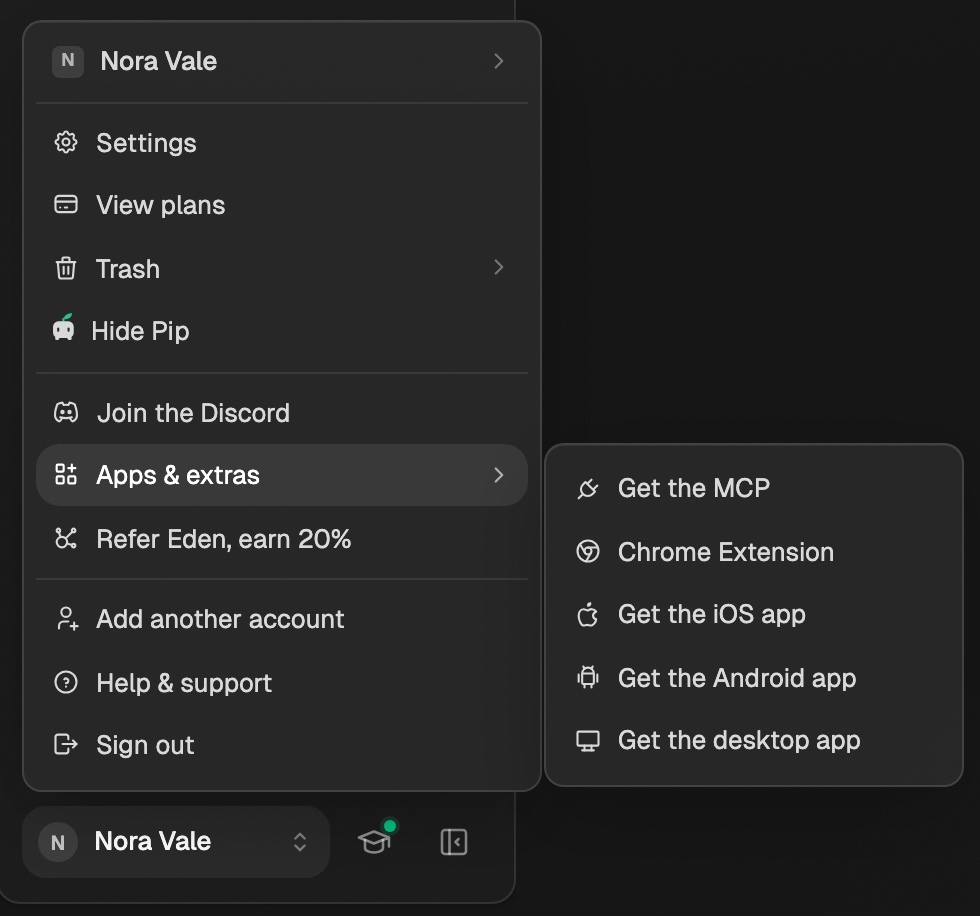
To get it from Eden, click your name at the bottom left, then Apps & extras → Chrome Extension. That opens its Chrome Web Store page.
Save from the popup
Click the Eden icon on any page. The popup fills in the page for you.
- In more than one workspace? The top row under Save to shows which workspace you're saving to. Click it to pick another. Brand workspaces sit under the team workspace they belong to.
- The board row opens Choose a location. Pick Library, a board, or search your boards.
- Reading list shows up for articles, newsletters, and YouTube links. It saves to Library to read later.
- New board makes a board on the spot.
- For links, Add note lets you say why you saved it, and Add tag adds tags. Your last 5 tags show under Recent at the top of the tag list.
- Click Save to Library or Save to board to finish, or press
⌘ Enter(Ctrl Enteron Windows).
The popup remembers where you saved last, and the last board you used in each workspace.
Add a creator to a list from their profile
On a creator's profile on X, YouTube, Instagram, TikTok, LinkedIn, Threads, or Substack, click the Eden icon. The popup adds them to a creator list instead of saving the page.
- Save to shows the last list you added someone to. Click it to pick another list or search your lists.
- New list makes a list and picks it.
- Click Add to list to finish.
- Want the page as a link instead? Open the list picker and click Save as a link instead.
Lists need Starter or above.
Use the popup from the keyboard
| Do this | Press |
|---|---|
| Move through tags, boards, or workspaces | ↑ or ↓ |
| Pick the highlighted one | Enter |
| Close the tag list, or clear a search | Esc |
| Save | ⌘ Enter from anywhere in the popup |
In the tag list, typing part of a tag's name and pressing Enter picks that tag. If no tag
matches, Enter makes a new one.
Save a post with one click
Eden adds a Save button to posts on these sites. Clicking it opens the popup with that post filled in, so you just pick where it goes.
| Site | Where the button shows |
|---|---|
| X | Every post |
| YouTube | Videos, Shorts, and video cards in feeds and search |
| Feed posts and profile grid tiles | |
| Substack | Notes, posts, and article titles |
| Threads | Posts |
LinkedIn has no Save button. Open the post on its own page and click the Eden icon instead.
Use the right-click menu
| Right-click on | Choose | What it does |
|---|---|---|
| A link or the page | Save link to Eden | Saves the link or the current page |
| Selected text | Save highlight to Eden | Saves the text as a highlight |
| An image | Save image to Eden | Saves the image |
| The page | Open Eden creator sidebar | Opens the sidebar |
The save options open the popup so you can pick a location first.
Study a creator in the sidebar
On a creator's profile on X, YouTube, Instagram, Substack, LinkedIn, or Threads, click Open Sidebar next to their name. You can also click Open creator sidebar in the popup.
- Sort their posts by Top liked, Most recent, Most views, Outliers, or Most shares.
- Narrow by time, from Past week to All time.
- Search their posts, or search for another creator.
- Click Save on a post to save it, or Add to list to follow the creator. Lists need Starter or above.
What happens to what you save
| You save | You get |
|---|---|
| A link | A link card with title and preview |
| A post | A post card with the creator, stats, and outlier score |
| An image | An image item |
| A highlight | A quote card |
On a board, new saves land at the front.
Change settings
Right-click the Eden icon and choose Options.
- Save to workspace picks which workspace the extension saves to. It also follows the workspace you open in Eden. You can also switch it right in the popup.
- Queued saves holds saves that didn't go through. They retry on their own, or click Clear queue.
- Switch account or Sign out to change who's signed in.
Jobs it runs in the background
While Chrome is open, the extension also handles work you turn on in Eden:
- Instagram saves sync to your Library. See syncing your Instagram saves.
- Substack posts you schedule in Eden get published. See Substack scheduling.
- Store signups can be added to your Substack list. See connecting your email list.
Good to know
- It works in Chrome and Chromium browsers like Edge, Brave, and Arc. Firefox isn't supported.
- Clicking the Eden icon opens the popup, not the sidebar.
Eden Chrome extension quick start guide
Install the Eden Chrome extension, connect your account, and save your first page in about a minute.
Sync your Instagram saves
Bring your saved Instagram posts, reels, and Saved collections into your Library, read from your own signed-in session.
Building a creator list as a content feed
A list is a group of creators you read as one feed. Here is how to make one and use it.
Get answers from the team and other creators.
Ask in the Eden help channel, see how others use the app, and come to the live workshops. Free with any Eden account.
Join the Eden CommunityEmail us. A real person reads every message.
Tell us what you tried and where you got stuck. We answer within one business day.
[email protected]