Eden MCP quick start
Connect Eden to Claude in about a minute, then search proven posts, research creators, and use your Custom AIs from any chat.
In Eden, go to Settings → MCP and click Connect Claude. Sign in, click Connect Eden, and start asking Claude about your saved posts, creators, and numbers.
Connect in one minute
- 01
Open Settings → MCP
No account yet? Start free first.
- 02
Click Connect Claude
Claude opens its Connectors page with Eden filled in. Confirm it.
- 03
Sign in and click Connect Eden
Use your Eden account. Claude never sees your password.
- 04
Turn Eden on and ask
In a new Claude chat, make sure Eden is on under the tools icon. Then ask something like "find proven posts about cold email."
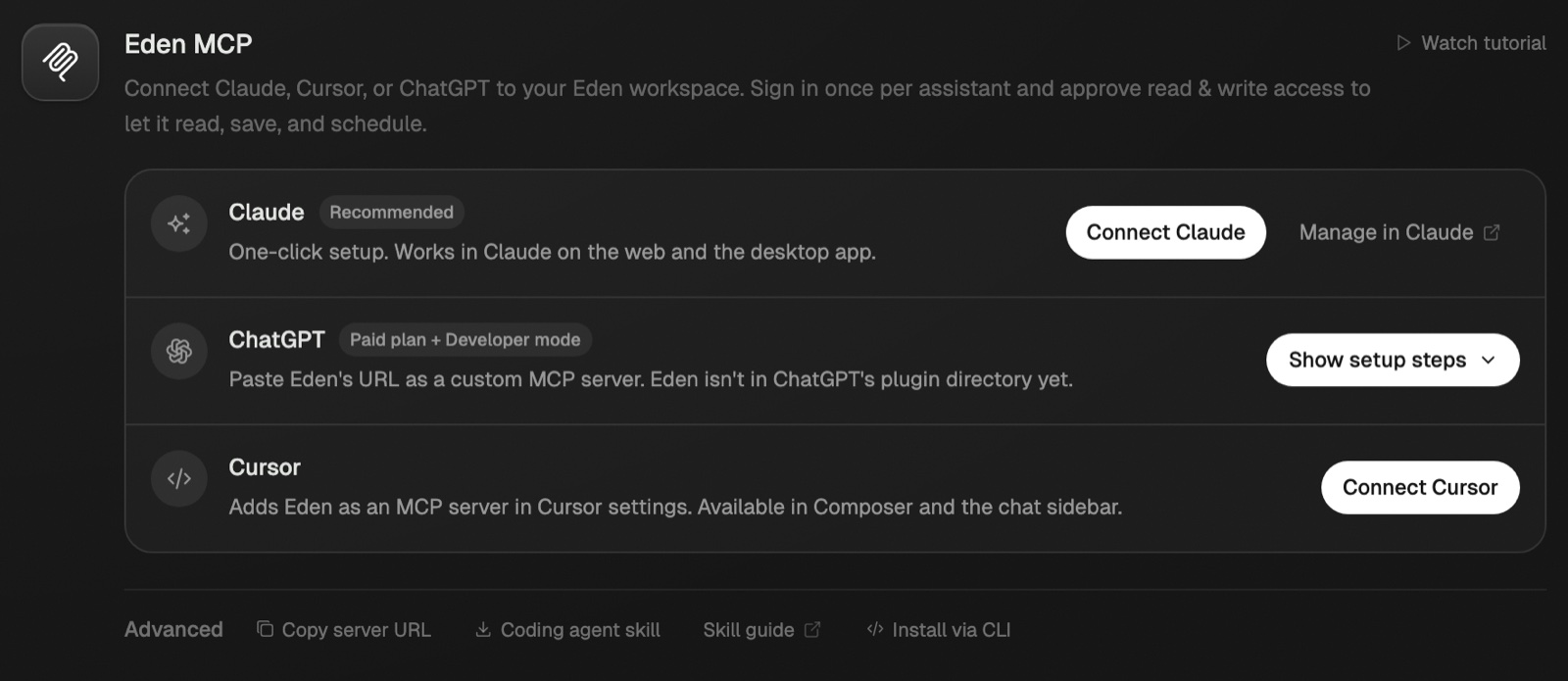
Using ChatGPT, Cursor, Claude Code, or Codex instead? See connect your AI app.
Things to ask first
| Ask | What you get |
|---|---|
| "Find proven posts about pricing" | Real posts from Eden's social index that beat their baseline. |
| "What are @creator's top outliers?" | That creator's standout posts, topics, and baseline. |
| "Find creators like @creator" | A list of similar creators to study. |
| "How did my posts do this month?" | Your own analytics across connected social accounts. |
| "What's on my Hooks board?" | The saved cards and notes on that board. |
| "Save this link to my Hooks board" | A new card on the board. |
Your own analytics need your accounts linked in Settings → Social accounts. The first time you ask, Eden turns tracking on and imports your posts, which takes a few minutes.
What it costs
- Social research (post search, creator analysis, reading indexed posts) uses a small amount of Eden credits per call.
- Reading your own boards and notes, saving, and scheduling are free.
Your Custom AIs also show up as /eden- commands. See Custom AI as slash
commands.
Connect your AI app to Eden
Setup steps for Claude, ChatGPT, Cursor, Claude Code, Codex, and other MCP apps, plus how to limit access, pick a workspace, and disconnect.
Using Custom AI as slash commands
Each Custom AI in your default workspace shows up as an /eden- command in Claude, Cursor, and other apps connected to Eden.
Discover search tips
Search Discover by keyword, or click the sparkle to describe the posts you want and let Eden's AI find the closest ones.
Get answers from the team and other creators.
Ask in the Eden help channel, see how others use the app, and come to the live workshops. Free with any Eden account.
Join the Eden CommunityEmail us. A real person reads every message.
Tell us what you tried and where you got stuck. We answer within one business day.
[email protected]