Connect Claude, Cursor, or ChatGPT to your Eden workspace
Eden has a connection that lets your favorite AI assistant read your boards, saved posts, and creator research. This article walks through setting it up in Claude, Cursor, or ChatGPT, what to ask once it is connected, and how to manage or disconnect it later.
Eden has a one-time connection you can set up that lets your favorite AI assistant (Claude, Cursor, or ChatGPT) read your boards, saved posts, and creator research. Once it is connected, you can ask any of those assistants questions about your Eden content without leaving the tool you already use every day.
If you already have a long-running chat in Claude, a project open in Cursor, or a ChatGPT setup you live in, this is for you. You do not have to choose between your favorite assistant and your Eden swipe file. They can talk to each other.
What this connection actually does
Eden runs a small service that your AI assistant can call to ask Eden questions on your behalf. When you ask Claude "what hooks am I saving in my swipe file?", Claude calls Eden, Eden returns the list, and Claude answers using that as source material.
A few things to keep in mind upfront:
- You approve read + write when you connect. Eden shows a consent screen asking to grant the assistant read and write access — approve it and the assistant can read your workspace and create, save, schedule, and edit content. Want it to only look, never touch? Deny the request, or connect a read-only personal access token instead. See Reading vs. writing below.
- You sign in once per assistant. Eden hands the connection a sign-in window. You log in to Eden, approve the access, and from then on the assistant stays connected until you revoke it.
- Your AI never sees your Eden password. The sign-in flow is the same kind your bank uses for third-party apps (OAuth, if you want the technical name). Eden hands the assistant a key that can read on your behalf, never your password.
- It works in the apps you already use. No new tool to learn. The Eden answers show up inside Claude, Cursor, or ChatGPT the same way any other answer does.
Who this is for
You will get value out of this if any of these sound like you:
- You spend most of your day in Claude or Cursor and you want it to pull from your Eden swipe file without you copying and pasting.
- You write inside a different tool (Notion, a code editor, a long ChatGPT thread) and you want that tool's AI to brief you on what you have been saving.
- You want to ask an assistant about a creator you track, including their typical outliers, top posts, and the categories they are best at, without flipping back to the Eden Discover tab.
- You are using your AI assistant as a daily thinking partner and you want it to actually know what you have been collecting.
If you only use Eden's own chat panel and you have no other AI surface, you do not need this. Eden's in-app chat already reads your boards. This article is about connecting other assistants.
Set it up
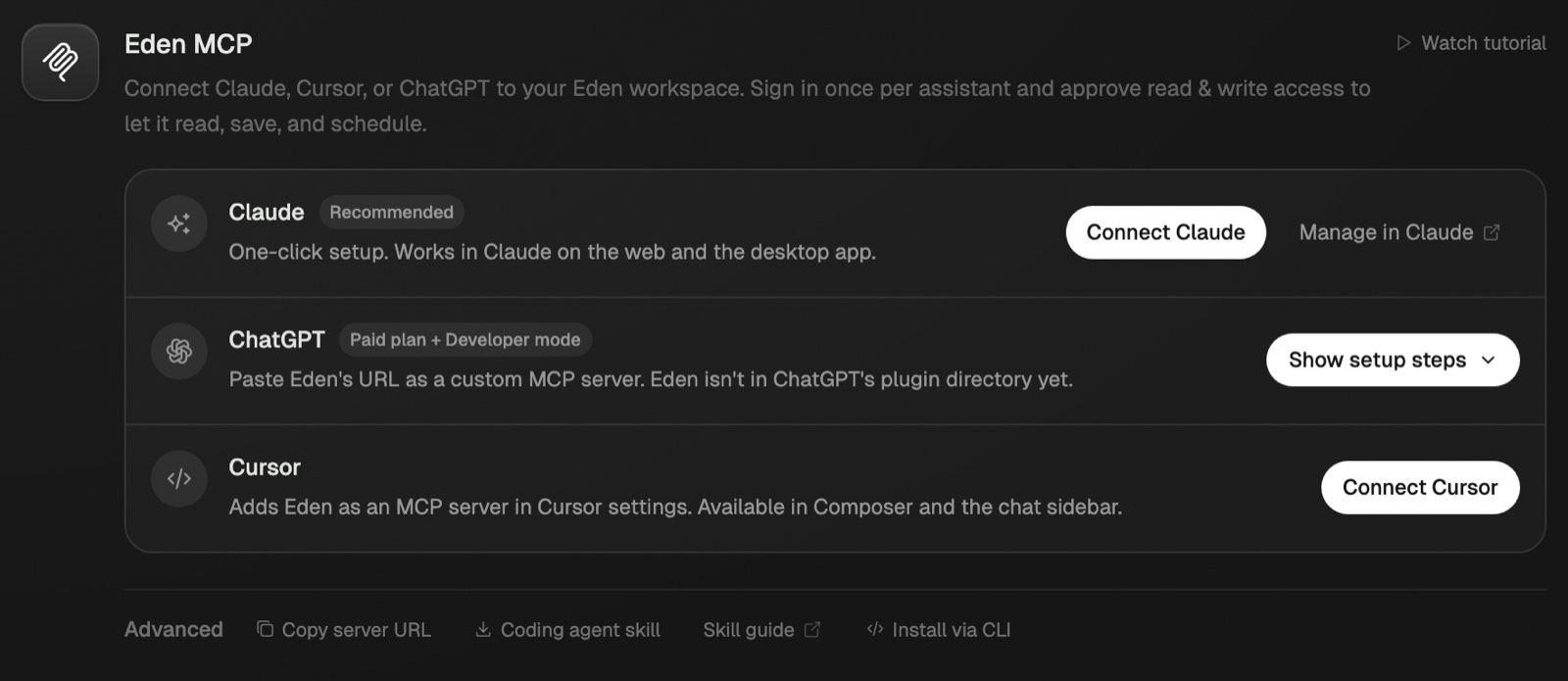
Setup takes about a minute per assistant. Open Eden, go to Settings → Integrations, and you will see an "AI assistants" card with one button per assistant. Pick the assistant you want and follow the matching section below.
Claude
Claude has the cleanest setup of the three. It works in both Claude on the web and the Claude desktop app.
- 01
Open Eden → Settings → Integrations
Click your avatar in the top right, choose Settings, then the Integrations tab on the left. You will see an "AI assistants (MCP)" card.
- 02
Click Add to Claude
This opens Claude's Connectors page in a new tab with the Eden server pre-filled. You will see a dialog asking you to add Eden as a custom connector. Click through to confirm.
- 03
Sign in with Eden when prompted
Claude opens a small window asking you to sign in to Eden so it can read on your behalf. Sign in with the same account you use for Eden, then approve the connection. The window closes and you are back in Claude.
- 04
Turn Eden on in your next chat
Open a new Claude chat. Click the Connectors / tools icon in the composer, then enable Eden. Claude will now use Eden when your question touches your saved content.
That is it. Try asking "what creators am I following?" or "show me the top posts on my swipe-file board" to confirm it is working.
Cursor
Cursor is the fastest setup. One click and you are done.
- 01
Open Eden → Settings → Integrations
Same place as the Claude setup. Look for the "AI assistants (MCP)" card.
- 02
Click Add to Cursor
This opens Cursor and pre-fills the Eden connection in its MCP settings. Click confirm to add it.
- 03
Sign in with Eden
Cursor opens an Eden sign-in window. Sign in with the same account, approve, and Cursor will show Eden as a connected MCP server.
From any chat in Cursor (Composer or the chat sidebar), you can now ask questions that touch your Eden content. Cursor decides on its own when to call Eden vs answer from its own context.
ChatGPT
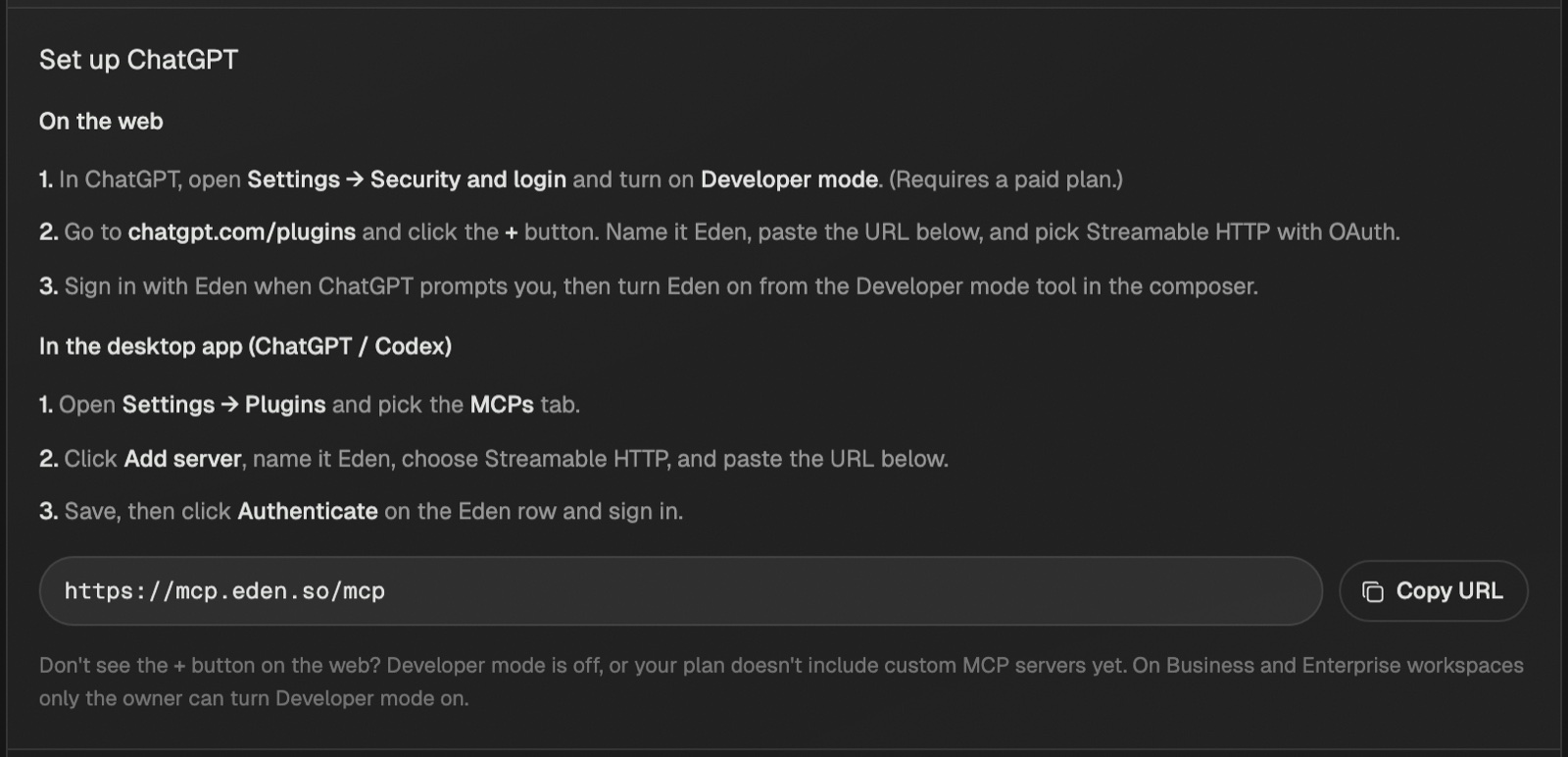
ChatGPT works, but has two requirements upfront:
- A paid ChatGPT plan (Plus or Team).
- Developer mode turned on under Settings → Apps → Advanced.
If both of those are true, here is the flow:
- 01
Copy the Eden server URL
In Eden's Settings → Integrations, click the Copy URL button next to the connection address. The URL looks like
https://mcp.eden.so/mcp. - 02
Open ChatGPT Settings → Apps
In ChatGPT, click your avatar, choose Settings, then Apps. With Developer mode on you will see a Create button (or "Create a custom connector").
- 03
Create a custom connector
Name it Eden, paste the URL you copied, and pick OAuth as the auth method. Save.
- 04
Sign in with Eden
ChatGPT will prompt you to sign in to Eden the first time it tries to use the connector. Same sign-in flow as Claude.
Eden is not in ChatGPT's built-in app catalog, so the custom connector path is the only route today.
What to ask once it is connected
The connection gives the assistant a set of tools it can decide to use. You do not have to name them. You just ask a question and the assistant figures out whether Eden is the right source.
Here are the kinds of questions that work well.
Questions about your boards
- "What is on my Hooks board?"
- "Read my Newsletter Drafts board and tell me which ones still need editing."
- "Show me everything I saved in the last week."
- "What's in the Research section of my Q2 Content board?"
- "Give me a summary of every video I have saved on creator economics."
Questions about a creator
- "Analyze the creator @lorwen108 on Twitter. What are her top outliers?"
- "What categories does @hormozi cover and which ones get the highest outlier scores?"
- "Compare the top hooks from the last 30 posts of @example1 and @example2."
Eden has already done the heavy lifting on top posts, outliers, transcripts, and per-segment baselines, so the assistant gets the analysis back instantly rather than scraping in the moment.
Questions about your following and lists
- "Who am I following on Substack?"
- "Which creators are in both my Anxiety list and my Psychology list?"
- "List every creator I track on YouTube with more than 100k subscribers."
- "What's the freshest top post from anyone in my Productivity creators list?"
Questions about a specific post
- "Read this saved Loom and pull out the three best ideas." (with the card linked)
- "Summarize the transcript of the YouTube video at this URL from my swipe file."
- "Pull the body text of this tweet from my Hooks board."
The assistant can read most cards including transcripts of videos and audio, the body text of saved social posts, the contents of your notes, and the layout of a board (sticky notes, sub-folders, sections).
Reading vs. writing
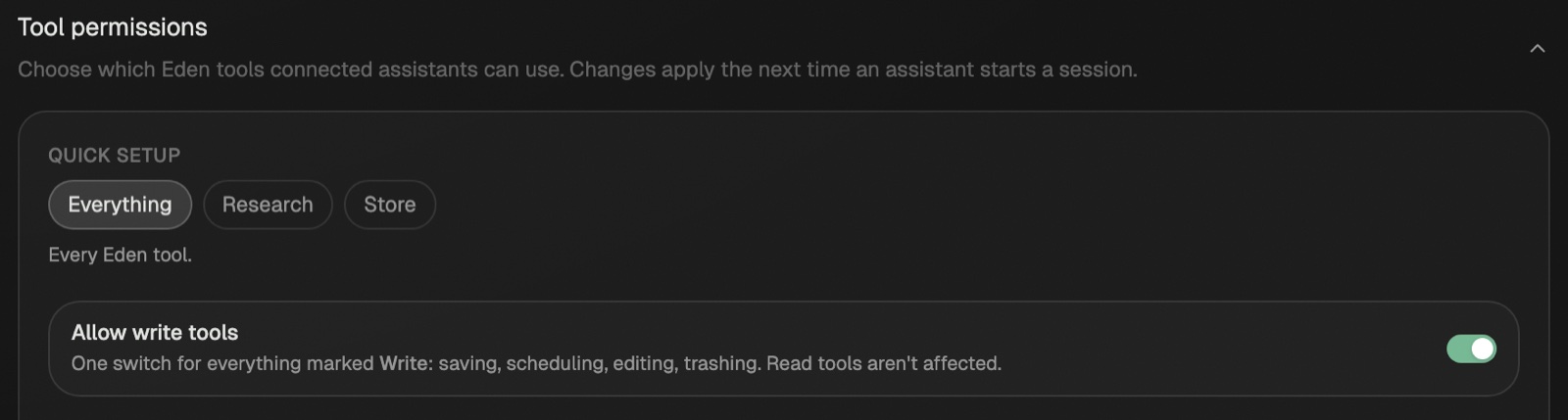
When you connect an assistant, Eden shows a consent screen and asks you to approve read and write access. Approving it grants:
- Read — boards, notes, saved posts, your creator lists, and the analysis Eden has already done.
- Write — create notes and append to or rewrite them; create, rename, and trash boards; save links and indexed posts onto a board; and schedule, reschedule, edit, or add first comments to posts.
So once you approve, you can say "save this to my Hooks board" or "schedule this for tomorrow at 9am" right from Claude / Cursor / ChatGPT, and Eden does it.
Prefer an assistant that can only look, never touch? Deny the write request on the consent screen, or connect a read-only personal access token instead. Server-side automations (n8n, Zapier, Make) use these same tools through a token — see Connect Eden to n8n.
A few things no connection can do yet: create folders, permanently delete anything (trashing a board is reversible), or change who you follow / your lists.
A couple of other things worth knowing about even on the read path:
- Adding new creators to your index from outside Eden. If you ask about a creator Eden has never seen, the assistant can still try to analyze them, and Eden will quietly start collecting their content in the background. The first question may not have rich data; ask again in a few minutes.
- Search of every piece of content ever posted on social media. The assistant searches your Eden world (your saved cards, your followed creators, your lists). For the open-web outlier feed, use Discover inside Eden.
Managing connected assistants
Back in Settings → Integrations, the AI assistants card shows every assistant currently connected, including when it was connected and when its access expires. You can revoke any of them at any time.
Revoking an assistant
Click Revoke on the row for the assistant you want to disconnect. Eden tears up the key it issued. The assistant cannot read your Eden content again until you reconnect.
One Claude reconnect quirk
Claude has a behavior worth knowing about. When you revoke Eden in Eden's settings, Claude usually still shows Eden in its Connectors list, under a "Not connected" section. Do not click Add to Claude again while Eden is sitting there. You will get an error that says "A server with this URL already exists."
The right move:
- 01
Open Claude's Connectors page
From Eden's Settings → Integrations, click Manage in Claude. Or open Claude on the web, Settings, Connectors.
- 02
Click Eden in the Not connected list
You will see Eden listed there with no green dot.
- 03
Sign in to reconnect
Claude pops the Eden sign-in window again. Approve and you are back online.
Only use Add to Claude when Eden has fully disappeared from your Claude Connectors list.
Reconnecting in ChatGPT
ChatGPT is similar. After you revoke in Eden, go to Settings → Apps, click the Eden connector, and sign in again. If you want to recreate the connector from scratch, delete it first in ChatGPT, then go through the Create flow again.
Privacy and safety
A short version of the privacy mechanics:
- Your Eden password is never shared with the assistant. The sign-in flow gives the assistant a scoped key that acts on your behalf with the access you approved (read, or read + write) — never your password.
- Eden does not see your AI conversations. Your prompts to Claude / Cursor / ChatGPT do not flow through Eden. The assistant only reaches out to Eden when it needs to look something up.
- The assistant only sees what you would see. Same workspace permissions as your own Eden session. If you are not on a team board, the assistant cannot see it.
- Revoking is instant. Once you click Revoke, the key stops working immediately, even mid-conversation.
If you have a stricter policy environment and you want to know exactly what data crosses the boundary, ask us. We are happy to walk through specifics.
Troubleshooting
A handful of things that come up:
- "The assistant says it can't see my Eden content." Make sure Eden is actually enabled in the chat. In Claude, that is the Connectors/tools toggle in the composer. In Cursor, check the MCP servers panel shows Eden as connected. In ChatGPT, open the connector and confirm it is on.
- "I get signed out frequently." Eden's access keys for the assistant are long-lived. If you are being asked to sign in often, revoke and reconnect once. That clears any stale token.
- "A server with this URL already exists" in Claude. See the Claude reconnect quirk above. Use Manage in Claude instead of Add to Claude.
- "I asked about a creator and got 'we are still indexing them'." The first time anyone asks Eden about a brand new creator, Eden starts collecting their content in the background. Ask again in a few minutes and the rich analysis will be ready. For accounts with thousands of posts, the full backfill takes longer; Eden's response includes a time estimate.
Where to go next
- Want to automate Eden rather than chat with it — e.g. auto-schedule posts from a Notion database? Use a personal access token with n8n, Zapier, or Make. Those run unattended on a server (no browser sign-in), and the token can be read-only or read + write.
- Using a command-line assistant like Hermes Agent instead? See connect Eden to Hermes Agent.
- Live in Raycast? See connect Eden to Raycast.
- Letting a coding agent (Codex, Claude Code, Cursor's agent) drive Eden on its own? Download the Eden agent skill — it teaches the agent to recover a dropped connection, schedule posts correctly, and read Eden's errors instead of guessing.
- To run your saved Eden prompts as
/eden-slash commands in the assistant, see using your prompts as slash commands. - To attach a voice, board, document, or creator list so the assistant uses it as source material for the whole chat, see using voices, boards, documents, and lists in the Eden MCP.
- When new tools and slash commands ship, see getting the latest Eden MCP tools and slash commands.
- To learn how Eden's own chat panel works, read chatting with a board. The mechanics are the same, the surface is just inside Eden.
- To get more out of the creator analysis the assistant can read, see tracking a creator.
- To make sure the assistant has good source material to read, build a strong board first.
Install the Eden MCP from the command line
Use the Eden MCP CLI to add Eden to Cursor or Claude Desktop, write the right config file, and test the connection from your terminal.
Chatting with a board to write your next post
Eden's chat reads whatever you scope it to (a full board or specific items via @ mention) and uses them as source material. Here is how to set it up, the six built-in presets, and what works well.
Searching for and tracking a creator
How to find a creator in Eden by handle, read their profile, and add them to a list to keep their posts in view.
Creating your first board
Create a board, add your first sources, then choose grid view for a swipe file or freeform canvas for a spatial creative project.
Email us. A real person reads every message.
Tell us what you tried and where you got stuck. We answer within one business day.
[email protected]