Highlighting while you read
Select text in any Eden reader to save a highlight you can search, note, and put on a board.
Select text in Reader and click a color. That saves the highlight. It also becomes a quote card in your Library, linked back to where it came from.
Save a highlight
- 01
Select the text
Works in articles, newsletters, PDFs, EPUBs, YouTube transcripts, and social posts.
- 02
Pick a color or add a note
Click sage, amber, blue, or rose. Or click Note, type, and click Save.
The toolbar shows up as soon as you let go of the selection.
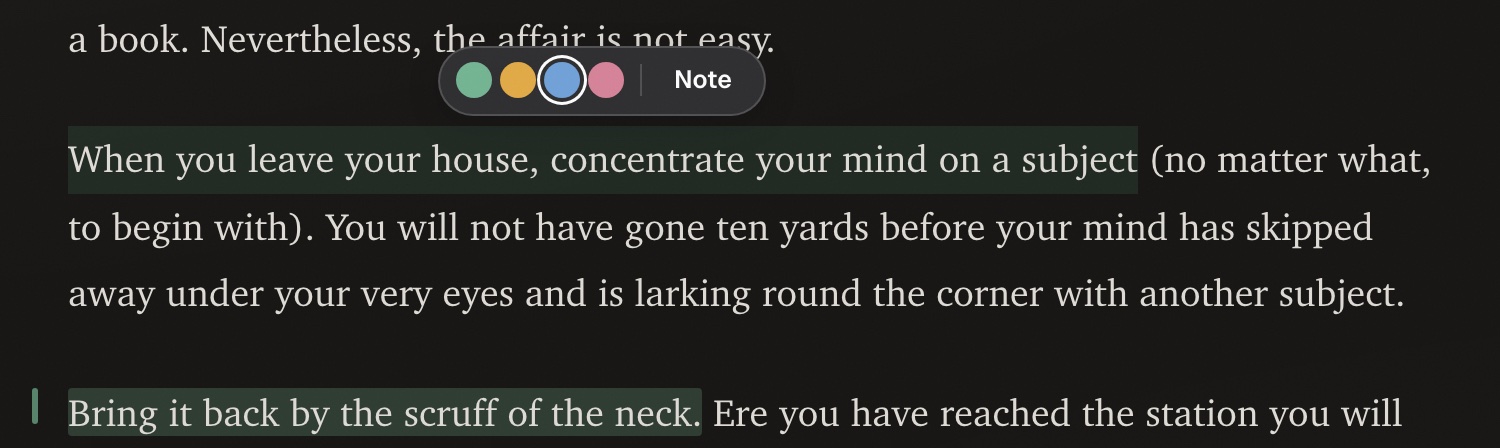
Nothing saves until you click a color or Save. In a PDF's page view you get a single Highlight button instead of colors.
Eden remembers your last color on your account, so your phone uses it too.
Edit a highlight
Click a saved highlight to see:
- The four colors, to change it
- Note or Edit note
- Add to board
- Remove

On mobile, tap the highlight. A Highlight sheet opens with colors, Note, Add to board, and Remove highlight.
Put a highlight on a board
- 01
Click the highlight
Then click Add to board.
- 02
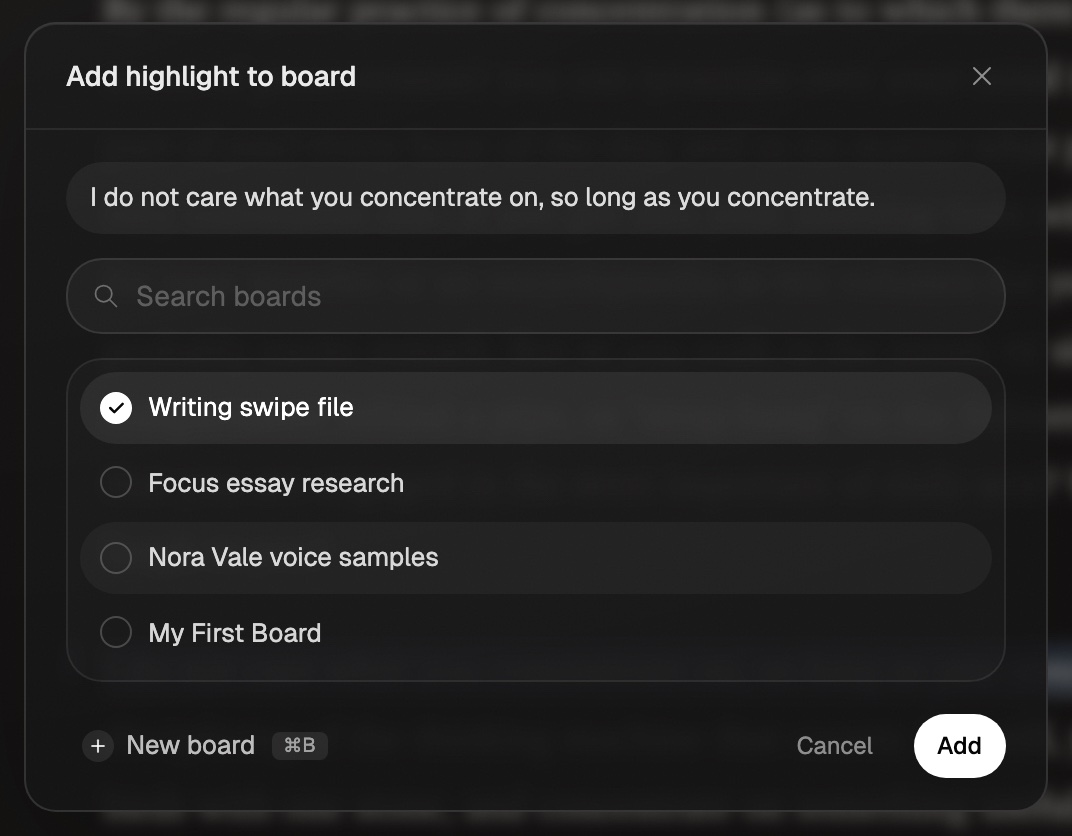
Pick a board
Choose one, or click New board. Then click Add.
| App | Picker |
|---|---|
| Web | Add highlight to board, with New board |
| iPhone | Add to Board, with New board |
| Android | Choose a board, existing boards only |
Find your highlights
Go to Library → Filter → Type → Highlights. Imported ones also show under Source → Readwise, Kindle, or Snipd. See where your highlights live.
If something's not working
"This highlight has no Library card yet, so it can't go on a board." Some older highlights don't have a card, so they can't go on a board.
Reading saved articles in Eden
Open a saved link, PDF, or video in Reader view to read it without ads or clutter.
Where your highlights live
Every highlight you make in Eden or import from Readwise, Kindle, and Snipd lives in your Library. Filter to see just highlights.
Connecting items (backlinks)
Link any item to any other item, like a note to a PDF, and see the link from both sides.
Get answers from the team and other creators.
Ask in the Eden help channel, see how others use the app, and come to the live workshops. Free with any Eden account.
Join the Eden CommunityEmail us. A real person reads every message.
Tell us what you tried and where you got stuck. We answer within one business day.
[email protected]