Sell coaching
Sell coaching, consulting, or any high-ticket offer, with applications, calls on your own scheduler, and a private space for each client.
Go to Your store → Products → New product → Coaching. Set your calls on the Coaching step, pick how clients book, and publish. Clients book calls with you, get a private space, and can chat with an AI that knows your method between calls.
Set it up
- 01
Create the product
Open your store, go to Products, click New product, and pick Coaching.
- 02
Set the offer
Fill in the name and price on the Offer step. A one-time price or a membership both work. Under Take payment with, pick Eden checkout or, on a one-time price, My own checkout link.
- 03
Set up the calls
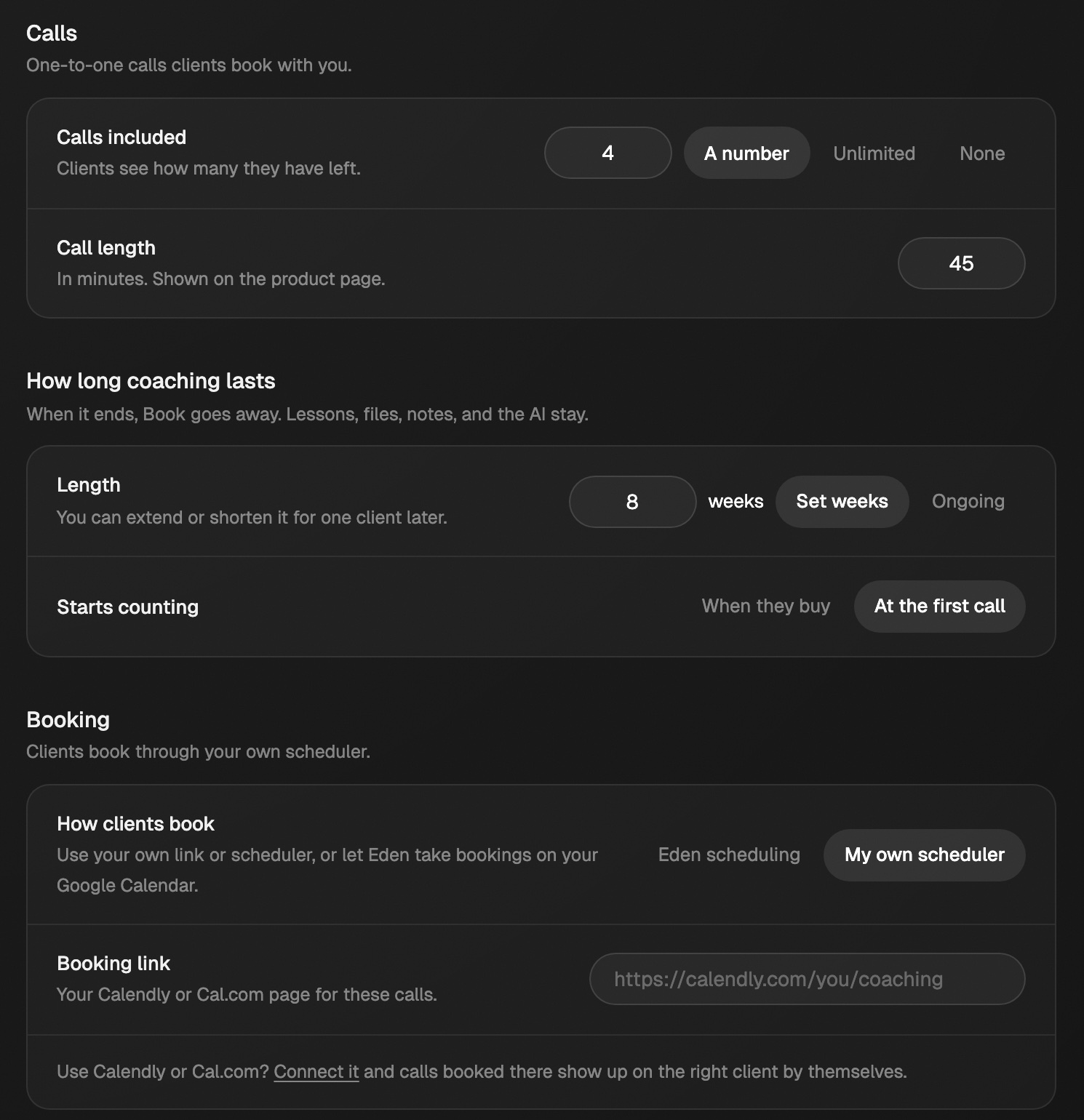
On the Coaching step, pick how many calls and how long coaching lasts. Under How clients book, pick Eden scheduling or My own scheduler.
- 04
Publish
Fill in the Page step, then finish the checklist on Publish.
Selling one paid call? Make a Strategy session call type in Your store → Calendar → Calls instead. Coaching is for packages: several calls plus lessons, notes, and the AI. See Share booking links for your calls.
Coaching comes with an AI chat. It knows your method, the client's intake answers, and the notes you share with them. To drop the chat, set Product type on the Offer step to Course. Lessons are optional, so a calls-only product works too.
Coaching step settings
| Setting | What it does |
|---|---|
| Calls included | A number, Unlimited, or None (just your notes, files, and the AI). |
| Counted | In total or Each month. Only on a membership, where calls reset each paid month. |
| Call length | In minutes. Shows on your product page. |
| How long coaching lasts | Ongoing or Set weeks, counted When they buy or At the first call. On a membership, it runs while they pay. |
| How clients book | Eden scheduling books open times on your Google Calendar, using your hours from Calendar. My own scheduler uses a booking link you paste. |
| Booking link | Any scheduling page. Calendly and Cal.com links open with the client's name and email filled in. |
When coaching ends, Book goes away. Lessons, files, notes, and the AI stay. Included courses follow your Keep after coaching ends switch (below).
Include courses with coaching
Give clients your other products as resources. On the Coaching step, find Included with coaching and pick under Courses:
| Choice | What clients get |
|---|---|
| Nothing extra | Only this coaching. |
| Pick products | The live products you tick. |
| All my products | Every live product you sell, and new ones as you publish them. |
- Coaching and cohort products can't be included.
- Keep after coaching ends: on, clients keep the courses when their coaching ends. Off, the courses close then. Removing a client or a refund always closes them.
- A client who already owns a course keeps their own access. Nothing changes for them.
- Included courses show in that course's Customers list as Included with coaching.
With Eden scheduling, calls show up on their own. To change your hours, click Edit in Calendar. With a plain link, you log each call by hand, or connect Calendly or Cal.com so calls show up on their own.
Let people apply first
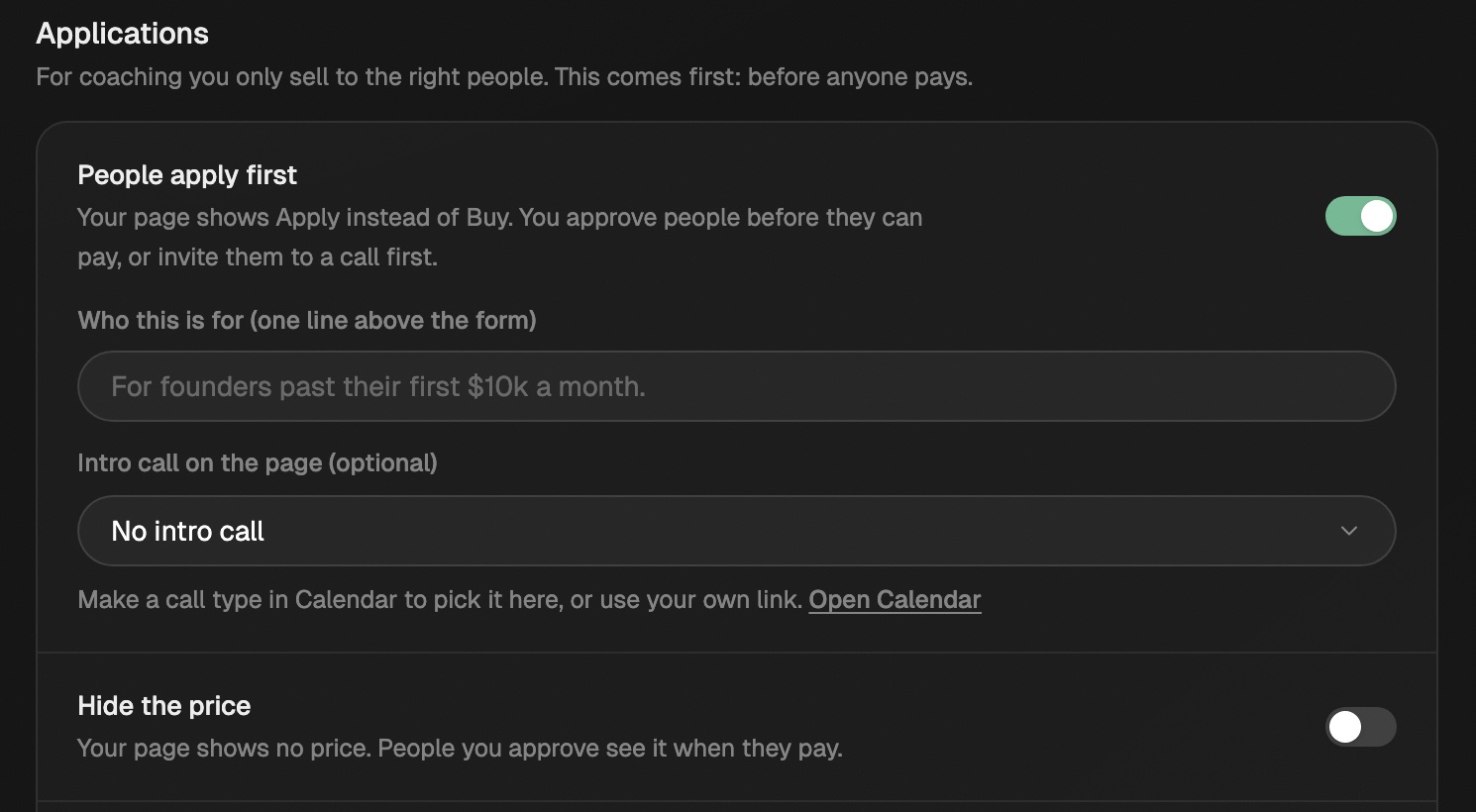
Turn on People apply first under Applications. Your page shows Apply instead of a buy button, and nobody can pay until you approve them.
- Application questions: Eden starts you with six. Their problem, what they tried, the result they want, life six months later, how soon, and if they're ready to invest. Edit them freely, up to 8.
- Who this is for: one line above the form, so the right people apply.
- Hide the price: your page shows no price. People you approve see it when they pay. With the price hidden, you write the form's Heading and Subheading. Leave the heading empty for "Apply to work with" and your name.
- Intro call on the page: optional. Pick one of your call types, or My own link and paste it. Your page links to it.
- Sales call: lets you invite someone to a call before you decide. Pick a call type set to Approved applicants, or My own link.
- If they're not a fit: another of your products, like a course or an AI coach. On a Pick one question, mark answers under Not a fit if they pick. Anyone who picks one is turned down right away and sees your other product instead.
- Application form: pick an application made on Forms, pick New application form (or click Create one) to start from the starter questions, or click Move my questions to a form. People then answer one question at a time. See Use a form as your coaching application.
Work your leads and clients
Everyone shows up in Your store → Audience → Clients. Filter by stage:
| Filter | Who's in it |
|---|---|
| Leads | New (just applied), Call (invited to a call), Link sent. |
| Clients | Active (coaching running) and Past (ended or access removed). |
| Declined | People you turned down, plus anyone marked Not a fit by an answer or the score. |
| All | Everyone. |
- Leads are applications. Tick several and use Approve (at your page price), Invite to a call, or Decline.
- Approve sends a private link to pay. It works once, for 14 days, with the email they applied with.
- Invite to a call emails them a private link to your sales call, with their name and email filled in. With a call type, the link closes once you approve or decline them, and the booked call shows on their application.
- Decline emails them a short no. If you pick another product to offer, the email links to it.
- To charge one person a different price, open the lead and change Their price before you approve. This works on one-time prices, not memberships. Discount codes don't stack on it.
- If Eden couldn't email a link, copy it from the lead's panel and send it yourself.
- Mark as paid lets someone in who paid you outside Eden, like by bank transfer. It works at any stage until they join, whatever your payment choice.
Click a client to open their panel. It shows their status, calls used, next call, their coaching,
and their application answers. It also has Send login link, Payments, and a ⋯ menu to
remove them from the product. Open full page (the expand icon) gives them a page of their own.
Use ↑ ↓ or J K to step through the list.
Bill clients yourself
Paid by Payoneer, bank transfer, or an invoice? Skip checkout and let people in by hand. Eden takes no cut and you don't need Stripe.
- 01
Turn it on
On the Coaching step, turn on People apply first under Applications and save. Then on the Offer step, set a one-time price and pick I bill them myself under Take payment with.
- 02
Approve them
Your page shows Apply and no Buy button. When you Approve someone, their email says you'll send how to pay. Their link shows You're approved.
- 03
Bill them
Send a Payoneer request, your bank details, or an invoice, your way.
- 04
Mark them paid
Once they pay, open their application in Your store → Audience → Clients and click Mark as paid. Eden gives them access and emails their link: their coaching page, booking, and your questions.
I bill them myself only shows for coaching with People apply first on, at a one-time price.
Share with a client
In the client's coaching section:
- Log a call for calls booked through a plain link.
- Share a note or file, and pick Share with client or Only me. Private notes never reach the client or their AI.
- Change end date or Add calls for this one client.
- Share a course under Courses gives just this client another of your products. Click Remove to take it back. Courses that come with the product show there too.
If a client books past their calls, Eden keeps the call and marks them Over calls. It never cancels anything for you.
Ask intake questions
Add questions under Before the first call. Clients answer right after they pay, on the thank-you screen, or later in their coaching space. Answer before booking keeps Book locked until they send their answers. They can change answers until the first call starts.
Or pick an Intake form made on Forms. Clients open it from Answer the questions after they pay.
If a client skips the questions, Eden emails them once, about a day after they buy, with a button that opens the questions. The booking page links to them too.
Using Calendly or Cal.com? Clients answer these once in Eden, and your Custom AI can read them. Take the same questions off your Calendly or Cal.com event so clients aren't asked twice.
What clients see
Your coaching sits at the top of the product: calls left, Book a call, upcoming calls with Join from 15 minutes before, past calls with recordings, Your courses, and From your coach. Clicking a course opens it (Eden adds it to their workspace the first time). Clients see the same on the Eden iPhone and Android apps. Buying and applying happen on the web.
To see it yourself, click Preview as client at the top of the product editor. Pick A new client, or pick a real client to see their own calls and what you shared with them.
You can also open a client from Clients and click View as their name. Book a call and the intake answers do nothing there, so you can't book or answer for them. Click Edit as coach to log a call, share a note or file, or add calls. Their card updates as you save.
Working with other coaches? Give each one the Coach store level, then assign their clients under Coaches on each client. Once a coach sets their own hours, their clients book on the coach's calendar. See Give a teammate access to a workspace's store.
Good to know
- Building products starts on the $5 Discover plan (on Free you can look around the store). Publishing needs Starter, Pro, or Max.
- On a one-time price, coaching can use your own checkout, like PayPal or Gumroad. With People apply first on, approved people get a link that opens your checkout. Coaching sold as a membership needs Eden checkout.
- A product can't be both coaching and a cohort. Make two products.
- A product people apply for can't be in a bundle, order bump, or upsell.
- Eden chat and the Eden MCP can set up coaching, list applicants, log calls, share notes, and attach a form as the application or intake. They only approve or decline when you say so.
Take bookings on your Google Calendar
Let people book open times on your own Google Calendar, with a Meet link on every call, and no other scheduler.
Share booking links for your calls
Make a call type once, like a free intro call or a paid session, and share its booking link as often as you like.
Connect Calendly or Cal.com
Connect your scheduler so coaching calls booked, moved, or canceled there show up on the right client in Eden by themselves.
Use a form as your coaching application
Swap a coaching product's built-in application or intake questions for a form made on the Forms page, asked one question at a time in your store's look.
Get answers from the team and other creators.
Ask in the Eden help channel, see how others use the app, and come to the live workshops. Free with any Eden account.
Join the Eden CommunityEmail us. A real person reads every message.
Tell us what you tried and where you got stuck. We answer within one business day.
[email protected]