Add buyers to your email list automatically
Send every sale to Zapier, Make, or n8n with the purchase webhook, and add buyers to Mailchimp, MailerLite, or any other list.
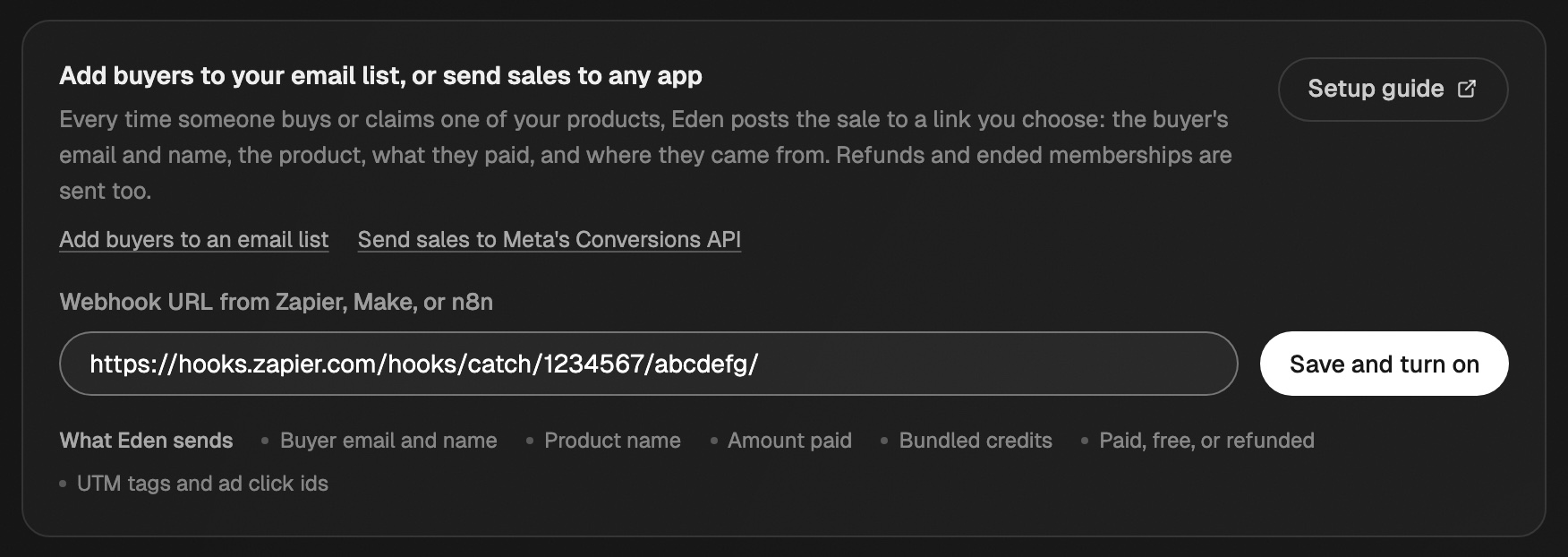
In your store, open Integrations. Under Webhooks and automations, paste a webhook URL from Zapier, Make, or n8n and click Save and turn on. Every sale is posted there within seconds. Needs Starter, Pro, or Max.
Set it up
- 01
Get a webhook URL
In Zapier, Make, or n8n, start a new automation with a webhook trigger. Copy the URL it gives you.
- 02
Paste it into Eden
In your store, open Integrations, paste the URL into Webhook URL from Zapier, Make, or n8n, and click Save and turn on.
The card is under Webhooks and automations, near the bottom of Integrations. - 03
Send a test sale
Claim a free product, or buy a paid one, with a different email. Your tool now shows the fields.
- 04
Add the buyer to your list
Keep only
purchase.createdevents. MapbuyerEmailto the email field andproductTitleto a tag. Turn the automation on.
Step-by-step guides: Zapier, Make, n8n.
Events Eden sends
event | When |
|---|---|
purchase.created | Someone buys or claims a product |
purchase.refunded | You refund a sale |
purchase.membership_ended | A membership's paid period ends |
lead.created | Someone signs up on your page or your newsletter page |
All events go to the same URL. Filter on event so a refund doesn't add someone again.
Fields in a sale
| Field | What it is |
|---|---|
buyerEmail | The email used at checkout |
buyerName | The name they gave at checkout, or null |
productTitle | The product name. Good as a tag |
amountUsd | What they paid, like "29.00". "0.00" for free |
status | paid, free, or refunded |
orderId | Shared by every item in one checkout, like an order bump |
discountCode | The code used, or null |
attribution | UTM tags, ad click id, and referring site, or null |
bundleCredits | AI credits included with each payment |
occurredAt | When it happened, in UTC |
Each sale also has purchaseId, productId, and currency (always USD). A lead.created event has email, blockTitle, and handle instead.
Verify messages in your own code
Skip this for Zapier, Make, and n8n. After you save, Eden shows a signing secret. Each request carries:
X-Eden-Event: the event name.X-Eden-Timestamp: the send time in milliseconds.X-Eden-Signature:sha256=plus an HMAC-SHA256 oftimestamp.body, keyed with your secret.
Rebuild the HMAC from the timestamp and the raw body and compare. Reject old timestamps.
If something's not working
- The URL must start with
https://. Eden refuseslocalhostand raw IP addresses. - Eden waits up to 8 seconds and retries once. A slow endpoint never blocks a sale.
- To stop sending, clear the URL and click Turn off.
Connect your email list to your store
Send your buyers, page signups, and form emails to Kit, beehiiv, GoHighLevel, Substack, or Eden, and pick who goes where.
Add buyers to your email list with Zapier
Catch Eden's purchase webhook in a Zap and add each buyer to Mailchimp, MailerLite, ActiveCampaign, or any list Zapier supports.
Track ad sales with Meta Pixel, Google Analytics, and UTMs
Add your Meta Pixel, Conversions API token, and Google Analytics to your store, and see which ad each sale came from.
Get answers from the team and other creators.
Ask in the Eden help channel, see how others use the app, and come to the live workshops. Free with any Eden account.
Join the Eden CommunityEmail us. A real person reads every message.
Tell us what you tried and where you got stuck. We answer within one business day.
[email protected]