Connect your email list to your store
Send your buyers, page signups, and form emails to Kit, beehiiv, GoHighLevel, Substack, or Eden, and pick who goes where.
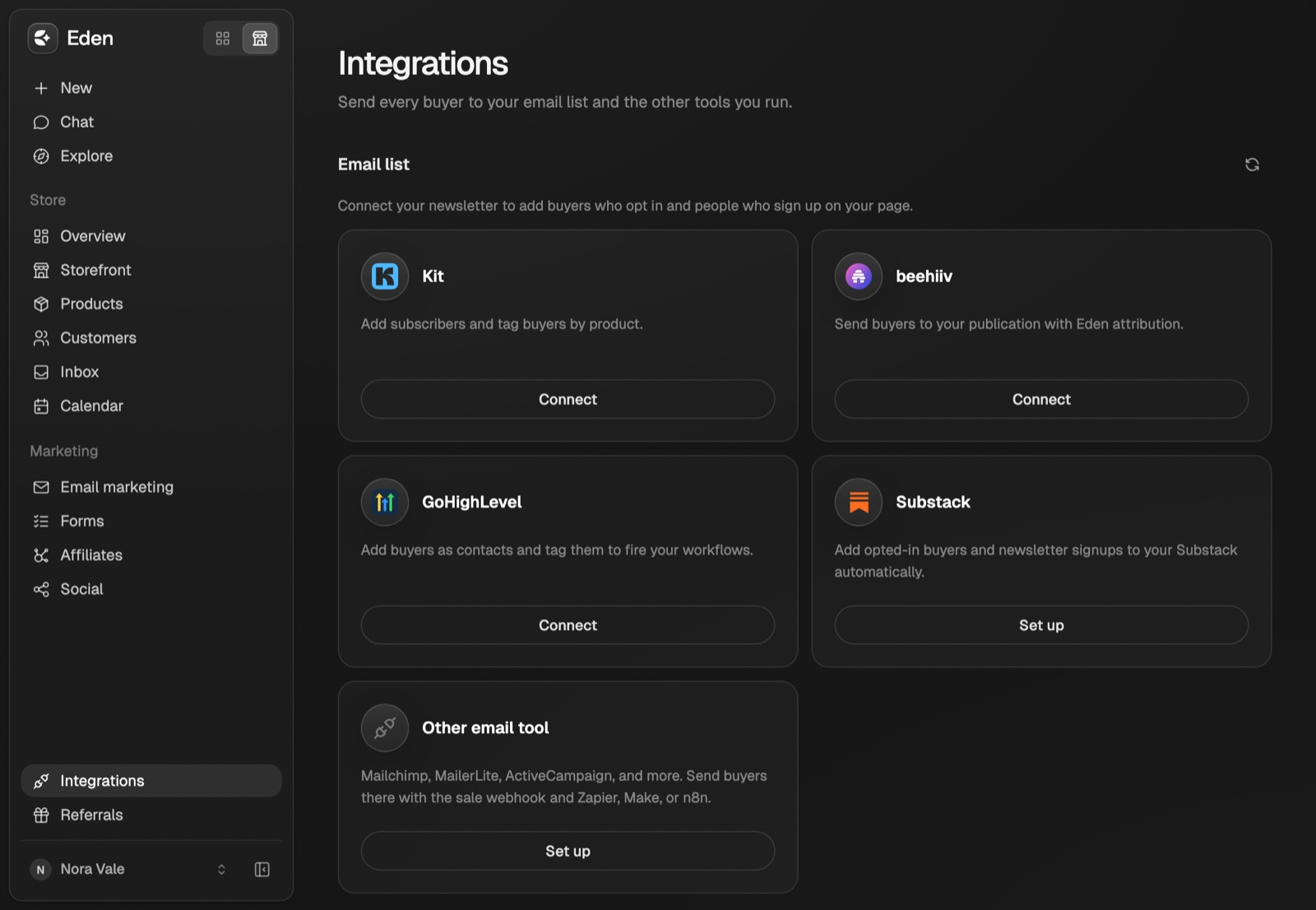
In your store, open Integrations. Under Email list, click Connect on Kit, beehiiv, or GoHighLevel, or Set up on Substack. New buyers and signups land on your list from then on. Needs Starter, Pro, or Max. On other plans you still see every option, and Connect asks you to upgrade first.
Connect Kit, beehiiv, or GoHighLevel
- 01
Open Integrations
In your store, open Integrations and click Connect on your provider.
Integrations sits near the bottom of your store sidebar. - 02
Paste your key
See the table below for what each one needs. Click Continue.
- 03
Pick where subscribers go
Choose the account, publication, or location under Destination. Click Connect and turn on.
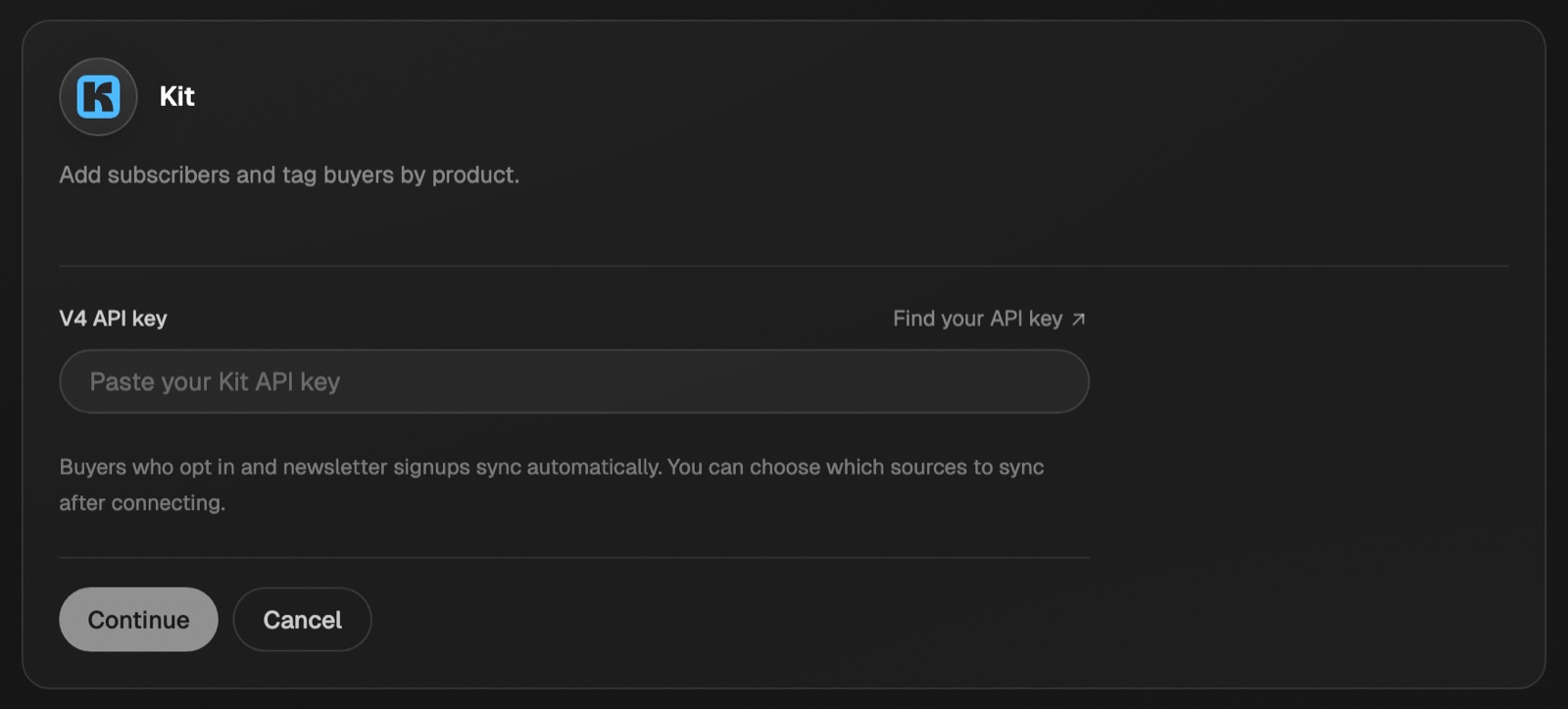
| Provider | What to paste |
|---|---|
| Kit | A V4 API key from Kit's developer settings. Find your API key opens them |
| beehiiv | An API key from beehiiv's integrations settings |
| GoHighLevel | A Private Integration token with contacts read, contacts write, and locations read scopes (Settings → Private Integrations), plus the Location ID (Settings → Business Profile) |
Eden stores the key encrypted and never shows it again.
Choose who goes where
In Integrations, the Who goes where card shows one row per kind of person and one column per list. It appears once you connect an outside list, like Kit, beehiiv, GoHighLevel, or Substack.
| Row | Who it is |
|---|---|
| Buyers | People who paid |
| Free claims | People who claimed a free product |
| Signups | Your page's signup boxes, your newsletter page, forms, and cohort waitlists |
Columns are Eden (your Email marketing list, when it's on), each connected app, and Substack once auto-add is set up. Flip a switch and it saves right away. Example: Signups on for Substack only, Buyers on for Eden only.
Receipts and access emails always send. These switches only decide which lists people join.
Each connection also has Optional tag and Tag each product. Waitlist signups get "Eden waitlist" tags instead, so your buyer automations don't fire for them. Click Save settings.
Send one signup form somewhere else
- Open the Email capture block on your creator page.
- Under Send signups to, the switches show where this form's signups go now. Out of the box, that's your store's Signups row.
- Flip a switch. Only this form changes. Click Use my store settings again to undo.
Every signup is kept in Customers → Newsletter signups, whatever you pick. Changing a switch later never moves people who already signed up.
Send a form's emails somewhere else
Quizzes, applications, and forms can pick their own lists too.
- Open the form in Marketing → Forms & quizzes and click Email ask.
- Under Send signups to, the line on top says Store default and where those emails go now.
- Flip a switch, or click Only Eden email marketing. The line changes to Just this form.
- Click Publish. The new lists apply from then on.
On a form, everyone who gives their email is sent. On a quiz or application, only people who tick the box to get your emails are. Click Use my store settings again to undo.
Tag signups or start a sequence
With Email marketing on, and Eden on for the form, the block also shows:
- Add tags: everyone who signs up here gets these tags.
- Start a sequence: flip on any sequence that starts when someone signs up, or click New sequence for this form. Sequences need Pro or Max.
If the sequence is already on, it starts only for people who sign up after you flip the form on.
Your product page tells buyers "Your email is shared with [your name], who may send you updates." If you turn on Ask for a first name in a product's checkout settings, the name goes to Kit and GoHighLevel too.
Add signups to Substack
Substack has no official way for apps to add subscribers, so the Eden desktop app or Chrome extension does it from your own signed-in Substack.
- Click Set up on the Substack card, then Check Substack account. If you're signed out, click Open Substack to sign in first.
- Pick a publication under Add new signups to.
- Click Add new signups automatically.
New signups are added as free subscribers within about a minute, while the desktop app or Chrome is open. If both are closed, they wait until one opens. Click Manage to see how many were added, or Turn off to stop.
Bring over past buyers
- Kit, beehiiv, GoHighLevel: click Import existing buyers, check the preview, then click Start import. It runs in the background and skips anyone already synced.
- Substack: only new signups are added. Click Export buyers as CSV in the Substack window and use Substack's own import.
If something's not working
- "Need attention" count: reconnect the provider, then click Retry failed syncs.
- Someone didn't get added: people who unsubscribed stay unsubscribed. beehiiv's double opt-in still applies.
- Substack paused: you're signed out, signed in to a different account, or Substack pushed back. Eden shows why and tries again in a few minutes.
A refund, or disconnecting, never removes someone who's already on your list. For Mailchimp, MailerLite, or other tools, use the purchase webhook.
Add buyers to your email list automatically
Send every sale to Zapier, Make, or n8n with the purchase webhook, and add buyers to Mailchimp, MailerLite, or any other list.
Your creator page
The one link for your bio. Show your products and links on a page you control from your store.
Run a cohort
Sell a course in dated runs, or a one-time workshop, with seats, live sessions, and lessons that open on a schedule.
Get answers from the team and other creators.
Ask in the Eden help channel, see how others use the app, and come to the live workshops. Free with any Eden account.
Join the Eden CommunityEmail us. A real person reads every message.
Tell us what you tried and where you got stuck. We answer within one business day.
[email protected]