Your creator page
The one link for your bio. Show your products and links on a page you control from your store.
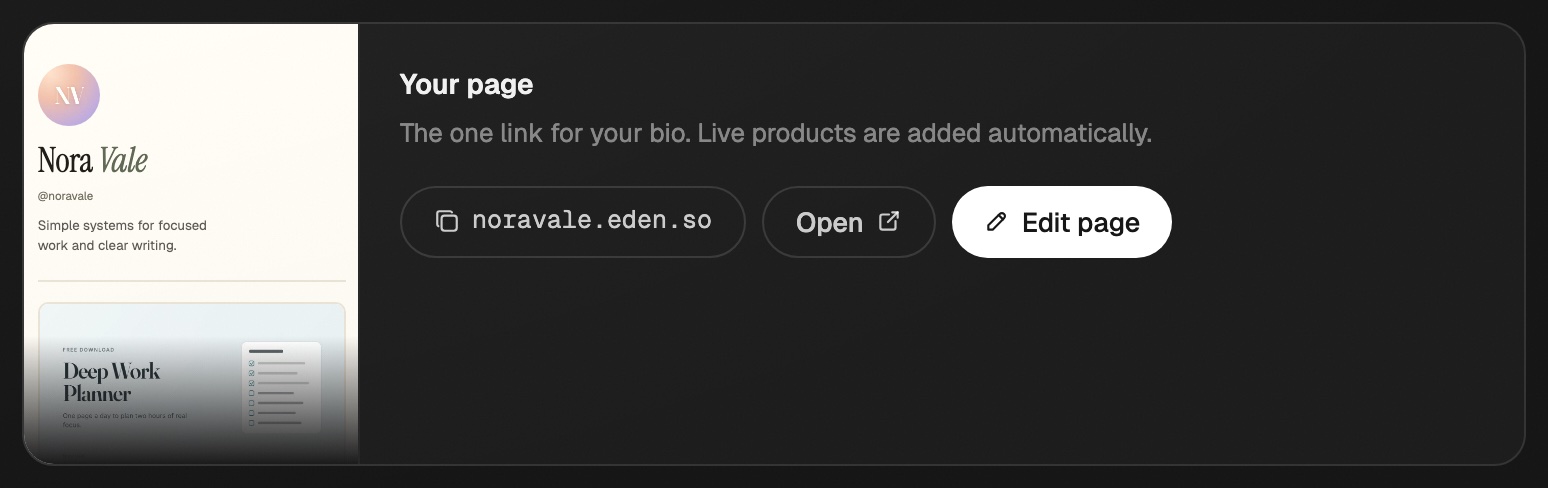
Your creator page is one link for your bio, with your photo, your products, and your links. Open Your store → Storefront and click Edit page on the Your page card.
The page exists as soon as you claim a handle. It's free on every plan. Every product you publish is added to it, and a product you turn off drops off the page. Each workspace's store has its own page and link.
Edit your page
- 01
Open the editor
Go to Your store → Storefront and click Edit page. A live preview sits beside the form. Switch it between phone and desktop.
- 02
Make your changes
Fill in Profile, pick a Look, and arrange your Blocks.
- 03
Save
Click Save or press
⌘ S(Ctrl Son Windows). Nothing goes live until you save. Discard drops your changes.
Set up your profile
- Upload a photo. Square works best.
- Set your name and a bio of up to 200 characters.
- Handle is the name shown under your name. It can differ from your store handle.
- Add social links: X, Instagram, YouTube, TikTok, LinkedIn, Threads, Substack, or a website.
Pick a look
Look sets the design for the whole page. Then pick an accent color, or click Match product to use your products' color.
| Look | What it looks like | What the accent colors |
|---|---|---|
| Studio | Dark, soft glow, pill buttons | Buttons and the glow |
| Paper | Warm paper, serif name, ink buttons | Highlights and your last name |
| Poster | One bold color, hard shadows, big type | The whole page background |
| Retro | Sand and brown, chunky serif, offset shadows | Buttons and card shadows |
| Synthwave | Deep night, neon edges, wide uppercase type | The neon. Pick something bright |
| Minimal | White, hairlines, nothing extra | Small highlights only |
| Bloom | Soft blush, italic serif, rounded and airy | Buttons, glow, and card shadows |
| Aurora | Glowing color wash, frosted glass cards | The colors in the wash |
| Editorial | Magazine page, big serif name, ruled rows | The rule over a row you point at |
Your product and bundle pages
New products and bundles wear your store's look too: its fonts, button shape, and card style. Each look pairs its heading font with an easy-to-read body font. The background stays plain light or dark.
To change one, open it, go to Page, and pick a Style under Look: Match store, one look for that page only, or Classic. Products and bundles made before October 2, 2026 stay Classic until you pick a style. If you picked your own Type, it keeps the fonts.
Add blocks
Click Add block and pick a kind. Drag a block's grip to move it. The switch on each row hides it without deleting it. Click a row to open its settings.
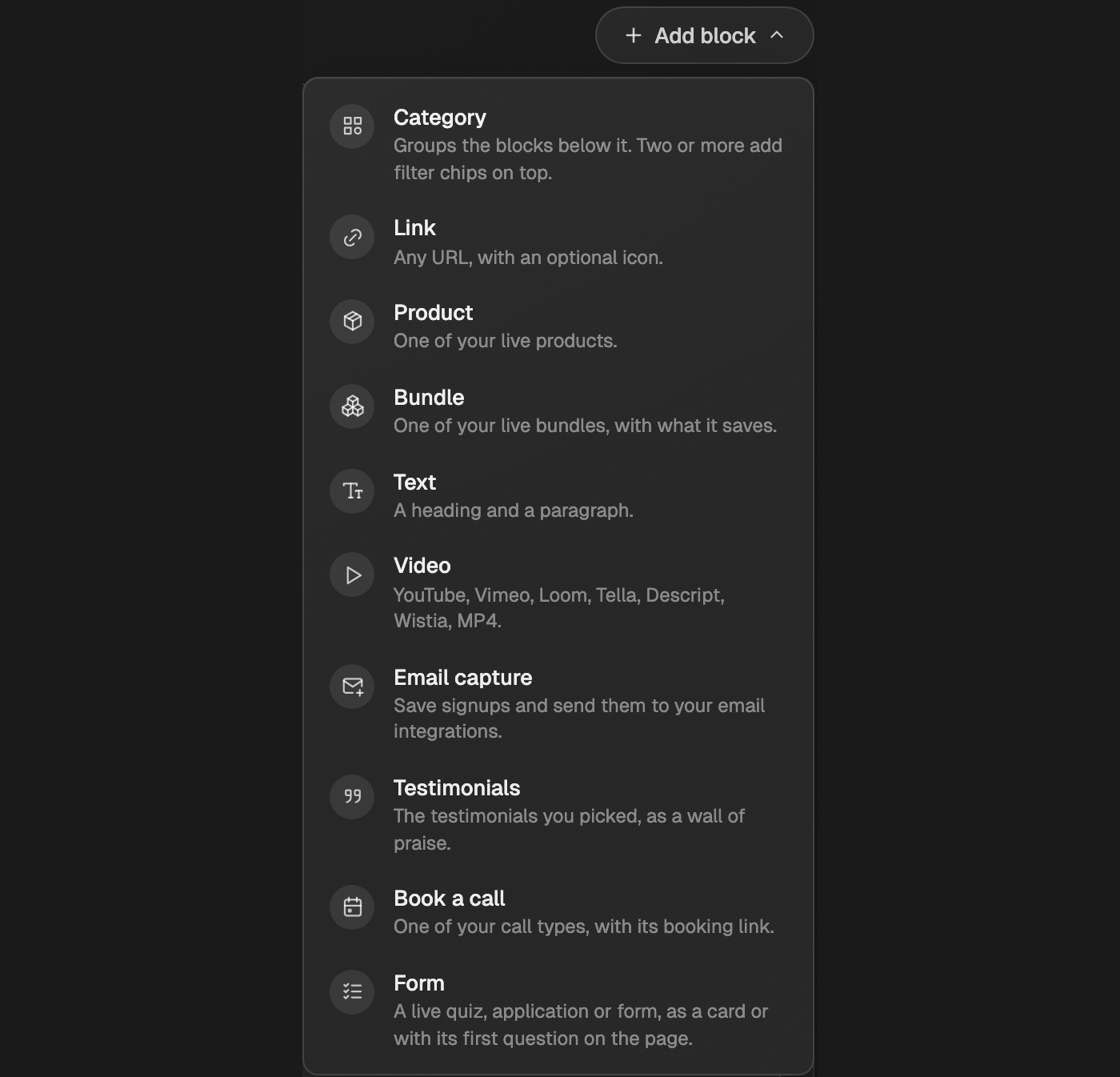
| Block | What it shows |
|---|---|
| Link | A title and a URL starting with https://, with an optional note and icon |
| Product | One of your live products, with a button to its page |
| Bundle | One of your live bundles, with its price and what it's worth crossed out |
| Text | A heading and a short paragraph |
| Video | A YouTube, Vimeo, Loom, Tella, Descript, Wistia, or MP4 link |
| Email capture | An email box and a subscribe button |
| Newsletter | A signup and your latest issues, from Eden, Substack, or both |
| Testimonials | The testimonials you picked, as a grid, a row, or big quotes |
| Book a call | One of your call types, with its booking link |
| Form | A live quiz, application, or form, as a card or with its first question |
| Category | A named group for the blocks under it, like "Free guides" or "Courses" |
Every block can have a small Label above it, like "Course" or "Free".
A Testimonials block shows the ones you clicked Add to page on. See Collect testimonials.
A Bundle block lists only live bundles. Bundles don't join the page on their own, so add each one here. See Sell a bundle.
Form shows once you have a live form (Starter and up). Pick Card, First question, or Like a product so it sits in your product list. See Build a form.
Show your newsletter
A Newsletter block shows a signup and your latest issues. Open it to set it up:
- Eden newsletter picks your Eden newsletter. Its signup box adds people to it.
- Substack takes your publication's address, like you.substack.com. It shows your latest posts and links to them. Paid posts stay on Substack.
- With both, issues from each show together, newest first.
- Recent issues sets how many show, up to 6. Signup turns the email box or Substack Subscribe button on or off.
See all issues goes to your newsletter page, or to your Substack archive.
Group your page into categories
Add a Category block for each group, name it, then drag blocks under it.
- Every block below a category, up to the next one, is in it. Blocks above the first category stay on top.
- Visitors see the category's name and how many blocks it holds. They tap it to fold or unfold it.
- Turn on Start folded to show only the name and count until someone taps it. Good for a long list of freebies.
- With two or more categories, a row of buttons shows at the top: All, then one per category. Tapping one shows only that category.
A category with no name, or nothing in it, doesn't show on your page.
Change how a product looks
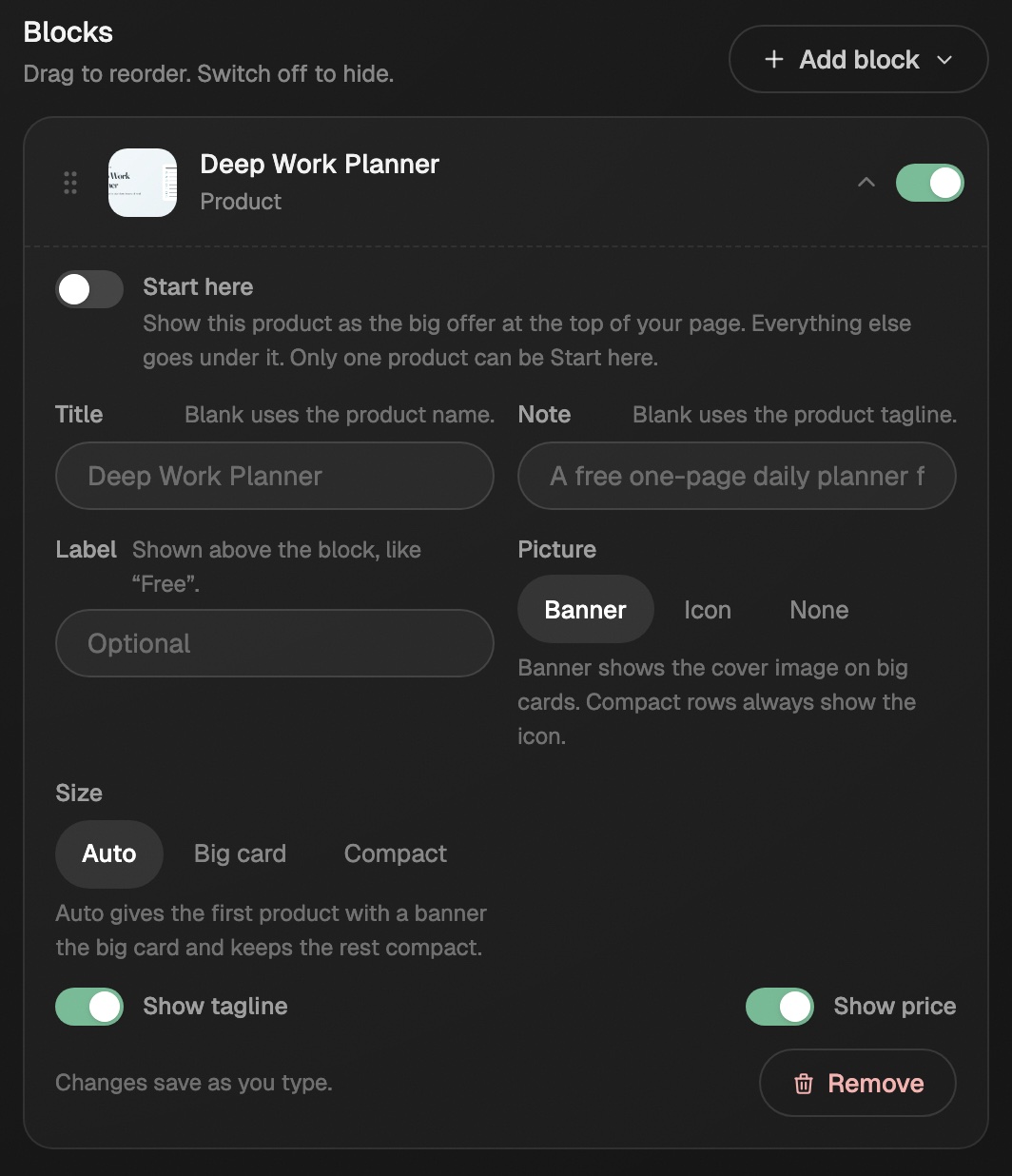
Open a Product or Bundle block to change it on this page only:
- Title and Note replace the product's name and tagline.
- Picture shows the Banner, the Icon, or None.
- Size is Auto, Big card, or Compact.
- Show tagline and Show price turn those on or off.
Put one product first
Turn on Start here in a Product block to make it the first thing visitors see.
- It shows as a full card at the top: cover, title, tagline, price, and one big button.
- The first 3 lines of the product's What's included list show on the card, the same lines its own page shows. Turn that list off on the product page to hide them here too.
- Your header shrinks to your photo and name on one line, so the offer fits on a phone screen.
- Everything else moves under "More from" your name, with your bio.
Only one product can be Start here. Turning it on for one turns it off for the others. Leave it off everywhere to keep your page as a list.
Help your page sell
Two switches under Selling are on for every page. Turn either one off there.
| Switch | What visitors see |
|---|---|
| Ratings and buyer counts | Stars and "2,400 people have it" on your products, plus one short 4 or 5 star review on the big cards |
| Welcome back | On a return visit, the product they opened last moves to the top under "Still thinking about it?" |
Ratings show once a product has 3 or more, and buyer counts once 25 or more people have it. If you turned off reviews or the buyer count on a product's own page, your creator page hides them too.
Welcome back shows for 14 days, on two return visits at most.
Collect emails
Every signup from an Email capture block, or a Newsletter block's email box, is saved in Eden. Kit, beehiiv, GoHighLevel, and Substack get new signups on their own once connected (for Kit, beehiiv, and GoHighLevel, turn on Newsletter and waitlist signups in the connection). A webhook gets them too, if you set one up. See Connect your email list.
Change the picture when you share your link
Share image, its own section just below Look in the editor, is what X, Threads, iMessage, and Slack show when you share your page link.
- By default it's a card made from your saved page, in your look: your photo, name, handle, bio, and up to three of your products. With no products, it shows your links instead.
- Click Upload your own to use your own picture. 1200 by 630 works best. Other sizes get cropped to fit.
- Click Use the page card to go back to the default.
Changes show after you Save. Apps like X and Threads keep their old copy for a while, so a new picture can take time to appear there. Each product link keeps its own preview, the product's cover image.
Hide your page
Under Visibility, turn on Hide page. Visitors see "This store isn't open yet! Come back soon!" in your store's look, with nothing else from your page. Your product links still work.
The Built on Eden badge at the bottom links to Eden with your referral code. It also shows on your call booking pages and in the footer of your product pages. Turn it off under Visibility, and it goes away everywhere.
Make a link for each video or post
A content link opens your page with one product up top, matched to the video or post it sits under. Make them in Your store → Marketing → Links. On a content link, its product takes the top spot instead of your Start here product.
See how it's doing
The Your page card on Storefront shows views for the last 7 and 30 days and your three most-clicked blocks. Copy your page link from the same card.
Start selling on Eden
Set up your store, pick what to sell, get paid through Stripe, and run it all from Your store.
Connect your email list to your store
Send your buyers, page signups, and form emails to Kit, beehiiv, GoHighLevel, Substack, or Eden, and pick who goes where.
Content links
Make one store link per video, post, or episode. It opens on the matching product and shows which content made each sale.
Sell a bundle
Sell several of your products together at one price, with their own page.
Get answers from the team and other creators.
Ask in the Eden help channel, see how others use the app, and come to the live workshops. Free with any Eden account.
Join the Eden CommunityEmail us. A real person reads every message.
Tell us what you tried and where you got stuck. We answer within one business day.
[email protected]