Download the Mac app
Install Eden on your Mac, keep it updated, and use the menu bar shortcuts.
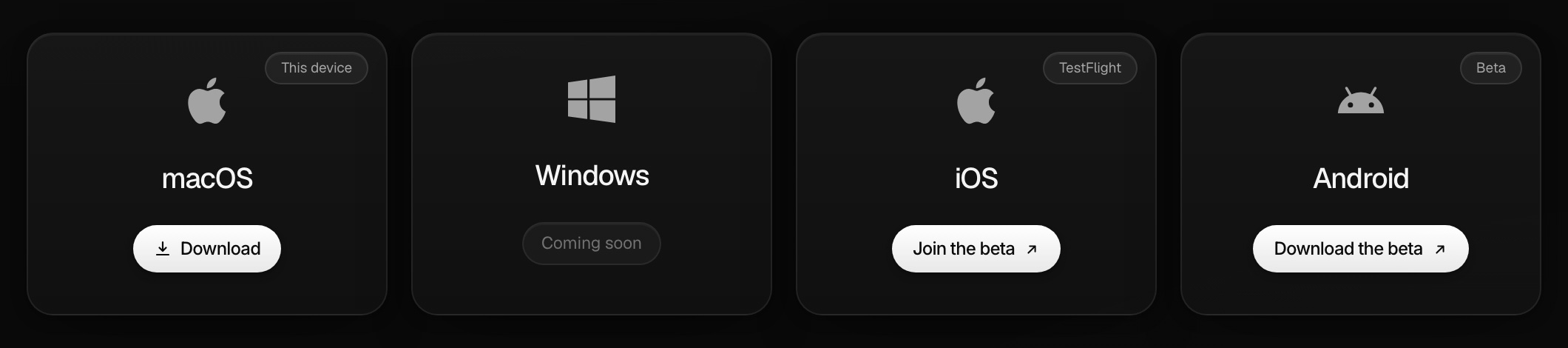
Go to eden.so/downloads, click Download on the macOS card, and drag Eden into Applications. Sign in with your Eden account and everything is already there.
Install it
- 01
Download
Open eden.so/downloads and click Download on the macOS card. You get
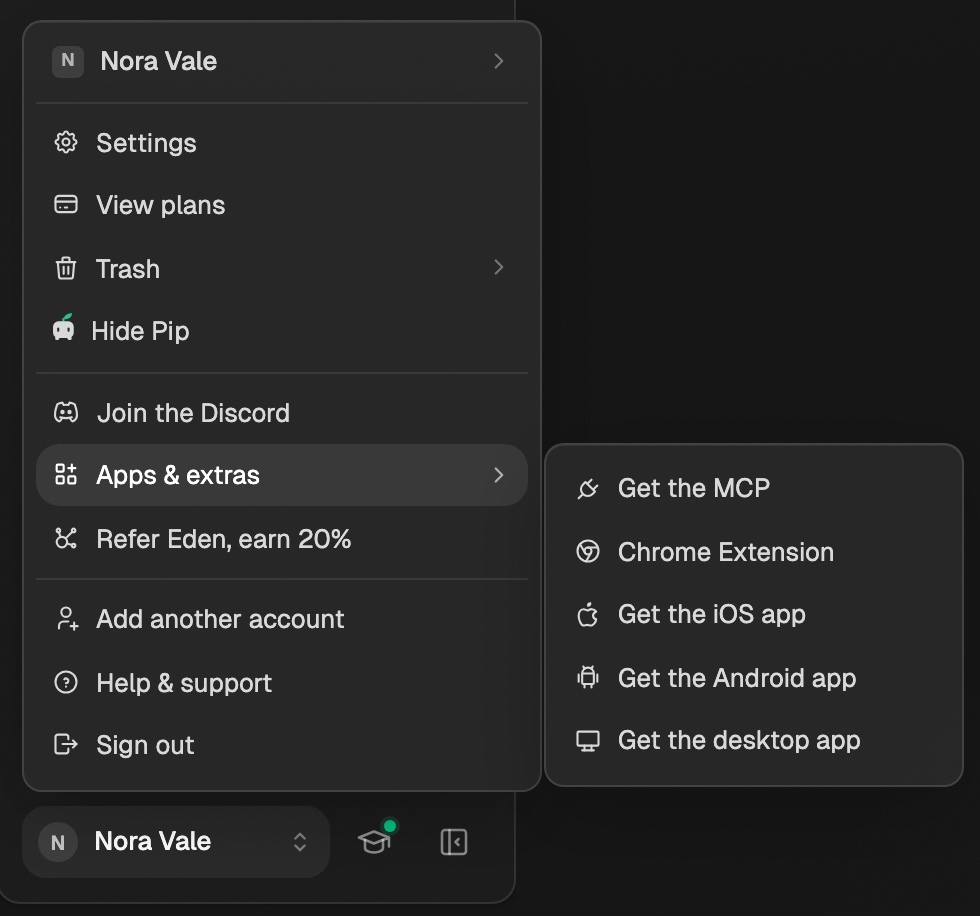
eden.dmg.Already in Eden on the web? Click your name at the bottom left of the sidebar, then Apps & extras → Get the desktop app. It opens the same page.
- 02
Drag Eden into Applications
Open
eden.dmgand drag Eden onto the Applications folder. The app needs to live there to update itself. - 03
Open Eden and sign in
Use the same account you use on the web. Your boards, Library, and chats are already there.
It needs macOS 11 (Big Sur) or later. One download works on both Apple Silicon and Intel Macs.
What the Mac app adds
- Floating windows over any app. Capture, chat, or write without switching to Eden.
- Pop things out into their own window. Click Pop out on a community, a product, a chat, a document, a board, or a table to keep it open beside Eden. In Library, right-click a document or table and choose Pop out in a window. A board's or table's window shows just that.
- Substack without a browser tab. Threads and image notes on Substack post from the app at their time. See Substack scheduling.
- It keeps running when you close the window. Eden stays in your menu bar. Click the menu bar icon and choose Open Eden to bring it back, or Quit Eden to stop it.
Shortcuts
| Do this | Press |
|---|---|
| Floating Capture | ⌘ Shift K |
| Capture Link | ⌘ Shift P |
| Floating Chat | ⌘ Shift C |
| Floating Docs | ⌘ Shift D |
| Open Eden | ⌘ Shift E |
Change any of them in Settings → Shortcuts.
The menu bar menu
Click the Eden icon in your menu bar to:
- Open any floating window.
- See if Substack is connected and when your next note goes out.
- Connect Substack… or Reconnect Substack… when it needs you.
- Open Settings… or Check for Updates….
Updates
- Eden checks for updates when it opens. If one is ready, it installs on the loading screen.
- While it runs, it checks every 15 minutes. A new version shows a toast in the top right. Click Update now.
- If an update fails, download a fresh copy and drag it over the old one. You stay signed in.
Open at login
Eden adds itself to your login items the first time it opens, so it's running when a post is due. To stop that, remove Eden in System Settings → General → Login Items. It won't add itself back.
Other devices
- iPhone: join the beta on TestFlight from the downloads page. See saving from your iPhone.
- Android: get the beta APK from the same page. See downloading the Android beta.
- Windows: a beta installer is on the downloads page. It isn't code-signed yet, so if Windows shows a SmartScreen warning, click More info, then Run anyway.
Quick capture
Save a thought, link, or file in a few keystrokes from anywhere in Eden.
Schedule Substack notes and articles
Connect Substack through Chrome, the Mac app, or your phone, and schedule notes and articles that post on time.
A 5-minute tour of Eden
What Eden is for, what each part of the sidebar does, and the simple loop that ties it together. Read this first.
Get answers from the team and other creators.
Ask in the Eden help channel, see how others use the app, and come to the live workshops. Free with any Eden account.
Join the Eden CommunityEmail us. A real person reads every message.
Tell us what you tried and where you got stuck. We answer within one business day.
[email protected]