Schedule Substack notes and articles
Connect Substack through Chrome, the Mac app, or your phone, and schedule notes and articles that post on time.
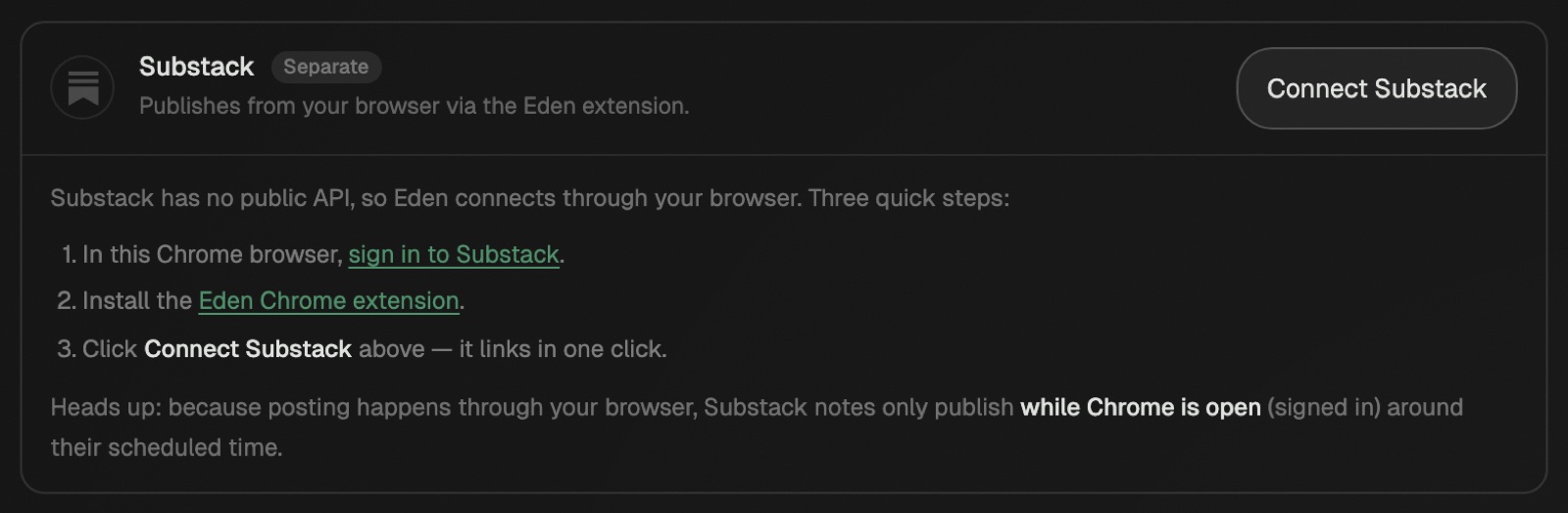
Substack has no posting API, so Eden posts through your own signed-in Chrome, Mac app, or phone. Connect it in Settings → Social accounts with Connect Substack. Most notes and all articles are handed to Substack's own scheduler, so they go out even with your devices off.
Connect Substack
- 01
Sign in to Substack in Chrome
Open substack.com in Chrome and sign in.
- 02
Install the Eden extension
Add it from the Chrome Web Store in that same Chrome.
- 03
Connect
In Eden, go to Settings → Social accounts and click Connect Substack. It links in one click.
Other ways to connect:
- Mac app: click Connect Substack in the same place. Sign in to Substack in the window that opens, then click I've signed in. No Chrome needed.
- Phone (beta): in the Eden iPhone or Android app's scheduling settings, tap Connect next to Substack on this phone. Phones hand off text notes and articles.
Connect a second Substack account
Each workspace connects one Substack account. To use a different account in another workspace, like a client brand, connect it in the Mac app. The Mac app keeps a separate sign-in for each Substack account and posts each workspace's notes and articles from the right one.
- 01
Open the workspace
In the Mac app, switch to the workspace that needs its own Substack account.
- 02
Add the account
In Settings → Social accounts, click Add another account on the Substack card. Sign in to the other Substack account in the window that opens, then click I've signed in.
- To use an account the Mac app already has, click Use @yourhandle instead.
- Needs macOS 14 or later. On older Macs the app holds one Substack account.
- Chrome and phones hold one Substack sign-in each. They show a note pointing to the Mac app when your Substack is already connected in another workspace.
- Opening the Substack window doesn't connect whoever is already signed in there. To reuse that account on purpose, click Use @yourhandle here anyway.
How each post goes out
| What you schedule | How it posts |
|---|---|
| Text note | Handed to Substack's scheduler, up to 7 days ahead. Posts with your devices off. |
| Note with images | Handed off by Chrome with the extension. If only the Mac app is on, it posts live. |
| Thread of notes | Posts live at its time. Chrome or the Mac app must be on within 10 minutes. |
| Article | Handed to Substack's post scheduler. Posts with your devices off. |
- A note that's been handed off shows On Substack in Publish → Scheduled.
- Not on Substack yet means it's waiting. Eden hands off a few upcoming notes at a time. Open Chrome or the Mac app to sync it.
- A note scheduled less than 5 minutes out posts live instead.
- If nothing is on for a live post, it doesn't post late. It goes back to your drafts with a warning.
Edit or cancel a scheduled note
- Edit it in Eden and save. The change reaches Substack the next time Chrome or the Mac app is on.
- In the last 5 minutes before its time, a handed-off note is locked. You can't change or cancel it from Eden.
Schedule an article
- 01
Switch to Article
In Publish, change the composer from Post to Article.
- 02
Pick who gets it
Choose Everyone, Paid only, Free only, or Founding. Send via email and the Substack app is on by default. Turn it off to publish to the web only.
- 03
Schedule it
Pick a time and save. Eden hands it to Substack the next time Chrome, the Mac app, or your phone is on.
To change an article after it's handed off, click Move to drafts. Edit it, then schedule it again.
Notes limits
- Up to about 5,000 characters per note.
- Up to 6 images per note. Video isn't supported.
- No first comment on Substack.
More than one publication
If you run several publications from one Substack account, Eden links your main one first. To post articles somewhere else, open Settings → Social accounts → Substack and pick the publication under Articles post to. Eden keeps that choice when you reconnect. Notes always post to your Substack profile.
Publications on your own domain
Chrome needs a one-time OK before the extension can post to a custom domain. When a post shows Chrome needs access to yourdomain.com, click Grant access, then Allow yourdomain.com. Eden retries stuck posts after you grant access or reconnect.
If a post fails
| Message | What to do |
|---|---|
| Substack note missed its slot | Keep Chrome open with the extension and Substack signed in. Click Publish now. |
| You're not signed in to Substack | Sign in at substack.com in the Chrome with the extension. Click Publish now. |
| Session needs a refresh (Mac app) | In the Mac app, click Reconnect on Substack in Settings → Social accounts. |
| Substack blocked the note | Wait a moment and try again. |
| Publish may have succeeded | Check Substack for the post before you click Publish now, or you may post it twice. |
Use the Substack account you connected on every device. Chrome and phones post with whatever account they're signed into. The Mac app picks the sign-in that matches each workspace's account.
Schedule and publish posts
Write a post in Publish, pick your platforms, then schedule it or send it now.
Download the Mac app
Install Eden on your Mac, keep it updated, and use the menu bar shortcuts.
Scheduling troubleshooting
Fix posts that failed, missed their time, or won't schedule, and accounts that won't connect.
Get answers from the team and other creators.
Ask in the Eden help channel, see how others use the app, and come to the live workshops. Free with any Eden account.
Join the Eden CommunityEmail us. A real person reads every message.
Tell us what you tried and where you got stuck. We answer within one business day.
[email protected]