Set up Eden for your agency
Give each client a private workspace on Agency Lite or Agency, with one bill, shared credits and seats, and your Custom AIs and skills shared or moved in.
On Agency Lite or Agency, make one workspace per client: open Settings → Agency and click New workspace, then pick Brand workspace. Each brand workspace is private but shares your bill, credits, seats, and brands.
Agency Lite or Agency?
| Agency Lite | Agency | |
|---|---|---|
| Credits (shared) | 4,500 a month | 15,000 a month |
| Store fee per sale | 2% | 2% |
| Seats included | 3 | 10 |
| Client workspaces | 5, up to 10 | 25, no limit |
| Social brands | 20 | 50 |
| Free client guests | Yes | Yes |
| Analytics history | 365 days | 365 days |
| Extra seats / workspaces | $15 / $9 a month | $15 / $9 a month |
To get one, book a demo call on the agencies page, or start from the Running an agency? block in Settings → Billing. Both are sold on the web only. Max doesn't include client workspaces. On Max with some from before October 5, 2026? See moving from Max to Agency Lite.
Set up a client
- 01
Create the workspace
In your main workspace, open Settings → Agency and click New workspace. Name it after the client and pick Brand workspace. Separate workspace starts on its own Free plan. Leave Add client starter boards on to get Brand and Scripts boards plus a Research folder with a Hook breakdown table.
- 02
Add your team
Each client has a card in Settings → Agency. Click an Add [name] chip or type an email under Teammates. A teammate uses a seat and sees the client's chats.
- 03
Invite the client as a guest
Under Client guests, pick the boards, type the Client's email, choose Can edit or Can view, and click Invite guest. Guests are free, see only those boards, and never see AI chats.
- 04
Connect the client's social accounts
Switch to the client's workspace and open Settings → Social accounts. See connect your social accounts.
Use your Custom AIs and skills with every client
- Share them: in Settings → Agency, turn on a Custom AI under Shared Custom AIs or a skill under Shared skills. It shows in every client workspace for your team. Edit it once in your main workspace and every client gets the change. Guests never see it.
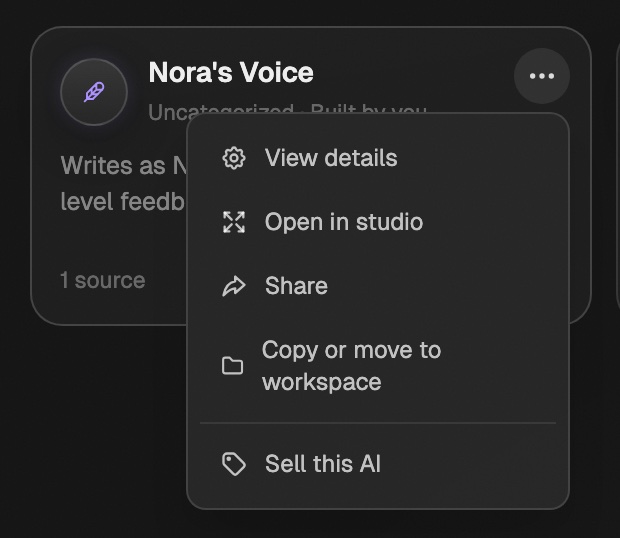
- Copy or move one: open a Custom AI card's ⋯ menu and pick Copy or move to workspace. Move takes it out of this workspace. Old chats with it stay behind.
- Move a skill: in Settings → Skills, open a skill's menu and pick Move to workspace.
Purchased and marketplace Custom AIs, and Custom AIs you sell in your store, can be copied but not moved.
Research a client with the agency skills
On Agency Lite and Agency, every agency and client workspace has three extra skills. Type / in chat to run one:
industry-researchfinds top posts in the client's niche and saves them to the Research board.pattern-sweepsorts a research board into patterns and writes up what to make.hook-breakdownfills the Hook breakdown table, one row per saved post.
See usage and cap a client
Settings → Agency → Usage by client shows the credits each client used from your pool this month and when it last used AI. Click Set cap to stop one client from using more than a set number of credits a month. Once a client hits its cap, its AI stops until the pool resets or you raise the cap.
Move chats and boards over
- Chats: right-click a chat in the sidebar and pick Copy to workspace.
- Boards: right-click a board and pick Duplicate to workspace….
What your client sees
- As a guest: only the boards you shared, under Shared with me. No chats, no other boards.
- As a member: their whole workspace, but never your other clients, your main workspace, or your billing.
Brand workspaces
On Agency Lite or Agency, give each client or brand a private brand workspace that shares your bill, credits, seats, and brands. 5 included on Agency Lite, 25 on Agency, more for $9/month each.
Plans and pricing
What each Eden plan costs, what it includes, and how upgrades, downgrades, and team seats work.
Manage multiple brands
Run separate brands or clients from one workspace, each with its own accounts, schedules, and queue.
Get answers from the team and other creators.
Ask in the Eden help channel, see how others use the app, and come to the live workshops. Free with any Eden account.
Join the Eden CommunityEmail us. A real person reads every message.
Tell us what you tried and where you got stuck. We answer within one business day.
[email protected]