Sell a bundle
Sell several of your products together at one price, with their own page.
A bundle is several of your products sold together at one price, like "All three courses, $149". Buyers pay once and get every product inside. Start in Your store → Products → New product → Bundle.
Set it up
- 01
Publish two paid products first
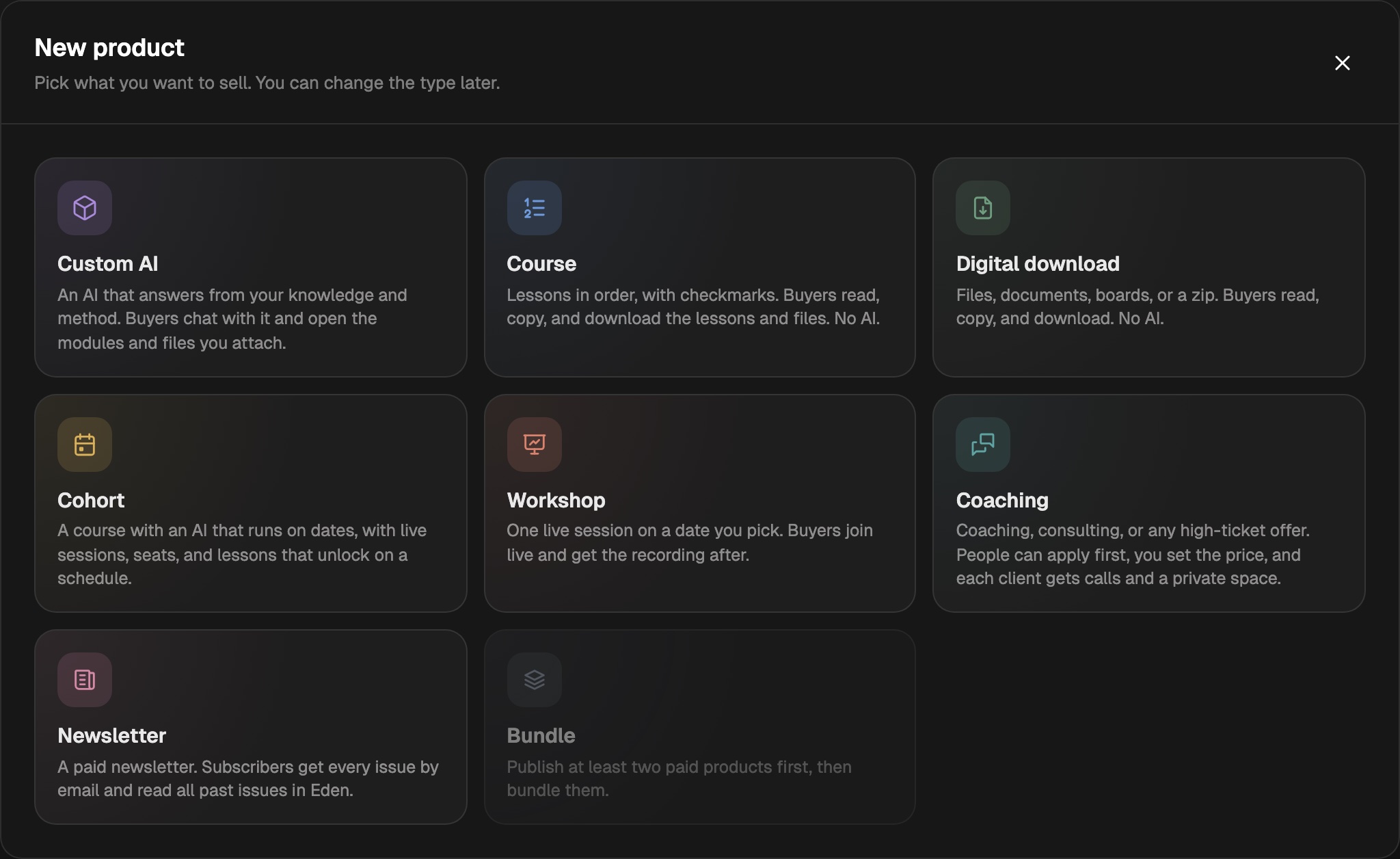
Bundle stays grayed out until you have at least two live, paid, one-time products.
Bundle is the last card in the New product window. - 02
Create the bundle
Open your store, go to Products, click New product, and pick Bundle.
- 03
Pick the products
On the Contents step, click your products to add them. Drag to set the order.
- 04
Price it and publish
Set the Price in USD on the Offer step, fill in the Page step, then click Publish.
- 05
Put it on your store page
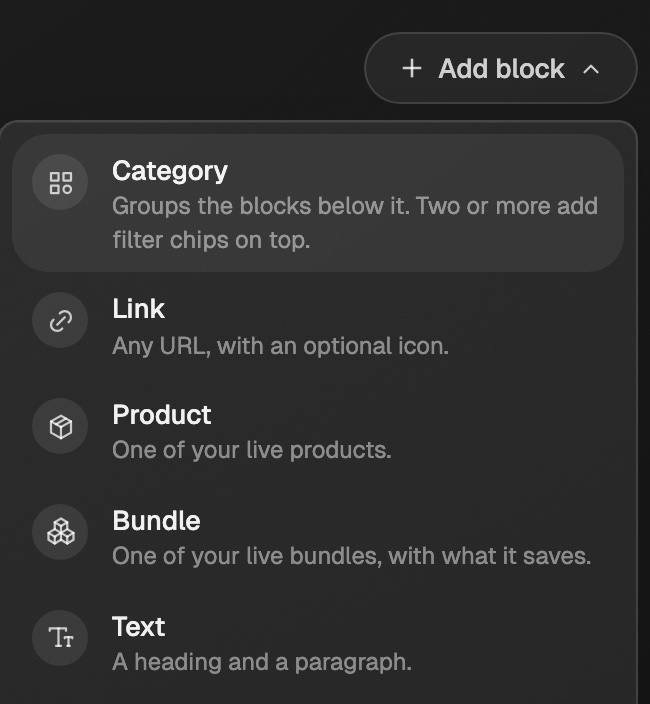
In Storefront, click Edit page, then Add block, pick Bundle, and choose it. Bundles don't join the page on their own.
Settings that matter
| Step | What you set |
|---|---|
| Offer | Title, Tagline, Price in USD, and Was price. Leave the was price empty and it shows what the products cost one by one. You can add the bundle's own order bump, upsell, and Eden offer here. |
| Contents | 2 to 20 products. Each must be paid and one-time. Memberships and free products can't go in. |
| Page | Look, headline, hero image or video, description, questions, and refunds. |
| Publish | A short checklist: a price, and every product inside on sale. Under Share it, copy the bundle's link or click Edit to change its ending. |
Include AI credits
On the Offer step, under AI credits, pick None, 100, 250, 500, or 1,000.
- Each buyer gets them once, when they buy the bundle.
- You pay $0.04 a credit, taken out of the sale. The line under the picker shows the total.
- Credits set on the products inside don't come with the bundle. Buyers get only the bundle's.
- At least one product inside needs an AI chat. Otherwise the picker is locked.
What your buyer sees
- Your page with how much they save and a What's inside list.
- The credits line under the price, if the bundle includes credits.
- After paying, a page called "Here's everything you got" with an Open button for each product.
- Every product in their purchases on its own, on the web and the Eden phone apps.
- One email that lists every product.
- If they already own one, they see "You already own" it. The price stays the same.
Good to know
- Adding a product to a live bundle gives it to past buyers too, free, with a short email.
- Removing a product only affects new buyers. Past buyers keep it.
- Changing the bundle's link keeps the old one working. It sends people to the new one.
- Turn off stops sales. A bundle that has sold can't be deleted.
- To run a sale on a bundle, click Put on sale under Sales on its Offer step. A sale on All products covers your bundles too. Discount codes don't work on bundles.
- A bundle can be the order bump or upsell on another product. If that product is inside the bundle, the price drops by what the buyer just paid, never below $1.
- Products in a live bundle show a Get it in a bundle section on their own page. Turn it off on that product's Page step.
- Refunding one product from a plain bundle sale refunds the whole bundle. Customers warns you first.
- Eden takes the same fee as on any sale: 5%, or 2% on Max and Agency.
- Eden chat and the Eden MCP can build and edit bundles.
Add an order bump
Put a checkbox next to Pay that adds one of your other products to the same payment.
Offer an upsell after checkout
Show up to 3 of your other products right after payment, each added with one click and no second card form.
Start selling on Eden
Set up your store, pick what to sell, get paid through Stripe, and run it all from Your store.
Get answers from the team and other creators.
Ask in the Eden help channel, see how others use the app, and come to the live workshops. Free with any Eden account.
Join the Eden CommunityEmail us. A real person reads every message.
Tell us what you tried and where you got stuck. We answer within one business day.
[email protected]