Add, import, and export store customers
Give one person or a whole list access to your products, move a purchase to another email, see your newsletter signups, and export either as a CSV.
In your store, go to Customers → Add customers. Pick One customer to add someone by email, or Import a list to bring over past buyers. Giving people product access needs Starter, Pro, or Max. Importing a list to your email list only, and exporting, work on every plan. Each plan holds a set number of contacts.
Add one customer
- 01
Open the form
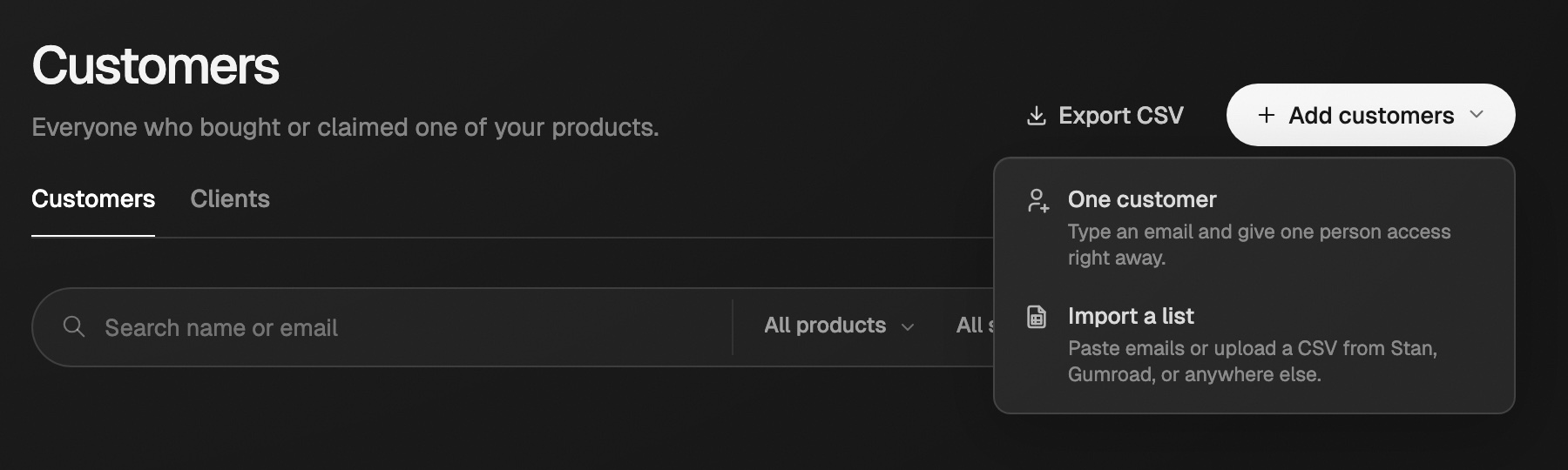
In your store, go to Customers → Add customers → One customer.
Add customers sits at the top right of Customers, next to Export CSV. - 02
Fill it in
Pick a live product and type their email. A first name is optional.
- 03
Add them
Leave Email them their access link on to send it now, then click Add. They get lifetime access right away.
Two shortcuts: Add a customer in a live product's three-dot menu, or Give access to another product on someone's customer page.
- Adding the same person twice never makes a second copy. Eden offers Resend access email instead.
- Access you switched off stays off until you click Turn access back on.
- You can add up to 200 people a day this way.
Import a list
- 01
Pick products
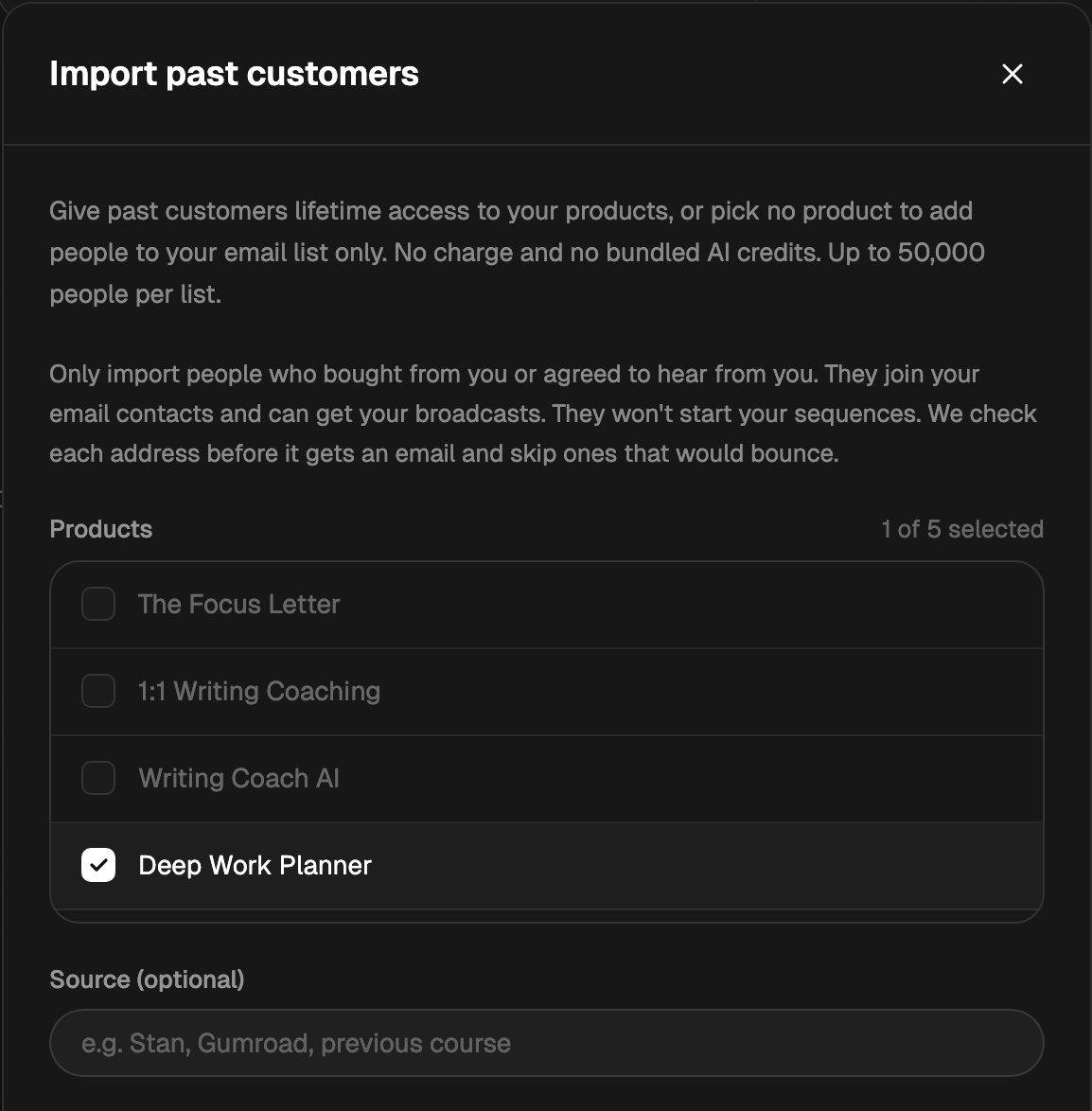
Go to Customers → Add customers → Import a list and tick up to 10 live products. Everyone in the list gets all of them. Tick none to add people to your email list only.
Only live products can be ticked. Drafts stay greyed out until you publish them. - 02
Add your list
Upload a CSV (up to 10 MB and 50,000 people) or paste emails, one per line. Download template shows the format. Check the columns Eden picked, then click Review import.
- 03
Review and import
Check the counts. Tick Send buyer access emails if you want everyone emailed now. Click Import 250 people (your count).
You can close the page once it starts. Eden emails you when it's done. Duplicates, bad emails, and people who already have access are skipped. Access you revoked is never turned back on.
Forgot the emails? Open the finished import under Imports & exports and click Email everyone their access link. Clicking it twice never sends a second copy.
Imported access is lifetime access. It doesn't charge anyone, add past revenue, or include bundled AI credits. You can give imported customers AI credits yourself.
Bring your email list over
Tick no product in step 1, and everyone joins your email list with their tags, phone, and custom fields. No one is emailed. You can import up to the contacts your plan holds.
| Plan | Contacts you can import | Sends a month |
|---|---|---|
| Free, Personal, Plus | 10,000 | Sending needs Starter |
| Starter | 10,000 | 10,000 |
| Pro | 50,000 | 50,000 |
| Max, Agency Lite, Agency | 150,000, or up to 500,000 with a charge | 200,000 |
- Only new people count. People already on your list don't count twice.
- On a Free, Personal, or Plus plan, the product list is hidden. Imports go to your email list only.
- Email is priced by your sends, not your list. Extra sends are only added if you turned them on.
- See Email marketing for sending.
If your list is bigger than your plan
After Eden checks your list, a pop-up shows how many contacts your list will have. Nothing is imported until you choose.
- Free, Personal, Plus, Starter, or Pro: the pop-up names the smallest plan that holds your list. Click Upgrade to Pro (or Upgrade to Max). Then come back and click I've upgraded. Your import waits, so you don't upload the file again.
- Max, Agency Lite, or Agency: past 150,000, each extra 50,000 contacts is $20 a month on your Eden bill. Tick the box to agree, then click Import. You only agree once.
- Over 500,000 contacts: you need a custom plan. Click Talk to us.
Import from Kit, beehiiv, Mailchimp, Substack, GoHighLevel, or Kajabi
Export your contacts from the other tool as a CSV and upload it in step 2. Eden spots where the file came from and picks its columns for you. You can change any pick under Exported from.
- People who unsubscribed, bounced, or never confirmed in Kit, beehiiv, or Substack are left out. Eden tells you how many before you import, and lists them again in the finished import.
- Repeated emails in the file are added once. The finished import counts the repeats too.
- From Mailchimp, upload the subscribed file only. Its unsubscribed and cleaned files are skipped if you upload them.
| Column | Where it goes |
|---|---|
| Email, name | The customer. First and last name columns are joined. |
| Phone | The person's page, under Email list |
| Tags | Tags on your email list. Missing tags are made for you. |
| Custom fields | The person's page, under Email list. Tick the columns to keep, up to 30. |
- Tags are added after access is in. They never start a sequence that runs when a tag is added.
- You can have up to 100 tags. Tags past that are skipped, and the finished import names them.
- IDs, dates, and the other tool's product list start unticked.
- With no product ticked, people join your email list only. They don't get product access, no one is emailed, they count toward your email contacts, and they show under Audience → Subscribers, not Customers.
Add customers from chat
Ask Eden chat, or your AI app through the Eden MCP: "give [email protected] access to my writing course". Chat adds up to 1,000 people to one product at a time. It shows you who gets access first, and asks whether to send the access email. Nothing happens until you say yes. If the list is bigger than your plan holds, chat tells you which plan you need. Upgrades happen in the app.
Move a product to another email
For a buyer who used the wrong email.
- 01
Open the customer
On Customers, click the person. Open the three-dot menu on the product and pick Move to another email.
- 02
Type the new email
Type it and click Continue. Eden shows both emails. Check the spelling, then click Move access.
- The product leaves the old email's Eden account and goes to the new one, with any AI credits it came with that are left.
- Eden emails the new address a link to open it. If that email has no Eden account yet, one is made.
- The new email joins your store email list. The old one stays on it.
- The payment stays the same. No refund is issued and your revenue doesn't change.
- Teammates need Admin store access to do this.
You can also ask Eden chat: "move [email protected]'s course to [email protected]".
Export customers
- 01
Start the export
On Customers, set the filters and search you want, then click Export CSV. The export has only the customers you see.
- 02
Download it
Eden emails you when it's ready. Follow the link, or open it under Imports & exports, and click Download CSV. The link works for 7 days.
The CSV has email, name, product, source, access, payment, amount paid, and date added. A customer who has two products shows up twice.
Export only some people
Tick the box next to each person, then click Export N selected. The file downloads right away. Your picks stay ticked as you change pages, and clear when you change a filter. The box at the top ticks everyone on the page.
Ticked people can also be tagged, emailed, noted, or given AI credits at once. See Sort, tag, and act on your customers.
See your newsletter signups
On Customers, set the source filter to Newsletter signups. You see everyone who signed up with a signup box on your page or on your newsletter page, plus people who gave their email on a form or ticked "Send me emails" when booking a call or finishing a quiz.
- Each person shows once, with the block, call, or form they used most recently.
- Open someone to see Form answers: each quiz, application, or form they took, with their result and answers.
- Customer means they also bought or have access.
- Click Export CSV to download the list right away. It follows your search. Tick people first to export only them.
To send signups to Kit, beehiiv, GoHighLevel, or Substack, see Connect your email list to your store.
Sort, tag, and act on your customers
Find the right customers with ready-made views, tags, and sorting, then tag, email, note, or give credits to many people at once.
Give your customers AI credits
Top up a customer's AI credits from your store, at $0.04 a credit on your Eden card.
Start selling on Eden
Set up your store, pick what to sell, get paid through Stripe, and run it all from Your store.
Use a course or Custom AI you bought
Open your purchase, read lessons, chat beside them, change the reading font and size, and know what happens when your credits run low.
Get answers from the team and other creators.
Ask in the Eden help channel, see how others use the app, and come to the live workshops. Free with any Eden account.
Join the Eden CommunityEmail us. A real person reads every message.
Tell us what you tried and where you got stuck. We answer within one business day.
[email protected]