The complete Eden walkthrough
The full video tour of Eden, plus a written version you can skim. Library, Discover, boards, Custom AI, MCP, publishing, and selling in one place.
Watch the video, or skim the notes below. The first 18 minutes are a quick start. The rest is the deep tour, one part of Eden at a time.
The quick start (0:00 to 18:00)
- 01
Save ideas without organizing them
Capture text, paste a link, or share from your phone. It all lands in your Library, where Eden tags it and links related items for you.
- 02
Find proven ideas in Discover
Browse 3M+ top posts from X, Threads, YouTube, Substack, Instagram, TikTok, and LinkedIn, filtered to your niche.
- 03
Write on a board
Save the posts worth studying to a board, then write your newsletter or script right next to them.
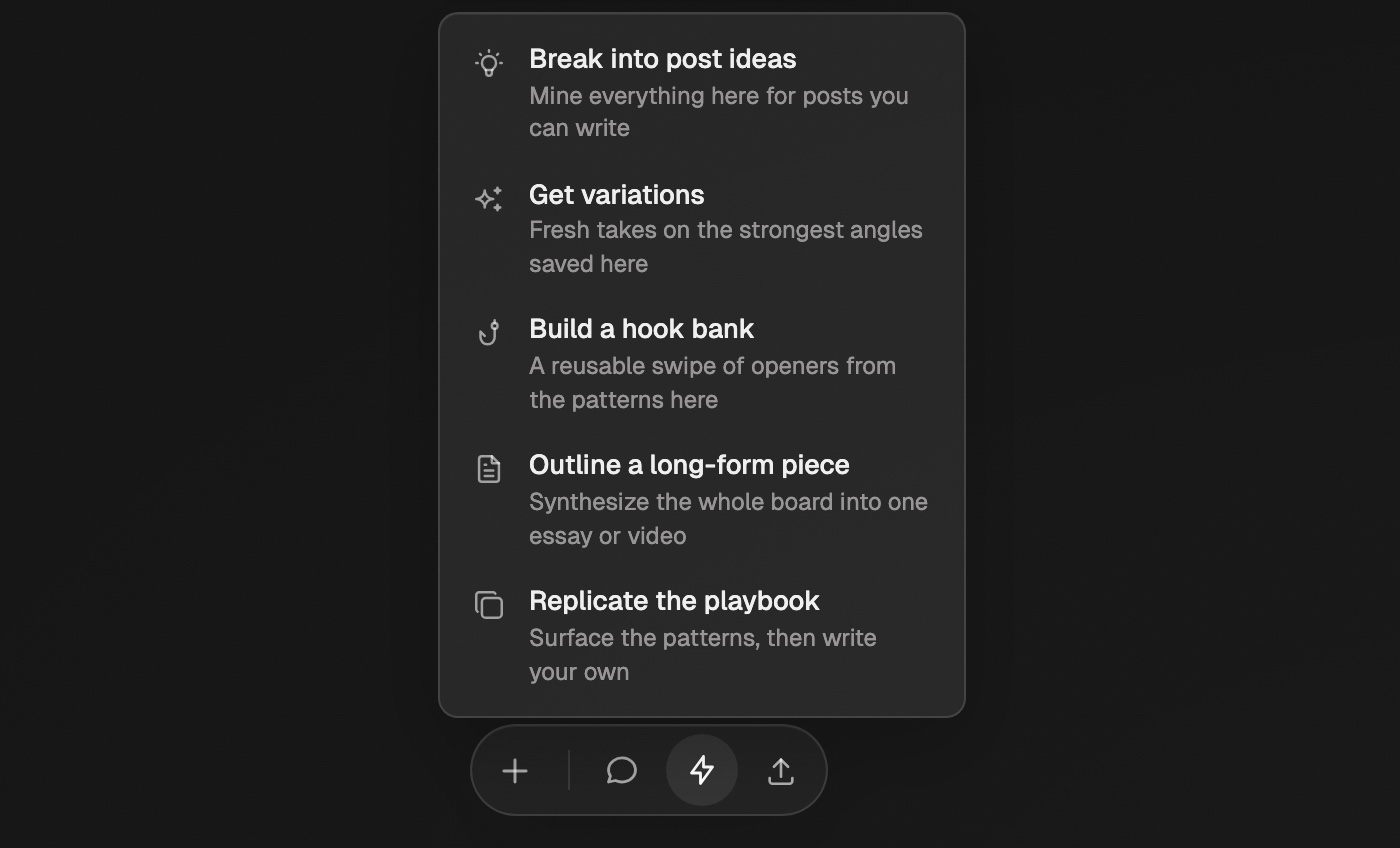
Library: save now, find later
Every item in your workspace lives in the Library. Boards point to Library items, so nothing is copied twice.
- Add anything. Links, documents, cards, and media. Paste a URL with
⌘ V(Ctrl Von Windows) and it saves. - Cards vs documents. A card is a short idea. A document holds a newsletter, outline, or plan.
- Read and highlight. Reader mode works on articles, YouTube transcripts, PDFs, and EPUBs. Each highlight becomes its own item.
- Bring things in. Settings → Integrations connects Readwise, Kindle, Snipd, RSS feeds, X bookmarks, and more. You can also forward emails to your capture address.
- Find it again. Search your Library, or open it in a side pane while you write.
- Views. Grid for browsing, Graph to see how items connect, Index to browse by topic, person, source, or board.
Discover: find what already works
- Tabs: Discover, Creators, Brands, and Lists. Flip Posts / Ads to study paid ads instead of posts.
- Creators: search anyone, sort to their top posts, and add them to a list to read as one feed.
- Chat can search the same posts in ways the feed can't. Ask it for something specific.
- Keyword search works on the $5 Discover plan and on Starter or above. On Personal and Personal Plus you can browse and filter. Free shows the first 8 posts.
The reverse-engineer trick:
- 01
Find a post that performed
It doesn't need to be in your niche.
- 02
Boost it and pick Reverse engineer
Eden breaks down the hook, the structure, and why it worked.
- 03
Ask it to interview you
Have it pull your own ideas out of you, then apply that structure to your outline.
You keep the packaging that worked and put your own idea inside it.
Boards: swipe file and writing desk
- Swipe file: one board per platform. Save what inspires you and chat with the board later.
- Writing desk: one board per week. Brain dump, research, and the draft sit together. The newsletter becomes the video script, and short posts come out of both.
- Views: Grid, List, or Freeform. Group boards with New folder.
- Panes: open anything in a side pane to write with research and chat beside you. In
⌘ Ksearch, hold⌥when you pressEnterto open a result in a pane. - Freeform: drag items anywhere and double-click a document to write in place. Drag from an
item's connection dot to empty space to start a chat that already sees it. Hold
⌘while dragging to snap to the grid. - Done writing? Use Schedule or Send to scheduler drafts on the document.
Custom AI: focused research tools
A Custom AI is instructions, knowledge, and creator sources in one focused AI. It answers from sources that know the subject, not from a generic guess.
- Ready-made: browse Custom AI → Explore and add one to your workspace.
- Builder (recommended): click Build a Custom AI and describe what you want. It asks questions and sets it up.
- From scratch: Build from scratch, if you know exactly what you want.
- Knowledge: creators, boards, documents, YouTube links, PDFs, EPUBs, images, audio, and video.
- Creators as sources: learn their thinking, or write in their style.
- Share: click Share for a link. With your referral link on in Your store → Refer & earn, you earn from people who sign up through it. See Your referral link and earnings.
Eden MCP: all of this inside Claude
The MCP connects Eden's research, saved items, Custom AIs, and scheduling to Claude, ChatGPT, or Cursor. It searches all of Discover and can schedule posts.
-
Go to Settings → MCP and click Connect Claude, then approve.
-
Grab a free workflow from eden.so/workflows: Weekly Strategist, Content Command Center, Personal Brand Strategist, Idea Engine, or Head of Content.
-
Paste its setup prompt into Claude. It walks you through the rest.
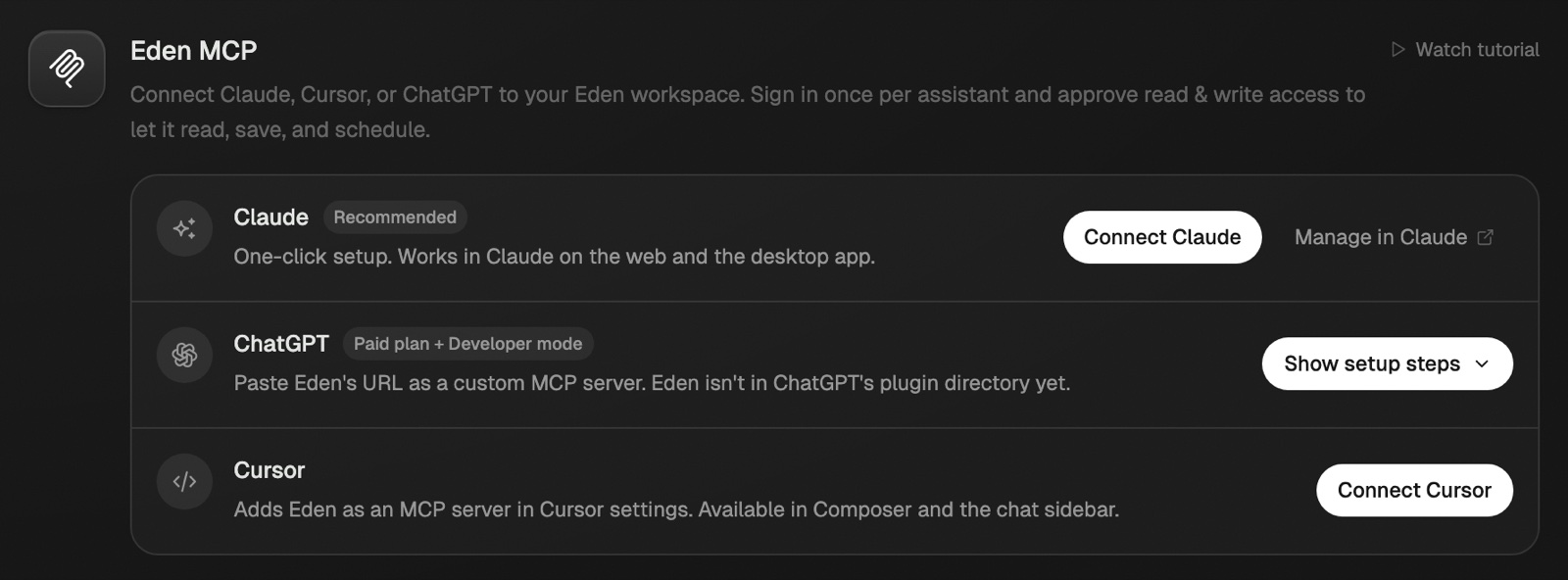
See the Eden MCP quick start.
Publish: schedule to every platform
Connect accounts first in Settings → Social accounts. Publish covers X, Threads, LinkedIn, Instagram, TikTok, Facebook, YouTube, and Substack.
- Brand: a set of social accounts. Two accounts on the same platform go in different brands.
- Schedule: a posting rhythm plus the accounts on it. Group platforms that share content.
- One editor: write once, and it goes to every platform on the post.
- Per-platform edits: change the text under one platform's tab to customize just that one.
- Images: a post with no image or video skips Instagram.
- Extras: auto-repost and a first comment on supported platforms.
- Drafts: ask chat to "add these ideas to my drafts" and they show up here. Rewrite before you schedule.
- Analytics: sent posts show their numbers. Ask chat what to change next week.
- Auto-DM: send a link to anyone who comments a keyword on Instagram.
Sell: your store
Click the Store icon at the top of the sidebar. To go back, click Workspace next to it.
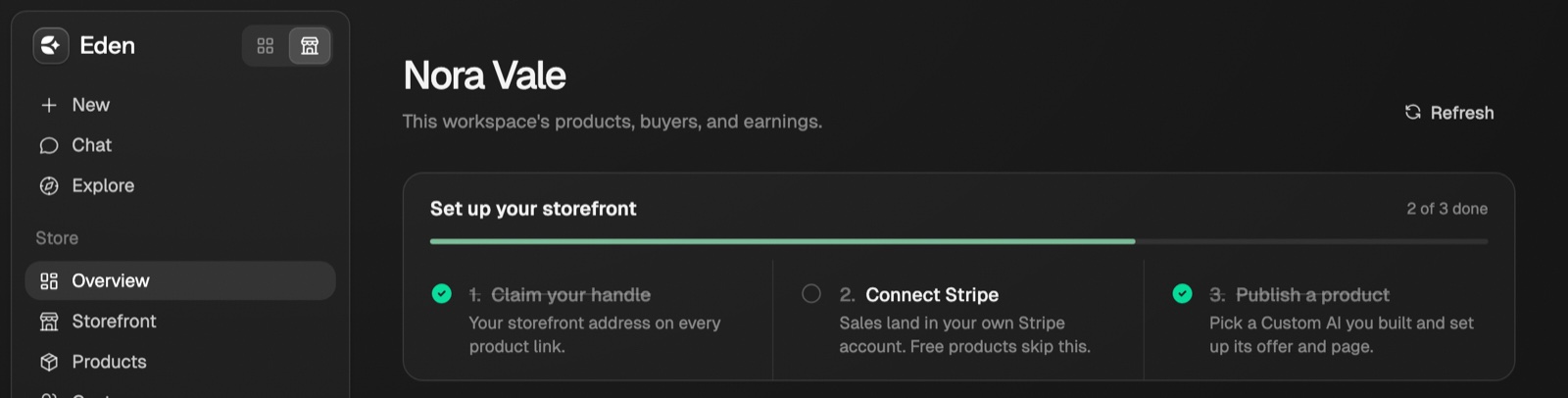
- Sell a Custom AI, a course, a digital download, or a membership.
- Build a creator page, one link for your bio that shows your products.
- See your sales, customers, and reviews in one place.
Start with Sell your Custom AI or Your creator page.
A 5-minute tour of Eden
What Eden is for, what each part of the sidebar does, and the simple loop that ties it together. Read this first.
Creating your first board
Make a board, add your first items, and pick Grid, List, or Freeform view.
What is a Custom AI
An AI you set up once with your own instructions and knowledge, so every chat starts in the right context.
Get answers from the team and other creators.
Ask in the Eden help channel, see how others use the app, and come to the live workshops. Free with any Eden account.
Join the Eden CommunityEmail us. A real person reads every message.
Tell us what you tried and where you got stuck. We answer within one business day.
[email protected]